
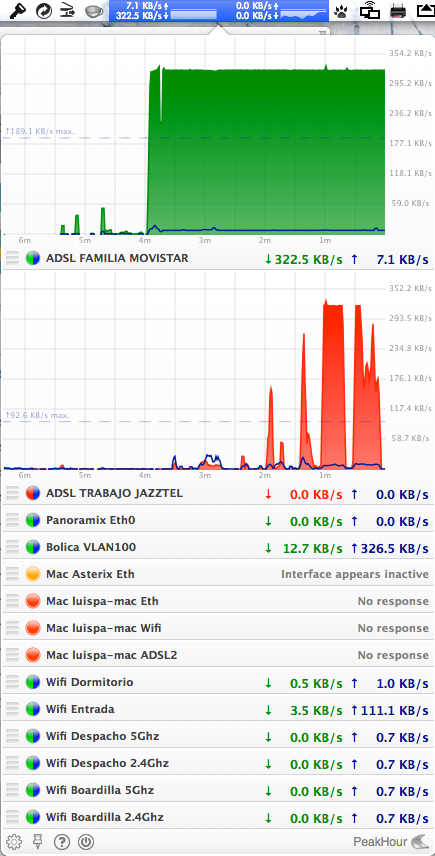
Not long ago I came across PeakHour, a tool that lives in the macOS menu bar with a very pleasant look & feel, capable of visualizing your home network traffic in real time. To achieve this it uses the SNMP protocol — you register all devices that support the protocol and it polls them sequentially, displaying the traffic passing through them.
Network Monitoring
My use case is getting an instant overview of my home network activity. As I mentioned, although not all devices support SNMP, having it configured on the Access Points and the Router makes it ideal for monitoring the Internet or Wi-Fi connection — it can help determine how much bandwidth devices are using at any given moment.
These are the typical places where you’d enable SNMP
- Switches and Access Points
Each one has its own configuration method; the only thing you need to do is “enable SNMP in read-only mode” with the community (password) you choose (the typical one is “public”) so you can query them.
- Apple devices running macOS
To enable SNMP on macOS just do the following: Open a shell with Terminal.app and as root create the snmpd.conf file
$ su -
# cp /etc/snmp/snmpd.conf.default /etc/snmp/snmpd.conf
Edit the snmpd.conf file, these two entries (use the network address that corresponds to your case)
com2sec my network 192.168.1/24 public
rocommunity public
Then tell macOS to start the SNMPD service permanently
# launchctl load -w /System/Library/LaunchDaemons/org.net-snmp.snmpd.plist
- Linux machines
In my case I use the Gentoo distribution, so these are the steps I followed to install and configure SNMP
$ su -
# emerge -v mysql
# emerge -v net-snmp
I edit the configuration file — below is a very basic example, the minimum needed to get it working
agentAddress  udp:127.0.0.1:161
agentAddress  udp:192.168.1.245:161
view   systemonly  included   .1.3.6.1.2.1.1
view   systemonly  included   .1.3.6.1.2.1.25.1
 rocommunity public  default  #  -V systemonly
 rouser   authOnlyUser
sysLocation    En el baul de los recuerdos
sysContact     Me sysServices    72
proc  mountd
proc  ntalkd    4
proc  sendmail 10 1
disk       /     10000
disk       /var  5%
includeAllDisks  10%
load   12 10 5
 trapsink     localhost public
iquerySecName   internalUser
rouser          internalUser
defaultMonitors          yes
linkUpDownNotifications  yes
 extend    test1   /bin/echo  Hello, world!
 extend-sh test2   echo Hello, world! ; echo Hi there ; exit 35
 master          agentx
I enable the service and configure it to start at boot
# rc-update add snmpd default
# /etc/init.d/net-snmp start
- Troubleshooting
If you have problems with the service, either because it won’t start or because you want to see what it’s doing, you can run the daemon in a terminal and “see” everything it does with the following command:
# snmpd -Le -V -f