
In this post I explain how to create a VBA Macro to remove unused slide masters (patterns) from a PowerPoint file, dedicated to my friend Alfonso. :-)
Why do so many masters accumulate in PowerPoint? When we work with presentations from different sources — such as corporate templates, third-party presentations, or when we copy slides from multiple files — PowerPoint automatically imports and keeps all associated design patterns (slide masters), even if we’re not actively using them in our presentation.
The solution is simple: delete the unused ones. But sometimes there are so many master slides that deleting them manually is extremely tedious.
This accumulation of masters can be problematic for several reasons: it significantly increases the file size, makes navigating available designs confusing and cluttered, and can slow down PowerPoint’s performance, especially with large presentations. Additionally, when we share files with colleagues or clients, these unnecessary masters transfer along with the file, perpetuating the problem.
The challenge of manual cleanup: PowerPoint doesn’t offer a native function to automatically remove unused masters. The only way to clean them up manually is to go one by one identifying which are in use and deleting the rest — a process that can be extremely tedious when there are dozens of accumulated masters. This is where VBA (Visual Basic for Applications) automation comes in, allowing us to create an elegant and efficient solution for this common problem.
With a Macro it’s much easier.
Tools->Macro->Macros
- Give it a name: “DeleteMasters” and click Create.
- It launches the Visual Basic editor with an empty macro.
Replace what it presents
Sub BorrarPatrones()

End Sub
- with the following
Sub BorrarPatrones()

' Prepare variables
Dim aPresentation As Presentation
Set aPresentation = ActivePresentation
Dim iDesign As Integer
Dim iLayout As Integer

' Ignore errors when trying to delete and continue. The only
' error I can receive is precisely that it cannot delete
' one that's in use, which is good :), I ignore it and move to the next
On Error Resume Next

' Loop through Designs and their Layouts
With aPresentation
    For iDesign = 1 To .Designs.Count
        For iLayout = .Designs(iDesign).SlideMaster.CustomLayouts.Count To 1 Step -1
            ' Delete the layout
            .Designs(iDesign).SlideMaster.CustomLayouts(iLayout).Delete
        Next
    Next iDesign
End With

End Sub
In the Visual Basic editor toolbar, click “PLAY” to run the macro. Depending on the size of your presentation and the number of master slides, it will finish in a few seconds or minutes.
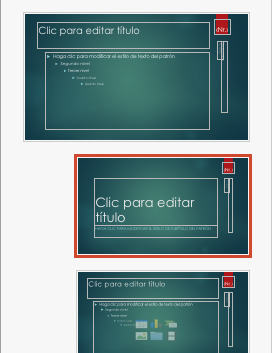
When it finishes, save the file — it will warn that the macro will be lost if you do. Go ahead since we can ignore the Macro; we don’t need it anymore. Reopen the file and you’ll see that the unused masters have disappeared.
This morning I ran it on a 50MB PPT with hundreds of master slides and it took 7 minutes to finish. By the way, it reduced it to 33MB :-)