
Making backups should be mandatory. Unfortunately, most of us have learned over the years that this statement is dead serious. The problem is that doing it is a real hassle, so any program or method that automates it is welcome.
In this article I describe a method for making backups — I documented it because it’s quite simple and works great for me. It consists of waking the Mac every day so it can run its backup. Why don’t I use TimeCapsule/TimeMachine? Because I prefer to back up to a shared NAS drive via SMB, where another machine that isn’t a Mac (a Linux box) also writes.
My method consists of making sure the Mac wakes up at night at 02:00am. I use GoodSync to copy all my directories. I make sure it doesn’t go back to sleep too early — in my case, 45 minutes is more than enough time for my backups to finish.
- I create an Application with
Automatorthat I callAppCaffeinate.app- It runs a script that calls
caffeinate, a small macOS program that keeps the machine awake for 45 minutes.
- It runs a script that calls
- I schedule a daily appointment using “iCal” at 2:00am that simply launches
AppCaffeinate.app. - “GoodSync” runs the scheduled backups precisely at 02:00am. Multiple tasks that copy the day’s changes to the external NAS.
AppCaffeinate.app
I launch Automator, create a new “Workflow.” I drag the “Run Shell Script” action and configure the Shell as /bin/bash and the command as /usr/bin/caffeinate -t 2700 &
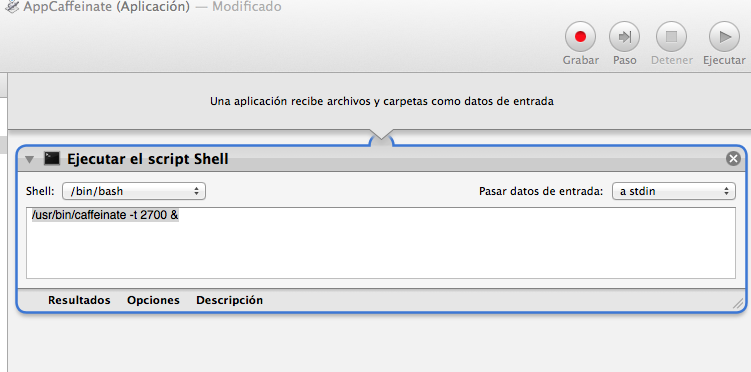
I save it as an Application in a directory within my own user: /Users/luis/priv/bin/AppCaffeinate.app

iCal Configuration
To distinguish it from other calendar events, I create a new calendar called “Wake up,” and add a single event at 02:00 that repeats every day. The duration of the event doesn’t matter — in my case 30 minutes, but just so it looks good on screen. The important thing is the start time.
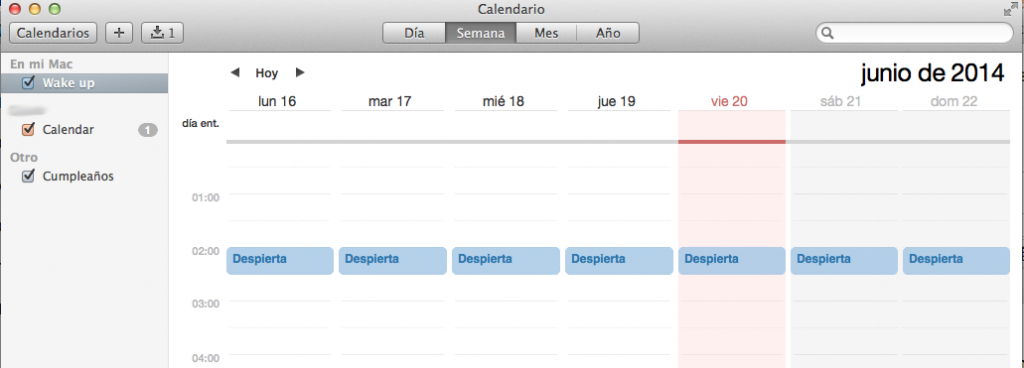
I modify the event’s “Alert,” click “Custom,” “Open File” (run a program), “Other,” and select my Automator-created application: /Users/luis/priv/bin/AppCaffeinate.app
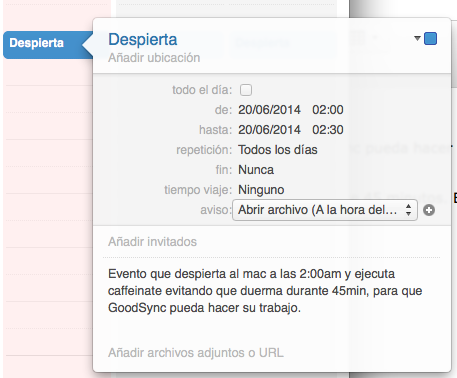
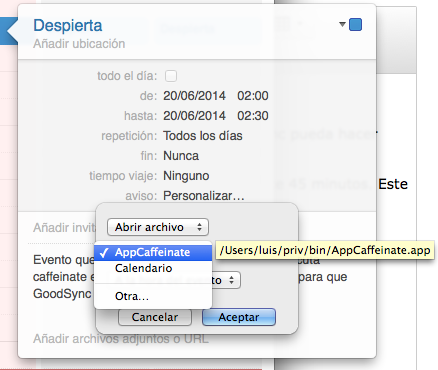
The machine will wake up every day at 02:00 am to run the command /usr/bin/caffeinate -t 2700 &. This keeps it awake for 45 minutes, which is what I need for GoodSync — which is scheduled to start at 02:00am — to complete its incremental backup.
GoodSync Configuration
I won’t document GoodSync here since that’s not the purpose of this article, but it’s quite straightforward. The program lets you create multiple tasks that run daily at a specific time. In my case, I’ve created several tasks, one for each main root directory (for example Photos, Documents, etc.) and I schedule them to do incremental backup (changes only) to a NAS on my home network.
There is a free software alternative, FreeFileSync. I used it for a while but honestly I much prefer GoodSync’s stability and reliability, so one day I decided to purchase a license.