
The IPTV video streams used by Movistar come in two types: regular channels (Multicast/UDP) and video on demand (Unicast/UDP). In this post I describe what needs to be done on the Linux router for Movistar to make “Video on Demand” work. They use the RTSP protocol which requires our router to support Full Cone NAT.
The set-top boxes request videos via RTSP from their control server, but the video is sent from a different server with an unknown IP, so if we do nothing the video traffic will be dropped. Let’s see how to solve this.
Full Cone NAT vs “netfilter rtsp”
There are several types of NAT and describing them is not the purpose here. What you do need to know is that you need Full Cone NAT to watch video on demand. On the original Movistar routers we can see that Full Cone NAT is active on the IPTV interface (vlan2).
As I mentioned at the beginning, the set-top boxes request videos via the RTSP protocol from their control server, but the one delivering the MPEG2(TS) stream is a different server, from a different and unknown IP address to your router, so it will be dropped. That’s where Full Cone NAT comes in. It was developed to solve precisely this problem — identifying video on demand requests (RTSP flows).
How does it work?
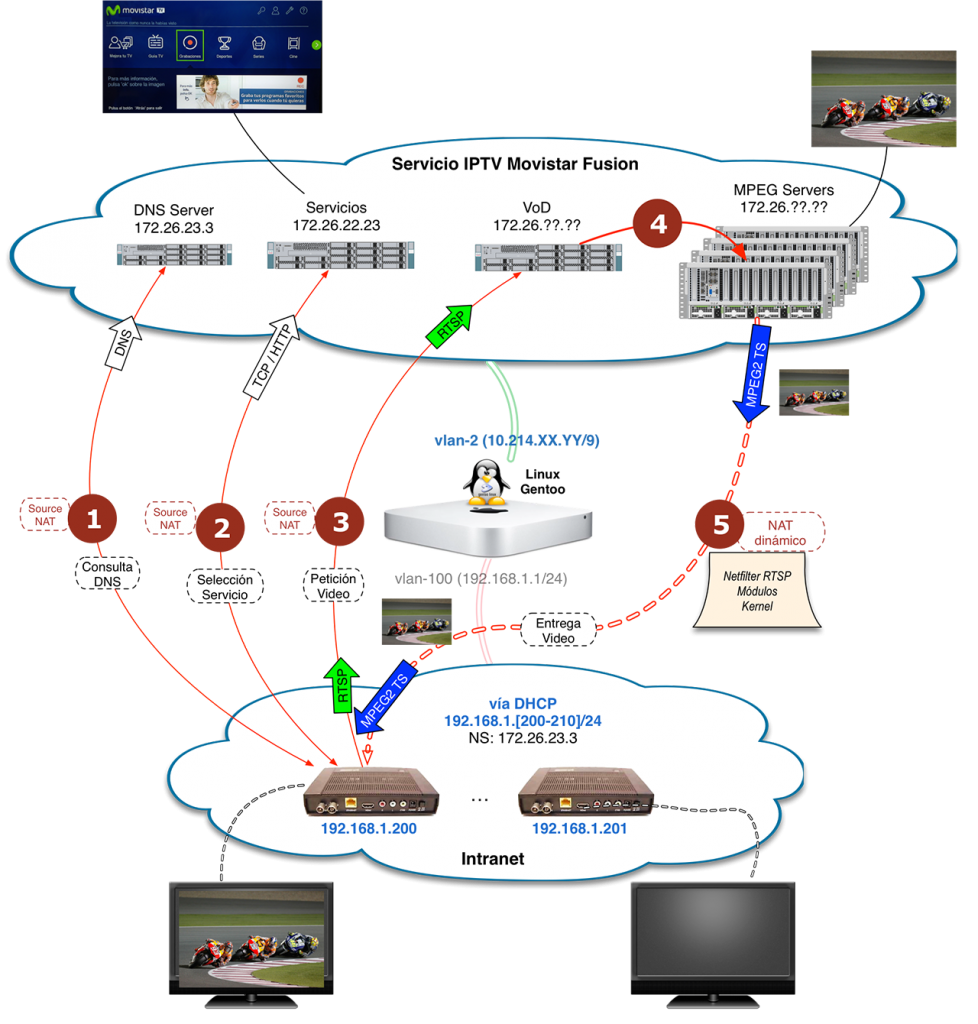
Let’s follow the diagram above, for example by selecting a movie. When you press the “Movistar TV” button on your remote, the set-top box looks for the server that manages the channel guide. The first thing it does is send a query to the DNS Server (1) to ask who manages the guide and menus.
Once it gets the address, it establishes a dialogue with it (2) — that’s where you receive and see the menus on your TV. Navigating the menus and once you select a recording, series, or movie and press “Play,” the set-top box requests the video from a different server that I call the video on demand manager (3) via the RTSP protocol.
It starts with a SETUP packet containing the port number where the set-top box will listen to receive the future video. While the set-top box waits, the video manager requests (4) that one of the servers (which I call MPEG Servers) send the MPEG video stream (5) to the port requested in the SETUP packet.
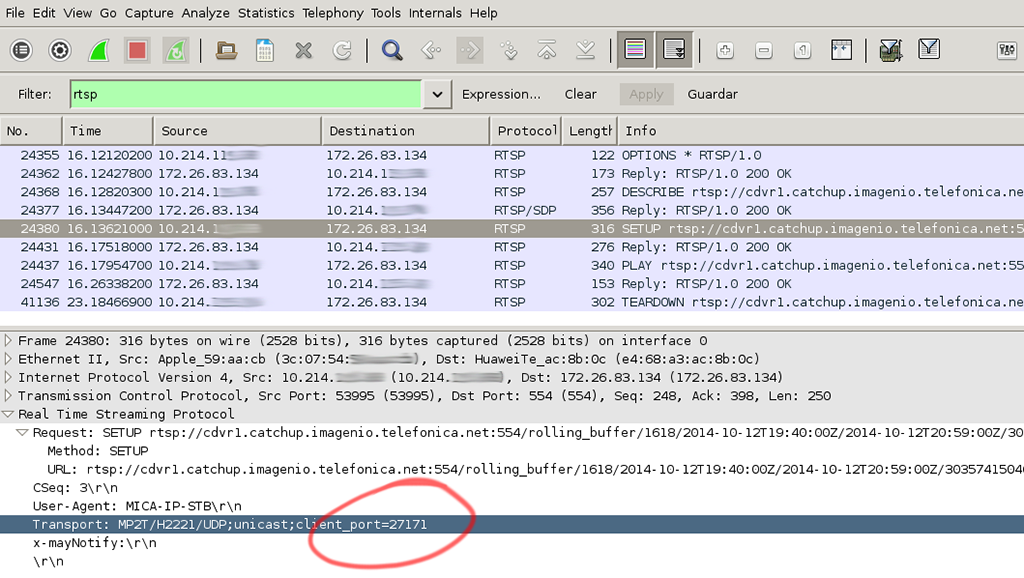
In the capture diagram above we see how the set-top box requests the video to be sent to port 27171. The server that will emit the MPEG stream will be different and will start sending MPEG-2 TS (Transport Stream) traffic in Unicast/UDP mode to the router’s (Linux) visible IP, to the requested port (27171).
For the router (Linux) not to drop the traffic, a DNAT rule must be installed to forward it to the requesting set-top box.
How do I implement it?
In the case of Linux we’ll use netfilter rtsp by installing a small open source piece of software called rtsp-conntrack, adding a small patch needed for it to work correctly. I tested this with kernel 3.17.0 on Gentoo — I downloaded the original sources, patched, compiled, and installed them. I’ve left everything in my rtsp-linux repository on GitHub.
- Module installation — notice I use “debug” when running make. During the testing phase this is important so you know what’s happening (kernel log). Later I recompile without that option.
___DOWNLOAD___
# cd ~/
# wget https://github.com/LuisPalacios/rtsp-linux/archive/refs/heads/master.zip
# unzip master.zip
# rm master.zip
# cd ~/rtsp-linux-master

___COMPILE___
# make debug
:

___INSTALL KERNEL MODULES___
# make modules_install
:
# ls -al /lib/modules/3.17.0-gentoo/extra/
total 36
drwxr-xr-x 2 root root 4096 oct 18 16:37 .
drwxr-xr-x 5 root root 4096 oct 18 16:41 ..
-rw-r--r-- 1 root root 13305 oct 18 16:41 nf_conntrack_rtsp.ko
-rw-r--r-- 1 root root 11369 oct 18 16:41 nf_nat_rtsp.ko
- Load the new module into the Kernel
Once compilation and installation are done, you can load the modules into the Kernel:
# modprobe nf_conntrack_rtsp  (This module runs when "detecting" the RTSP SETUP)
# modprobe nf_nat_rtsp        (This module handles establishing the association (dnat))
Next we need to configure
conntrackto call the kernel modules. There are two ways to do it, depending on your kernel version:Automatic:
sysctl -w net.netfilter.nf_conntrack_helper=1Manual:
iptables -t raw -A PREROUTING -p tcp --dport 554 -j CT --helper rtsp
The automatic method can only be used up to kernel 5, while the manual one works with any kernel. The recommended method is the manual one. In fact, the full recommendation is:
iptables -t raw -A PREROUTING -p tcp --dport 554 -j CT --helper rtsp
iptables -A FORWARD -p tcp --dport 554 -m state --state RELATED,ESTABLISHED
These rules assume the RTSP connection uses TCP and the server listens on port 554 (which is the case). The first command uses the CT target to assign the rtsp helper to incoming RTSP connections. The second command ensures that already established and related connections work through the firewall.
- Go back to your set-top box, enter the Movistar TV menu, find a recording, and press “play” — it should work. You can check with the dmesg command that the association is correct, something similar to the following:
# dmesg
[358463.389458] nf_conntrack_rtsp v0.7.2 loading
[358463.389462] port #0: 554
[359189.716507] nf_nat_rtsp v0.7.2 loading
:
[359263.569596] conntrackinfo = 2
[359263.576080] IP_CT_DIR_REPLY
[359263.583559] IP_CT_DIR_REPLY
[359263.585568] found a setup message
[359263.585577] tran='Transport: MP2T/H2221/UDP;unicast;client_port=27336'
[359263.585596] lo port found : 27336
[359263.585597] udp transport found, ports=(0,27336,27336)
[359263.585600] expect_related 0.0.0.0:0-10.214.XX.YY:27336
[359263.585601] NAT rtsp help_out
[359263.585603] hdr: len=9, CSeq: 3
[359263.585604] hdr: len=25, User-Agent: MICA-IP-STB
[359263.585605] hdr: len=53, Transport: MP2T/H2221/UDP;unicast;client_port=27336
[359263.585606] hdr: Transport
[359263.585608] stunaddr=10.214.XX.YY (auto)
[359263.585610] using port 27336
[359263.585613] rep: len=53, Transport: MP2T/H2221/UDP;unicast;client_port=27336
[359263.585614] hdr: len=14, x-mayNotify:
[359263.624565] IP_CT_DIR_REPLY
[359263.718991] IP_CT_DIR_REPLY
[359263.992779] IP_CT_DIR_REPLY
[359264.285029] IP_CT_DIR_REPLY
Final Installation
Once everything is working, I recommend recompiling without “debug,” reinstalling the modules, and scheduling their loading at boot.
Recompile and install
# cd /tmp/rtsp
# make clean
# make
# make modules_install   (copied to /lib/modules/3.17.0-gentoo/extra/)
:
Note: Remember that if you compile and install a new Kernel, you’ll need to recompile and reinstall these two modules.
Boot loading — on Gentoo, add the following to the /etc/conf.d/modules file (on Gentoo)
:
modules="nf_conntrack_rtsp"
modules="nf_nat_rtsp"
On Ubuntu, add to the /etc/modules file
nf_nat_rtsp
Don’t forget to configure conntrack to call the kernel modules. You have two different ways to do it as we saw above — remember to run it at some point during your system boot:
- Kernel <= 5 :
sysctl -w net.netfilter.nf_conntrack_helper=1 - Kernel >= 6 :
iptables -t raw -A PREROUTING -p tcp --dport 554 -j CT --helper rtsp
Monitoring
Here are some useful commands for monitoring what’s happening:
- See what’s going on (compile with debug option)
# dmesg
- See what UDP flows you have against your fixed IP on vlan 2. Remember to replace 10.214.XX.YY with your IP). On Gentoo, install conntrack tools with “# emerge -v conntrack-tools”
# /usr/sbin/conntrack -L | grep 10.214.XX.YY | grep udp;
- Check if NAT was created toward a specific set-top box IP (.200 in the example)
# netstat -nat -n | grep 192.168.1.200
:
udp 17 29 src=172.26.83.137 dst=10.214.XX.YY sport=48440 dport=27645 [UNREPLIED] src=192.168.1.203 \
         dst=172.26.83.137 sport=27645 dport=48440 mark=0 use=1
:
References
- My rtsp-linux repository.