
GIT is a distributed version control system, and we all know the famous centralization services GitHub and GitLab. I recently came across a promising alternative called Gitea - Git with a cup of tea and decided to install it on a virtual machine.
| You’ll find a couple of posts about GIT on my blog — I recommend GIT in Detail and the GIT Cheat Sheet. Later I wrote a post about how to install Gitea and Traefik on Docker. |
Introduction
GitHub doesn’t allow it, but GitLab and Gitea let you install your own private server on premise. I decided to install Gitea on an Ubuntu 20.04 LTS Server running on a QEMU/KVM virtual machine. Before starting, I install Ubuntu following the official installation documentation using the following ISO image:
luis@git:~$ wget https://releases.ubuntu.com/20.04/ubuntu-20.04.3-live-server-amd64.iso
From my QEMU/KVM server I launch virt-manager > New virtual machine, use the ISO above and name the server git.yourdomain.com (the domain is private, served by my own DNS Server).
If the server is already available, it’s important to update it:
luis@git:~$ sudo apt update && apt upgrade -y
luis@git:~$ sudo apt full-upgrade -y
luis@git:~$ sudo apt autoremove -y --purge
Gitea Installation
Gitea is developed in Go, includes many features, and its goal is to provide the easiest, fastest, and most painless way to set up a Git service on your own server. It’s very lightweight and consumes few resources (unlike GitLab). Obviously it doesn’t have as many features (comparison), but for a home installation it’s more than enough.
MariaDB Database
Gitea supports SQLite, PostgreSQL, MySQL (or MariaDB) as backends. I’m going to use MariaDB, so I install it (reference), verify it starts and listens on port 3306.
luis@git:~$ sudo apt install mariadb-server
luis@git:~$ sudo systemctl status mariadb
● mariadb.service - MariaDB 10.3.34 database server
     Loaded: loaded (/lib/systemd/system/mariadb.service; enabled; vendor preset: enabled)
     Active: active (running) since Tue 2022-03-27 12:55:51 CEST; 27s ago
:
luis@git:~$ sudo lsof -wni tcp:3306
COMMAND  PID  USER   FD   TYPE DEVICE SIZE/OFF NODE NAME
mysqld  2374 mysql   21u  IPv4  45573      0t0  TCP 127.0.0.1:mysql (LISTEN)
I connect to MariaDB, verify the engine is Innodb, create the giteadb database and the gitea user with password YOUR_MARIADB_PASSWORD (change it).
luis@git:~$ sudo mysql
:
MariaDB [(none)]> GRANT ALL PRIVILEGES ON *.* TO 'gitea'@'localhost' IDENTIFIED BY 'YOUR_MARIADB_PASSWORD';
Query OK, 0 rows affected (0.001 sec)

MariaDB [(none)]> SHOW engines;
+--------------------+---------+----------------------------------------------------------------------------------+--------------+------+------------+
| Engine             | Support | Comment                                                                          | Transactions | XA   | Savepoints |
+--------------------+---------+----------------------------------------------------------------------------------+--------------+------+------------+
| MRG_MyISAM         | YES     | Collection of identical MyISAM tables                                            | NO           | NO   | NO         |
| CSV                | YES     | Stores tables as CSV files                                                       | NO           | NO   | NO         |
| MEMORY             | YES     | Hash based, stored in memory, useful for temporary tables                        | NO           | NO   | NO         |
| MyISAM             | YES     | Non-transactional engine with good performance and small data footprint          | NO           | NO   | NO         |
| Aria               | YES     | Crash-safe tables with MyISAM heritage                                           | NO           | NO   | NO         |
| InnoDB             | DEFAULT | Supports transactions, row-level locking, foreign keys and encryption for tables | YES          | YES  | YES        |
| PERFORMANCE_SCHEMA | YES     | Performance Schema                                                               | NO           | NO   | NO         |
| SEQUENCE           | YES     | Generated tables filled with sequential values                                   | YES          | NO   | YES        |
+--------------------+---------+----------------------------------------------------------------------------------+--------------+------+------------+

MariaDB [(none)]> CREATE DATABASE giteadb CHARACTER SET 'utf8mb4' COLLATE 'utf8mb4_unicode_ci';
Query OK, 1 row affected (0.001 sec)

MariaDB [(none)]> SET old_passwords=0;
Query OK, 0 rows affected (0.000 sec)

MariaDB [(none)]> CREATE USER 'gitea' IDENTIFIED BY 'YOUR_MARIADB_PASSWORD';
Query OK, 0 rows affected (0.000 sec)

MariaDB [(none)]> GRANT ALL PRIVILEGES ON giteadb.* TO 'gitea';
Query OK, 0 rows affected (0.001 sec)

MariaDB [(none)]> FLUSH PRIVILEGES;
Query OK, 0 rows affected (0.000 sec)

MariaDB [(none)]> exit
Bye
I verify that I can log in with
luis@git:~$ mysql -u gitea -h 127.0.0.1 -p
GIT Client and User
First things first — the git command. If we don’t have it, we install it.
luis@git:~$ sudo apt install git
:
luis@git:~$ git --version
git version 2.25.1
Next I create the git user who will run the Gitea program.
luis@git:~$ sudo adduser \
   --system \
   --shell /bin/bash \
   --gecos 'Git Version Control' \
   --group \
   --disabled-password \
   --home /home/git \
   git
Binary Installation
We have several installation options. In my case I’ll install Gitea from a binary. I download the latest one for my architecture from the Gitea download page.
luis@git:~$ sudo wget https://dl.gitea.io/gitea/1.16.5/gitea-1.16.5-linux-amd64
luis@git:~$ sudo wget https://dl.gitea.io/gitea/1.16.5/gitea-1.16.5-linux-amd64.sha256
I verify the SHA256
luis@git:~$ sha256sum gitea-1.16.5-linux-amd64
luis@git:~$ cat gitea-1.16.5-linux-amd64.sha256
:
luis@git:~$ sudo rm gitea-1.16.5-linux-amd64.sha256
I move the binary to /usr/local/bin and prepare the remaining directories and permissions.
luis@git:~$ sudo mv gitea-1.16.5-linux-amd64 /usr/local/bin/gitea
luis@git:~$ sudo chmod 755 /usr/local/bin/gitea
luis@git:~$ sudo mkdir -p /var/lib/gitea/{custom,data,log}
luis@git:~$ sudo chown -R git:git /var/lib/gitea/
luis@git:~$ sudo chmod -R 750 /var/lib/gitea/
luis@git:~$ sudo mkdir /etc/gitea
luis@git:~$ sudo chown root:git /etc/gitea
luis@git:~$ sudo chmod 770 /etc/gitea
I create gitea.service for systemd.
luis@git:~$ sudo wget https://raw.githubusercontent.com/go-gitea/gitea/main/contrib/systemd/gitea.service -P /etc/systemd/system/
I adapt it — here’s the final version: /etc/systemd/system/gitea.service
[Unit]
Description=Gitea (Git with a cup of tea)
After=syslog.target
After=network.target
Wants=mariadb.service
After=mariadb.service

[Service]
RestartSec=2s
Type=simple
User=git
Group=git
WorkingDirectory=/var/lib/gitea/
RuntimeDirectory=gitea
ExecStart=/usr/local/bin/gitea web --config /etc/gitea/app.ini
Restart=always
Environment=USER=git HOME=/home/git GITEA_WORK_DIR=/var/lib/gitea

[Install]
WantedBy=multi-user.target
Starting the Service
We run the daemon through systemd, verify it starts and listens on the default port (3000).
luis@git:~$ sudo systemctl daemon-reload
luis@git:~$ sudo systemctl enable --now gitea
luis@git:~$ sudo systemctl status gitea
● gitea.service - Gitea (Git with a cup of tea)
     Loaded: loaded (/etc/systemd/system/gitea.service; enabled; vendor preset: enabled)
     Active: active (running) since Tue 2022-03-27 14:00:02 CEST; 19s ago
:
luis@git:~$ sudo lsof -wni tcp:3000
COMMAND  PID USER   FD   TYPE DEVICE SIZE/OFF NODE NAME
gitea   3561  git    6u  IPv6  72419      0t0  TCP *:3000 (LISTEN)
:
Initial Configuration
From a browser I connect to http://domain_or_ip:3000 and find the following page:
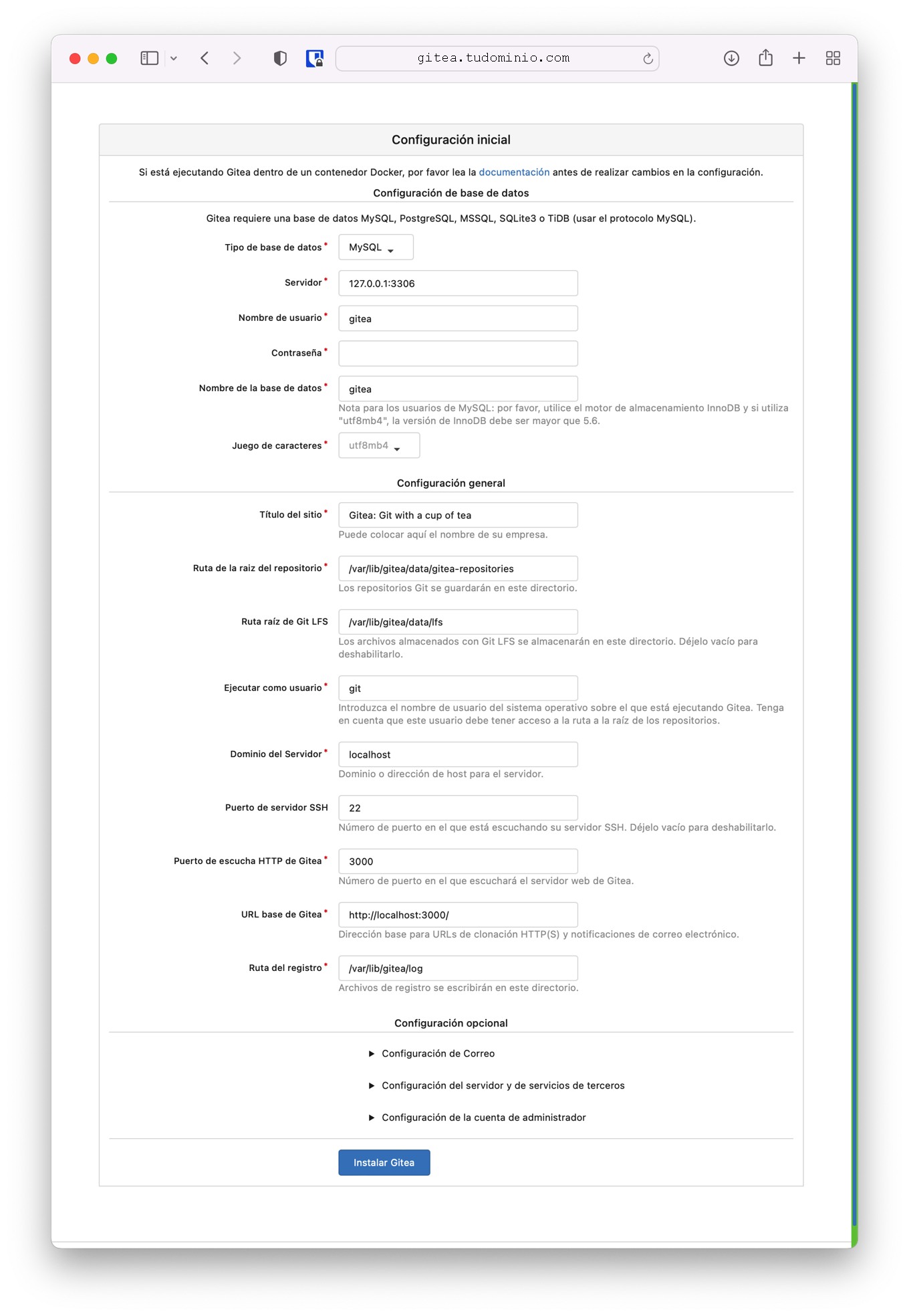
I make the following adjustments:
- Database Type:
MySQL(same as for MariaDB) - Path: use an absolute path,
127.0.0.1:3306 - User:
gitea - Password:
YOUR_MARIADB_PASSWORD<== the one we set for thegiteauser during MariaDB installation - Database Name:
giteadb - Character Set:
utf8mb4
General Configuration:
- Site Title:
Parchis - Repository Root Path:
var/lib/gitea/data/gitea-repositories - Git LFS Root Path:
/var/lib/gitea/data/lfs - Run As Username:
git - SSH Server Domain:
git.yourdomain.com(In/etc/hostsI have the line127.0.1.1 git.yourdomain.com git) - SSH Port:
22(the port my SSH server is listening on) - Gitea HTTP Listen Port:
3000 - Gitea Base URL: use
http://git.yourdomain.com:3000/ - Log Path:
/var/lib/gitea/log
Optional Configuration:
- I configure my email account to receive messages through my SMTP server.
- I enable local authentication.
- I create an administrator user.
I click the “Install Gitea” button — the installation is instant. I can always change the configuration by editing the Gitea configuration file /etc/gitea/app.ini.
Before continuing, let’s secure the installation. I make the following changes:
luis@git:~$ sudo chmod 750 /etc/gitea
luis@git:~$ sudo chmod 640 /etc/gitea/app.ini
Connecting to Gitea
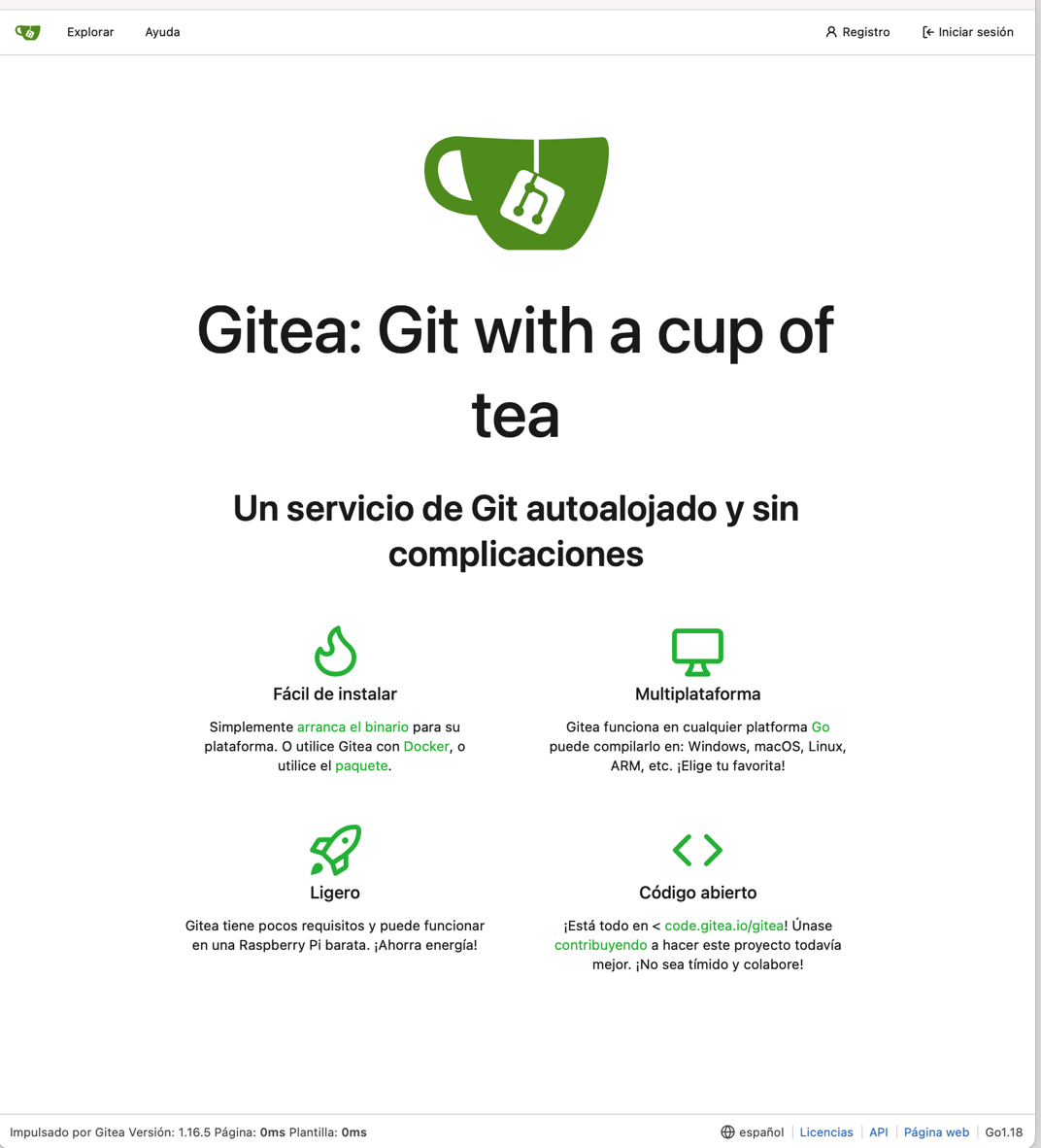
I connect to the server at http://git.yourdomain.com:3000. In my case I was already connected — I logged out and back in with the administrator user I created during the previous step.
Updating Gitea
In my case I used the binary installation method, so the update is fairly straightforward:
- Download the latest binary from the Gitea downloads page.
- Stop the running instance and back up the data.
- Replace the Gitea binary with the downloaded one.
- Start the Gitea instance.
There’s a handy script called contrib/upgrade.sh in the Gitea source that automates this entire process. I downloaded it, renamed it, and adapted it (edit it to verify the variables).
luis@git:~$ wget https://raw.githubusercontent.com/go-gitea/gitea/main/contrib/upgrade.sh
luis@git:~$ sudo mv upgrade.sh /usr/local/bin/upgrade_gitea.sh
luis@git:~$ sudo chmod 755 /usr/local/bin/upgrade_gitea.sh
luis@git:~$ sudo nano /usr/local/bin/upgrade_gitea.sh
:
luis@git:~$ upgrade_gitea.sh
Latest available version is 1.16.5
Checking currently installed version...
1.16.5 is already installed, stopping.
When updates are performed, it will leave a backup in /tmp. See the output of gitea dump --help and modify the script if needed.
Improvements to the Installation
SSL: Configuring Nginx as a Proxy
This is a fundamental step in my opinion. It consists of enabling HTTPS using Nginx, which will act as an intermediary between Gitea (nginx +--- http ---+ gitea) and web clients (nginx +--- https ---+ clients). From the client’s browser perspective, everything happens over HTTPS. To use Nginx as a reverse proxy on your private network, you need a DNS Server. If you also want to enable it on the internet, you need to be able to modify your public domain and have a public IP (or use dynamic DNS). In this example, I’ll use git.yourdomain.com.
I won’t describe how to do it here, but in summary it involves installing nginx, generating a free Let’s Encrypt SSL certificate, and configuring the service as an intermediary.
In my case I did this during installation, but if you skipped it and want your Gitea instance to send email notifications, you can install Postfix or any SMTP server, or use an external account. In my case I use my Gmail account and the configuration that works for me is:
sudo nano /etc/gitea/app.ini

[mailer]
ENABLED        = true
HOST           = smtp.gmail.com:465
FROM           = example@gmail.com
USER           = example@gmail.com
PASSWD         = ***
MAILER_TYPE    = smtp
IS_TLS_ENABLED = true
HELO_HOSTNAME  = example.com
Remember to restart the service after making changes: sudo systemctl restart gitea. To verify, send a test email from Site Administration > Configuration > Mail Server Configuration.
Using Gitea
The purpose of this post is to show the Gitea installation process on a virtual machine. Once installed and running, I recommend following the official documentation to use this on-premise GIT server.