
In environments where you need to operate multiple computers simultaneously, efficiency is key. There are several products that mimic the functionality of a KVM switch (Keyboard, Video, Mouse), which historically allowed you to use a single keyboard and mouse to control multiple computers by physically turning a dial. In this post I describe how I install and use Barrier, a software KVM solution, without the need for additional hardware.
My use case involves controlling three computers with a single keyboard and mouse. Two of them are desktops – a Mac and a Windows PC. The third is a Windows/Linux laptop. The difficulty lies with the Mac, where I encountered a curious and nearly insurmountable challenge.
Introduction
It’s very important to tell Barrier where each computer is located relative to the others, so that the mouse flows between screens logically. The software must run on all three, with one acting as the server and the rest as clients. They communicate over the local network and each computer must have a name:
- slimbook (Linux X11).
- macmini (macOS)
- kymera (Windows 11)
Monitor layout
 +---------+  +----------+  +----------+
 |Laptop   |  | Mac      |  | PC(Win)  |
 |slimbook |  | macmini  |  | kymera   |
 |client   |  | client   |  | SERVER   |
 +---------+  +----------+  +----------+
Server
Here’s where the challenge lies. If I choose the Mac as the Server, its keyboard rules and it lacks the physical AltGr key for entering international characters. Apple generates them using the Option key (equivalent to Alt). If you make the Mac the server, when you’re controlling a PC (Windows or Linux) and try to send those characters, they simply DON’T WORK. The reverse does work – when the PC is the Server (whether Windows or Linux) with a keyboard that has AltGr, everyone’s happy (with certain adjustments).
I would have preferred to set up the Mac as the Server (to take advantage of all its Trackpad features), but as I said, if the Mac is the Server you can’t generate (when the keyboard switches to the PC) the AltGr keys \|@#[]{}~ or < >. I’ve spent many hours investigating this issue and can’t find a solution.
The Barrier server will run on kymera (Windows 11).
Windows 11:
I download Barrier from its official GitHub page. Select the appropriate version for Windows and install the application. If during installation it asks Enable autoconfig and install Bonjour, I say Yes.
- I open Barrier and select the “Server” option.
- I uncheck the “AutoConfig” option and disable SSL
I use the configuration file option for the Server.
Clients
On macOS (macmini), I download the DMG from the releases page. On Linux I install it with sudo apt install -y barrier
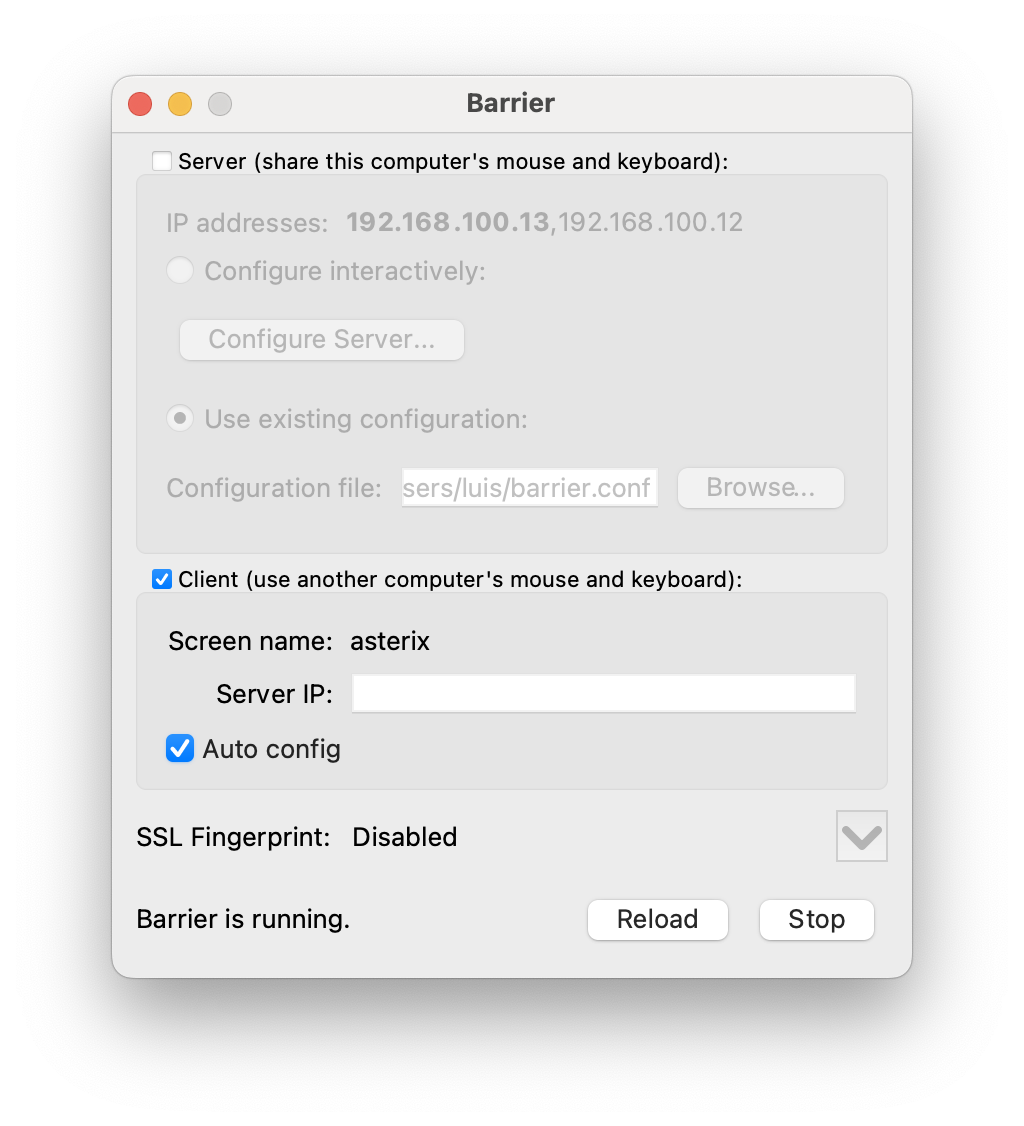
- I open Barrier and select the “Client” option.
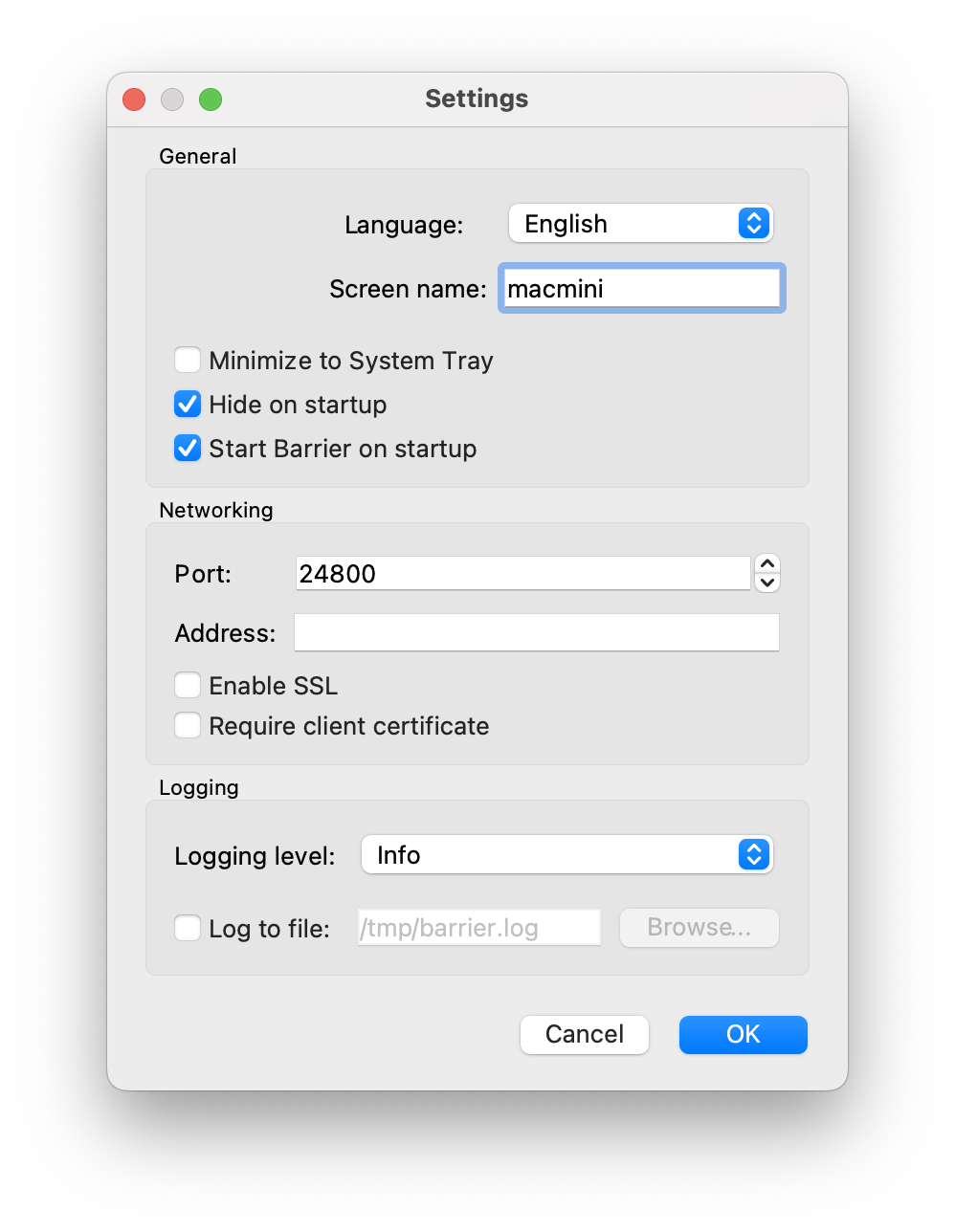
- In the advanced options I enter the machine name and disable SSL.
- I configure “autostart”
Here’s the Mac configuration example; the laptop slimbook setup is identical (only the machine name changes)
If there are connection issues, verify firewalls and network rules that may be blocking Barrier’s default port (usually 24800).
Tips
The Keyboard
It helps a lot if your keyboard has both Windows and Mac key labels printed on it. In my case I use a keyboard that does – it’s the Logitech K380, which I connect via Bluetooth to Windows.
For a correct experience, in my configuration file for the Server (kymera) you’ll see in the Mac macmini section that I’ve reconfigured and created a mapping to change the control key locations:
macmini:
  alt = super
  super = alt
  altgr = alt
  :
Unifying Control Keys
I mean deciding between using Ctrl+
The decision is to use CMD+
Windows: PowerToys
On Windows 11 I’ve used Microsoft PowerToys which lets me remap several key combinations. It works exceptionally well.
- Download: Microsoft PowerToys from the official GitHub page.
- Installation: Run the installer and follow the on-screen instructions.
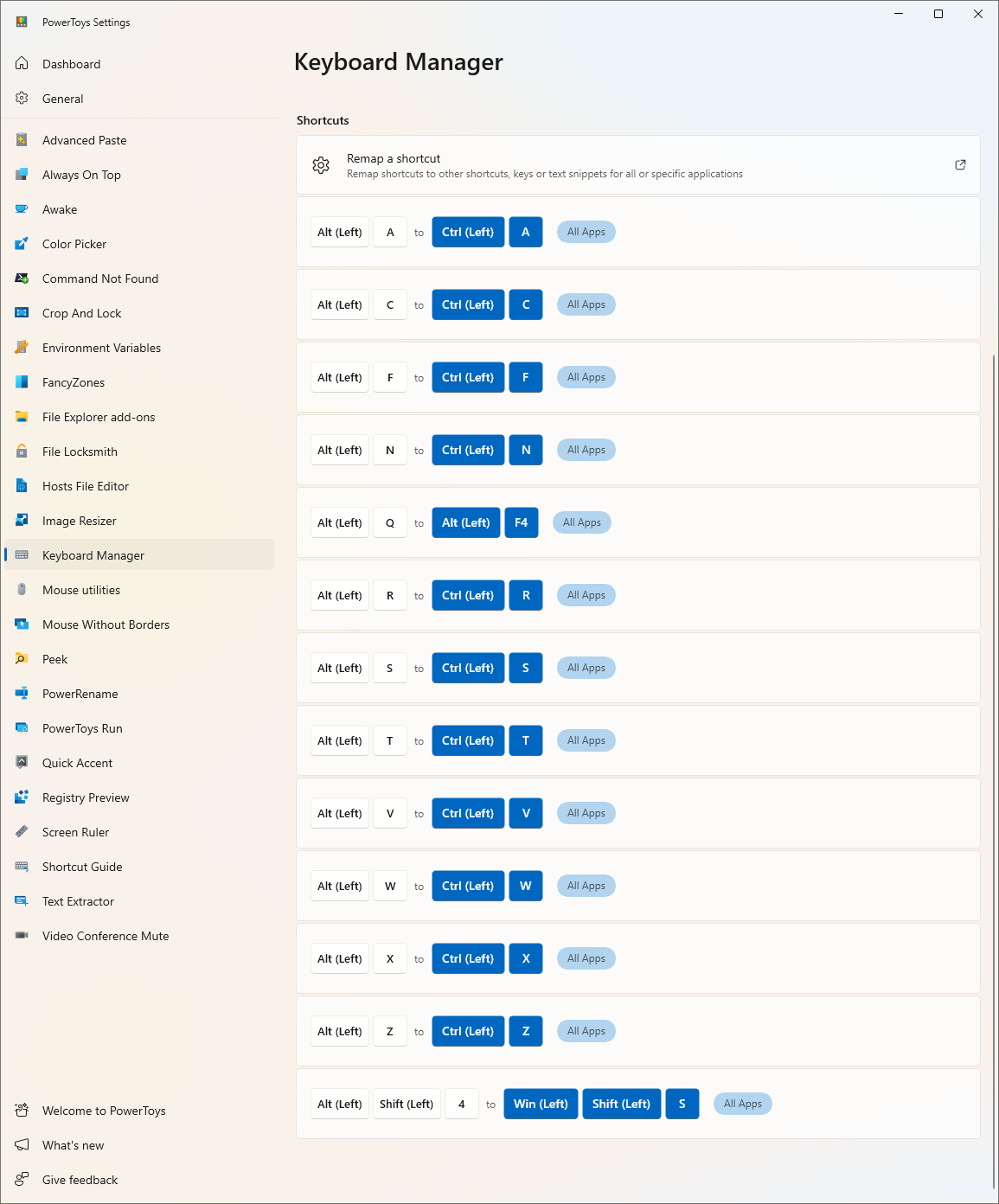
- Open PowerToys: “Keyboard Manager” in the left panel.
- Enable Keyboard Manager: Make sure the “Enable Keyboard Manager” option is enabled.
- Remap Keyboard Shortcuts: “Remap a Shortcut”.
- I add the following remaps:
- Alt + A -> Ctrl + A (Select all)
- Alt + C -> Ctrl + C (Copy)
- Alt + F -> Ctrl + F (Find)
- Alt + N -> Ctrl + N (New window)
- Alt + Q -> Alt(left) + F4 (Close App)
- Alt + R -> Ctrl + R (Reload)
- Alt + S -> Ctrl + S (Save)
- Alt + T -> Ctrl + T (New tab)
- Alt + V -> Ctrl + V (Paste)
- Alt + W -> Ctrl + W (Close window)
- Alt + X -> Ctrl + X (Cut)
- Alt + Z -> Ctrl + Z (Undo)
- Alt + Shift + 4 -> Win (left) + Shift + S (Screenshot)
- (I added other remaps as I worked and needed them)
- I add the following remaps:
Linux: Partial Solution
X11: It’s cumbersome, not as straightforward as on Windows. I still need to document this.
Wayland: Barrier doesn’t work, so I’m leaving this pending for future investigation.