
Asterisk is a free software program (under GPL license) that provides PBX (Private Branch Exchange) functionality. You can connect phones to make calls between them within your home (or office) and even access external communications, to the PSTN (like Movistar) or by connecting to a VoIP provider or ISDN links (basic or primary).
Introduction
I’d like to be able to use the landline from my Movistar contract from anywhere in the house. Why not set up a small PBX? Since I already have my Linux acting as a router and firewall, why not add Asterisk to the same Linux router for Movistar? Said and done – I installed and configured it as an intermediary, to make/receive external calls and eventually make calls between softphones within the house.
Asterisk was originally developed for GNU/Linux, though versions also exist for BSD, macOS, Solaris, and Microsoft Windows. It’s a PBX with voicemail support, conferencing, IVR, automatic call distribution, and more. If you want to use traditional analog phones, you’ll need FXO (operator network) and/or FXS (internal network) electronic cards.
The simplest approach is to use VoIP phones (physical) or, even better, Softphones (apps on mobile phones or computers). Asterisk supports multiple VoIP protocols: SIP, H.323, IAX, and MGCP, and can interoperate with IP terminals acting as a registrar and gateway between them; it allows the unification of VoIP, GSM, and PSTN technologies.

Routing and Movistar
Before we begin, this post applies to my specific case, where my router is a Linux machine connected to my ISP’s ONT (Movistar). If your setup is different, which is most likely the case, keep that in mind while reading.
If your ISP is Movistar and you use the “official” router, everything I describe here should work, because that router should route packets to the “Movistar Proxy” correctly. I say “should” because I haven’t tested it, but from what I’ve read online many people have it working.
If your ISP is Movistar and you use a different router than the official one, find out how to configure it to route to the SIP Proxy IP, which I discuss later.
For other ISPs with an “official” router, find out if they support SIP and especially how to reach their SIP Proxy IP when you’re behind their router. And the same if you have another ISP and your own router – figure out how to route to the SIP Proxy IP.
That said, let me share my config. Remember that this configuration’s use case is a Linux router with direct access to the ONT, with direct access to vlan6 for data, vlan2 for IPTV, and vlan3 for Voice.
/etc/netplan/50-mi-netplan.yaml. My Linux runs in a Virtual Machine on Proxmox. I show part of the config.
# Netplan by LuisPa
network:
  ethernets:
      eth0:
        match:
            macaddress: '12:34:56:78:90:AB'
            name: enp1s0
            name: eth0
        set-name: eth0
        dhcp4: no
  vlans:
      # Movistar IPTV
      vlan2:
        id: 2
        link: eth0
        mtu: 1454
        macaddress: 'AB:90:78:56:34:13'
        addresses:
        - 10.XX.YY.ZZ/9
      # Movistar VoIP
      vlan3:
        id: 3
        link: eth0
        macaddress: 'AB:90:78:56:34:12'
        dhcp4: yes
        dhcp4-overrides:
          use-routes: false
        routes:
        - to: 10.31.255.128/27
          via: 10.22.0.1
      # Movistar DATA
      vlan6:
        id: 6
        link: eth0
        macaddress: 'AB:90:78:56:34:11'
        dhcp4: no
:
IP Configuration: After system boot (or netplan restart), this is how my routes look – I receive an IP via DHCP and install a static route to reach Movistar’s SIP Proxy (its IP is 10.31.255.134 and the route I install has a /27 mask that includes it).
[root]@cortafuegix:~/firewall# ip route
:
10.22.0.0/19 dev vlan3 proto kernel scope link src 10.22.Y.Z metric 100
10.22.0.1 dev vlan3 proto dhcp scope link src 10.22.Y.Z metric 100
10.31.255.128/27 via 10.22.0.1 dev vlan3 proto static onlink
:
NAT Configuration: Since I install Asterisk on the same Linux that acts as router, I don’t need to Source NAT packets going out through VLAN 3. Asterisk connects to Movistar’s SIP Proxy directly with the IP received via DHCP on VLAN 3.
RPF Configuration: I selectively enable RPF (Reverse Path Forwarding) during system boot.
if [ -f /proc/sys/net/ipv4/conf/vlan3/rp_filter ]
then
    echo 1 > /proc/sys/net/ipv4/conf/vlan3/rp_filter
fi
Adding telefonica.net: It’s very important to add it to the /etc/hosts file. This is unrelated to routing, but it’s important and I explain why later.
:
# Required for Asterisk
213.4.130.95 telefonica.net
:
Installation
Installation log for Asterisk. First I update my Ubuntu to the latest, download and install the software and call response sounds, messages, etc., and when done I check which packages were installed.
[root]@cortafuegix:~# apt update && apt upgrade -y && apt full-upgrade
:
[root]@cortafuegix:~# apt install asterisk
:
[root]@cortafuegix:~# asterisk -V
Asterisk 18.10.0~dfsg+~cs6.10.40431411-2
:
[root]@cortafuegix:~# apt install asterisk-core-sounds-es asterisk-core-sounds-es-g722 asterisk-core-sounds-es-gsm asterisk-core-sounds-es-wav
:
[root]@cortafuegix:~# dpkg -l | grep -i asterisk
:
[root]@cortafuegix:~# service asterisk status
● asterisk.service - Asterisk PBX
     Loaded: loaded (/lib/systemd/system/asterisk.service; enabled; vendor preset: enabled)
     Active: active (running) since Sat 2024-07-13 17:35:49 CEST; 17min ago
       Docs: man:asterisk(8)
   Main PID: 6767 (asterisk)
      Tasks: 69 (limit: 3425)
     Memory: 48.1M
        CPU: 3.915s
     CGroup: /system.slice/asterisk.service
             ├─6767 /usr/sbin/asterisk -g -f -p -U asterisk
             └─6768 astcanary /var/run/asterisk/alt.asterisk.canary.tweet.tweet.tweet 6767

jul 13 17:35:49 cortafuegix systemd[1]: Starting Asterisk PBX...
jul 13 17:35:49 cortafuegix asterisk[6767]: radcli: rc_read_config: rc_read_config: can't open /etc/radiusclient-ng/radiusclient.conf: No such file or directory
jul 13 17:35:49 cortafuegix asterisk[6767]: radcli: rc_read_config: rc_read_config: can't open /etc/radiusclient-ng/radiusclient.conf: No such file or directory
jul 13 17:35:49 cortafuegix systemd[1]: Started Asterisk PBX.
If it complains about not finding files under /etc/radiusclient-ng, it’s because the working directory needs to be changed to where it’s installed on Ubuntu.
[root]@cortafuegix:~# cd /etc/asterisk
[root]@cortafuegix:/etc/asterisk# cp cel.conf cel.conf.bak
[root]@cortafuegix:/etc/asterisk# cp cdr.conf cdr.conf.bak
In the file /etc/asterisk/cel.conf:
radiuscfg => /etc/radcli/radiusclient.conf
In the file /etc/asterisk/cdr.conf:
[radius]
radiuscfg => /etc/radcli/radiusclient.conf
I restart the service and check its status again:
[root]@cortafuegix:/etc/asterisk# service asterisk restart
[root]@cortafuegix:/etc/asterisk# service asterisk status
:
jul 13 18:56:14 cortafuegix systemd[1]: Starting Asterisk PBX...
jul 13 18:56:14 cortafuegix systemd[1]: Started Asterisk PBX.
CLI Console
The asterisk -rvvv command connects to Asterisk’s own CLI where we can see all debug messages and execute commands. It’s super useful.
[root]@cortafuegix:~# asterisk -rvvv
:
Connected to Asterisk 18.10.0~dfsg+~cs6.10.40431411-2 currently running on cortafuegix (pid = 8497)
cortafuegix*CLI>
cortafuegix*CLI> sip show peers
cortafuegix*CLI> sip show users
cortafuegix*CLI> sip reload
cortafuegix*CLI> dialplan reload
cortafuegix*CLI> core show channels
cortafuegix*CLI> sip show channels
cortafuegix*CLI>
Configuration
The two most important configuration files are sip.conf and extensions.conf.
/etc/asterisk/sip.conf: Defines the SIP channels and peers, for both incoming and outgoing calls.- I’ve configured three main extensions for three people (101, 102, 103) and the TRUNK with Movistar
- Link to the Gist of my sip.conf file
/etc/asterisk/extensions.conf: Defines how a call will behave in our PBX, what rules govern its routing, and what applications it will execute (dialplan)- Link to the Gist of my extensions.conf file
IMPORTANT #1: If you use my example files as a guide, it’s critical that you put your home phone number – in several places in both files you’ll see the fictitious number 911234567. Change it to yours everywhere you see it.
IMPORTANT #2: You must add an entry to the server’s /etc/hosts file. Even though Asterisk communicates exclusively with Movistar’s Proxy, it needs to be able to resolve telefonica.net, because it uses that name in SIP packets even though IT DOESN’T USE THE RESOLVED IP. What matters is that it can resolve (the IP doesn’t matter) or otherwise external calls won’t work.
Add telefonica.net to the /etc/hosts file (that IP doesn’t matter, I got it from dig @8.8.8.8 www.telefonica.net)
:
# Required for Asterisk
213.4.130.95 telefonica.net
:
Once you’ve modified both files, you need to reload Asterisk:
[root]@cortafuegix:/etc/asterisk# asterisk -rvvv
cortafuegix*CLI> dialplan reload          < Rereads the extensions.conf file
cortafuegix*CLI> sip reload               < Rereads the sip.conf file
cortafuegix*CLI>
Clients are configured by registering them with Asterisk. Below I show an example with the Zoiper client for Linux
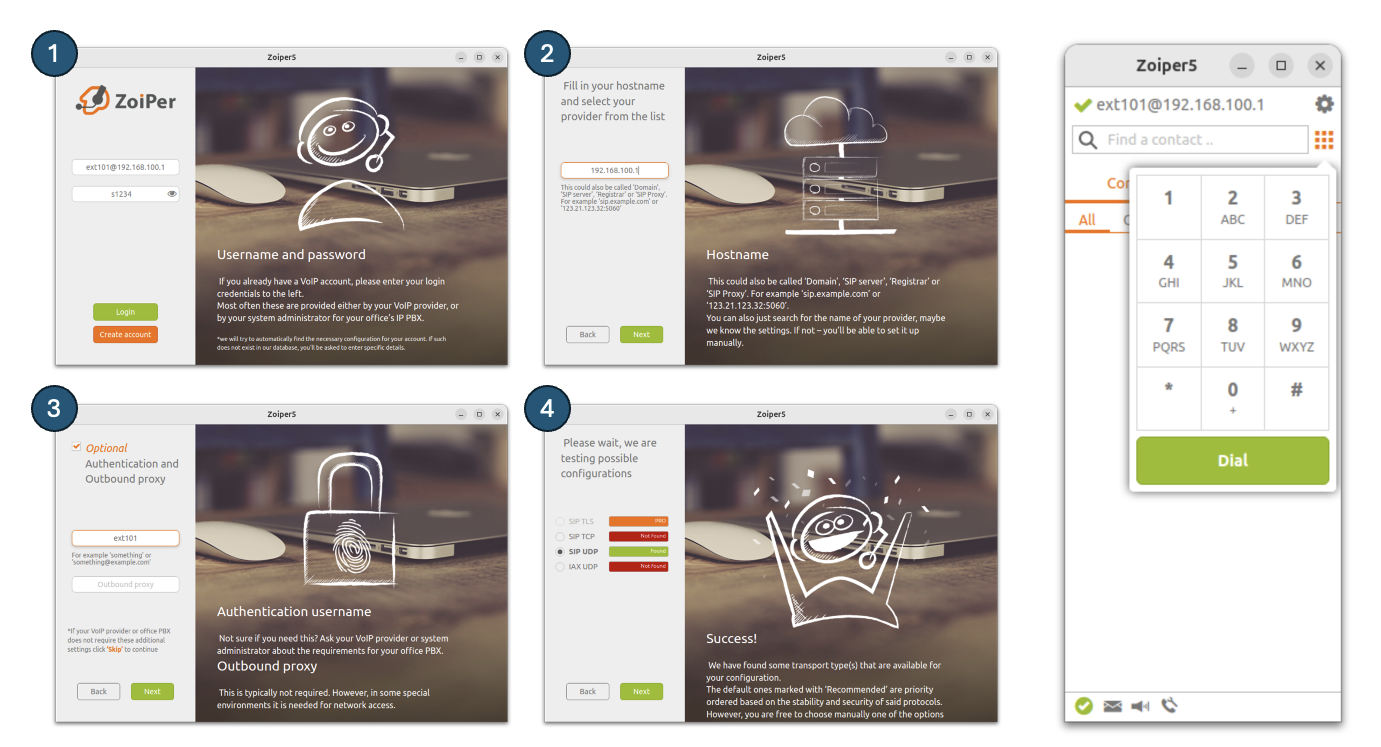
On the server console, from Asterisk’s CLI we can see the registered clients (see Asterisk Console later)
[root]@cortafuegix:~# asterisk -rvvv
cortafuegix*CLI> sip show peers
Name/username             Host                                    Dyn Forcerport Comedia    ACL Port     Status      Description
ext101/luispa             192.168.100.14                           D  Yes        Yes            49860    OK (2 ms)
luison/luison             192.168.100.12                           D  Yes        Yes            61266    OK (1 ms)
luison/jacobo             192.168.100.11                           D  Yes        Yes            55959    OK (1 ms)
telefonica-in/914041242   10.31.255.134                               Yes        Yes            5060     Unmonitored
telefonica-out/914041242  213.4.130.95                                Yes        Yes            5060     Unmonitored
5 sip peers [Monitored: 1 online, 2 offline Unmonitored: 2 online, 0 offline]
First Call
Let’s see how to make an internal call. In my example I configure Zoiper on an iPhone (luispa, 101) that will call Zoiper on a macOS (luison, 102)

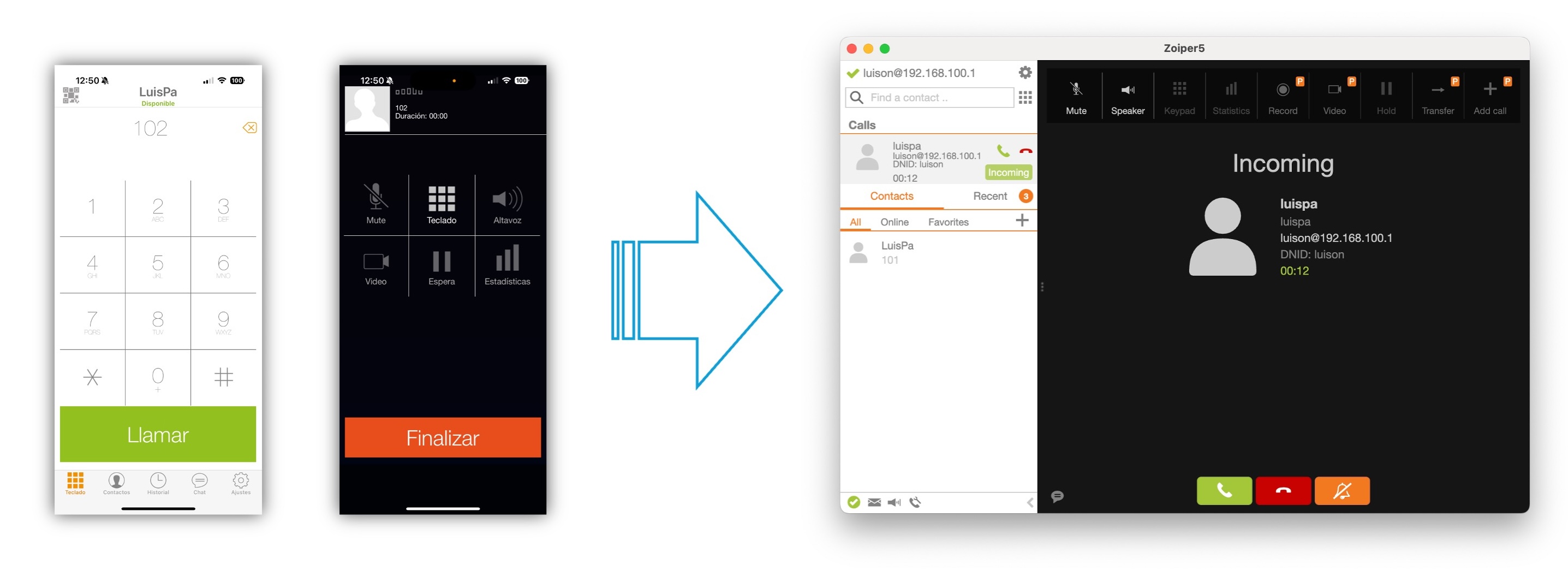
Once you have everything set up, dial the extension and hit the call button. Voila!
Incoming and Outgoing External Calls
Leveraging my Movistar contract, I’m going to configure my Asterisk to use my home phone number (in my case of the type 911234567). You can check my sip.conf.
Several things need to be configured. First, tell Asterisk the address of Movistar’s Proxy and the credentials for authentication. Then configure the trunks. Below you can see the relevant configuration snippet, with my number’s credentials and the trunks (telefonica-in and telefonica-out).
Remember that where it says 911234567 you should put your phone number.
; Data for registering with Telefonica Movistar's SIP Proxy
; -------------------------------------------------------------------
register => 911234567@telefonica.net:911234567@10.31.255.134:5070

; Outbound SIP TRUNK to Telefonica (for external calls)
; -------------------------------------------------------------------
[telefonica-out]
type=peer
host=telefonica.net
port=5060
user=911234567
username=911234567
fromuser=911234567
secret=911234567
fromdomain=telefonica.net
outboundproxy=10.31.255.134:5070
nat=force_rport,comedia
insecure=port,invite
dtmfmode=auto
disallow=all
allow=ulaw,alaw
context=entrantes
qualify=no
trustrpid=yes

; Inbound SIP TRUNK from Telefonica (for accepting calls)
; -------------------------------------------------------------------
[telefonica-in]
type=peer
host=10.31.255.134
user=911234567
username=911234567
fromuser=911234567
secret=911234567
fromdomain=telefonica.net
port=5060
nat=force_rport,comedia
insecure=port,invite
dtmfmode=auto
disallow=all
allow=ulaw,alaw
context=entrantes
qualify=no
trustrpid=yes
In the extensions.conf file, you configure how to handle incoming calls from outside.
In my case I configure it so all incoming calls to the house are forwarded to extension 101 (LuisPa)
[entrantes]
exten => s,1,NoOp(LLAMADA ENTRANTE Telefónica de ${CALLERID(all))
same  => n,Dial(${LUISPA},15)               ; Forward to user LuisPa
same  => n,Hangup()                         ; If no answer after 15s, hang up
Regular Expressions
Here I describe how to work with patterns. It’s about being able to express all types of phone numbers in the dialplan, i.e., in the extensions.conf file. Patterns allow us to create a single extension to dynamically represent multiple extensions. They always start with an underscore (_), and the syntax and priority order is as follows:

Let’s look at an example. I’ve created the context [pruebas] with several patterns – if we use the CLI command dialplan show context_name we’ll see the interpretation order:
[root]@cortafuegix:~# cat /etc/asterisk/extensions.conf
:
[angelitos]
:
; Tests with regular expressions
exten => _X.,1,NoOP(Pattern 1)
exten => _1[24]XX,1233,1,NoOP(Pattern 2)
exten => 1233,1,NoOP(Pattern 3)
exten => _1XXX,1,NoOP(Pattern 4)
exten => _+34X.,1,NoOP(Spain)
exten => _+X.,1,NoOP(International)
exten => _91XXXXXXX,1,NoOP(Madrid)
:
In the CLI we’d see the priority order
cortafuegix*CLI> dialplan reload
:
cortafuegix*CLI> dialplan show angelitos
[ Context 'angelitos' created by 'pbx_config' ]
  '101' =>          1. Dial(SIP/luispa)                           [extensions.conf:19]
  '102' =>          1. Dial(SIP/luison)                           [extensions.conf:20]
  '103' =>          1. Dial(SIP/jacobo)                           [extensions.conf:21]
  '1233' =>         1. NoOP(Pattern 3)                            [extensions.conf:41]
  '200' =>          1. NoOp(Play my audio)                        [extensions.conf:24]
                    1. Playback(intro-angelitos)                  [extensions.conf:25]
                    2. Dial(SIP/luison)                           [extensions.conf:26]
                    3. Hangup()                                   [extensions.conf:27]
  '300' =>          1. NoOp(Shortcut test)                        [extensions.conf:30]
                    1. Playback(intro-angelitos)                  [extensions.conf:31]
                    2. Dial(SIP/luison)                           [extensions.conf:32]
                    3. Hangup()                                   [extensions.conf:33]
  '778899' =>       1. Goto(salientes,778899,1)                   [extensions.conf:36]
  '_+34X.' =>       1. NoOP(Spain)                                [extensions.conf:43]
  '_+X.' =>         1. NoOP(International)                        [extensions.conf:44]
  '_1[24]XX' =>     1233. 1,NoOP(Pattern 2)                       [extensions.conf:40]
  '_1XXX' =>        1. NoOP(Pattern 4)                            [extensions.conf:42]
  '_91XXXXXXX' =>   1. NoOP(Madrid)                               [extensions.conf:45]
  '_X.' =>          1. NoOP(Pattern 1)                            [extensions.conf:39]

-= 13 extensions (19 priorities) in 1 context. =-
Custom Recording
We’ve seen the basics of Asterisk. There’s actually much more you can do, but that wasn’t the goal of this technical post. However, since I was playing around with this, I’m documenting a test I did recording an announcement.
I created an extension (200) for testing system recordings. But first, I needed to record an announcement. I created the intro-angelitos.wav file with Audacity that basically says “Welcome to Angelitos, press 1 to talk to…”, etc. I exported it to WAV format and sent it to my server.
I use the sox command to prepare the different formats:
⚡ luis@cortafuegix:~ % sox intro-angelitos.wav -r 8000 -c1 intro-angelitos.gsm
⚡ luis@cortafuegix:~ % ls -al intro-angelitos.*
-rw-r--r-- 1 luis luis  14124 jul 13 21:16 intro-angelitos.gsm
-rw-r--r-- 1 luis luis 753708 jul 13 21:09 intro-angelitos.wav
I move the file to its destination
[root]@cortafuegix:~# cp /home/luis/intro-angelitos.gsm /usr/share/asterisk/sounds/es/
I modify the extensions.conf file and reload the dialplan from the CLI
; Extension 200 to demonstrate audio playback
exten => 200,1,NoOp(Play my audio)
exten => 200,2,Playback(intro-angelitos)
exten => 200,3,Hangup()
The test consisted of logging in as user/extension 200 on a softphone, calling it, watching it play my announcement, and then hanging up. Obviously it doesn’t make much practical sense, but it was just that – a simple test.