
This post will walk you through the process of setting up and using multiple accounts with one or more Git providers (GitHub, GitLab, Gitea). I describe the two options I recommend: HTTPS + Git Credential Manager and SSH multi-account.
The first, HTTPS + Git Credential Manager, is the one I use most, because it’s compatible with CLI and/or GUI tools like Visual Studio, VSCode, Git Desktop, Gitkraken, etc. The second option, SSH multi-account, I delegate to “headless” machines, servers I connect to remotely via CLI or VSCode remote that need to clone repositories and work on them.
Introduction
HTTPS + Git Credential Manager:
Description: Ideal for those who prefer managing multiple accounts through HTTPS (the default option we’ve always had). The Git Credential Manager (GCM) handles storing and managing credentials securely. It’s compatible with Windows, MacOS and Linux, and facilitates credential management without needing to enter them every time a Git operation is performed. It takes care of remembering and applying the correct credential for each repository.
Advantages:
- Easy to set up and use, even on Linux Desktop.
- Less manual configuration, since GCM automatically manages credentials.
- Compatible with popular platforms like GitHub, Bitbucket, Gitlab, Gitea, Azure DevOps.
Disadvantages:
- Less flexible for managing multiple identities for the same Git server compared to SSH, although it can be done without problems.
- Requires Git Credential Manager installed and configured. It’s not that big a deal though!
SSH Multi-Account (configuring the
.ssh/configfile with host aliases):Description: This option allows managing multiple SSH accounts by configuring the
~/.ssh/configfile with host aliases. In this file, you can define different identities (SSH key pairs) associated with different aliases, corresponding to different accounts on the same Git server. For example, you can have two aliases forgithub.com, each pointing to a different account and using a different key pair.Advantages:
- Very flexible for managing multiple identities or accounts on the same server.
- Offers greater control over SSH connections and configurations.
- Doesn’t require username and password credentials for each operation, just the corresponding SSH key.
Disadvantages:
- Requires more complex manual configuration, especially for less experienced users.
- It’s necessary to manage and protect SSH keys, which can add complexity.
- In some cases, it can be harder to maintain if many accounts are used.
- Not all GUI Git clients support SSH Multi-Account, like GitHub Desktop and Gitkraken. Others apparently do, like Sourcetree, Fork or Tower.
For the examples in this post I use a mix of simulated and real accounts: Personal user LuisPalacios on github.com, personal user on a private Gitea server at home (parchis.org), another Professional user LuispaRenueva on GitHub (with push rights to an Organization called Renueva within GitHub), etc…
Option 1: HTTPS + Git Credential Manager
Installing Git Credential Manager
You need to install it, a small program that exists for Windows, Mac and Linux. Its function is to act as an intermediary between your Git client, the Git server and a local store. It handles storing and retrieving credentials securely, avoiding the need to enter credentials repeatedly.
Windows: Install from the official repository. In my case I chose gcm-win-x86-2.5.1.exe.
The executable is at: C:\Program Files (x86)\Git Credential Manager\git-credential-manager.exe
MacOS: I use Homebrew
brew update
brew upgrade
brew tap microsoft/git
brew install --cask git-credential-manager-core
The executable is at: /usr/local/bin/git-credential-manager
Linux:
Download and install from the corresponding package (in my case for Ubuntu gcm-linux_amd64.2.5.1.deb from the official repository.
sudo dpkg -i gcm-linux_amd64.2.5.1.deb
The executable is at: /usr/local/bin/git-credential-manager
For graphical credential management in the UI I’ll use GNOME Keyring + Seahorse, which come pre-installed with Ubuntu.
Configuring ~/.gitconfig
Once GCM is installed, it needs to be configured to manage our repositories’ credentials. First I review the ~/.gitconfig file to remove the [user] entry (I configure the user/email per repository), I delete “insteadOf” type entries that are usually used with SSH.
The most important parameter is credential.helper. It tells Git to use GCM. We can verify with the following commands that on MacOS and Windows, the path is configured automatically, except on Linux.
- Windows:
git config credential.helperreturnsC:/Program\ Files\ \(x86\)/Git\ Credential\ Manager/git-credential-manager.exegit config --list --show-originindicates it’s configured inC:/Program Files/Git/etc/gitconfig
- MacOS:
git config credential.helperreturns/usr/local/share/gcm-core/git-credential-managergit config --list --show-originindicates it’s configured in/Users/luis/.gitconfig
- Linux: Here we see it returns nothing, because it doesn’t configure it.
git config credential.helper
I configure the same credential.helper for all operating systems (when setting manager it will look for git-credential-manager.exe or git-credential-manager in the PATH.
git config --global credential.helper manager- I verify it’s properly configured:
git config --list --show-origin | grep -i credential.helper | tail -1
I specify how I want credentials stored for my two Git providers (github.com and parchis.org). It’s possible to tell GCM to use the full repository URL for GitHub credentials. In my case I don’t need it. You can set it to true for exhaustive control if you need separate authentication per repository.
git config --global credential.https://github.com.useHttpPath falsegit config --global credential.https://git.parchis.org.useHttpPath false
I set the provider type for each of them (speeds up subsequent work a bit)
git config --global credential.https://github.com.provider githubgit config --global credential.https://git.parchis.org.provider generic
I configure the Store type where credentials are saved. Each Operating System provides a secure store where GCM can save and retrieve credentials automatically. On Windows and MacOS there’s no question, you should use their native stores, wincredman (Windows Credential Manager) and keychain (macOS Keychain) respectively. On Linux we have several options and the one I recommend is secretservice, which uses the Secret Service API, backed by tools like GNOME Keyring or KWallet on KDE.
git config --global credential.credentialStore keychain(MacOS)git config --global credential.credentialStore secretservice(Linux)git config --global credential.credentialStore wincredman(Windows)
This is how my ~/.gitconfig file looks (on a Mac)
[credential]
  helper = manager
  credentialStore = keychain
[credential "https://github.com"]
  provider = github
  useHttpPath = false
[credential "https://git.parchis.org"]
  provider = generic
  useHttpPath = false
How Credentials Are Stored
As I mentioned before, the useHttpPath parameter specifies how credentials are stored. Let’s see an example with the repository https://github.com/LuisPalacios/MyRepoPrivado.io.git and GitHub user LuisPalacios:
true: Will store a credential in the store per repository and user. For example it would storegit:https://github.com/LuisPalacios/MyRepoPrivado.gitand userLuisPalacios. Every time you try tocloneorpushto/from that repository, it will know exactly which credential to use.false: Will store a credential in the store per server domain and user. For example,git:https://github.comandLuisPalacios. This way that credential is reused for all repos of this user on GitHub.
IMPORTANT. A couple of recommendations if you use ..useHttpPath=false and have private repos:
- During clone include the username (example
LuisPalacios@) if it’s a private repo:git clone https://LuisPalacios@github.com/LuisPalacios/MyRepoPrivado.git
- After clone, add
usernameto thecredential, plus name and email in.git/configgit config credential.https://github.com.username LuisPalaciosgit config user.name "Luis Palacios"git config user.mail "my.email@mydomain.com"
[remote "origin"]
  url = https://github.com/LuisPalacios/MyRepoPrivado.git
[user]
  name = Luis Palacios
  email = my.email@mydomain.com
[credential "https://github.com"]
  username = LuisPalacios
When It Opens the Browser
Only the first time it needs to (clone of private repos or push) and realizes it has no credentials in the Store, it will open the Browser, ask you to authenticate with the account and save the credential in the secure store. It’s important that your browser is authenticated with the correct account (or that it’s not authenticated). It will ask you to Sign in and Authorize, supports MFA and when done will return to the command line.
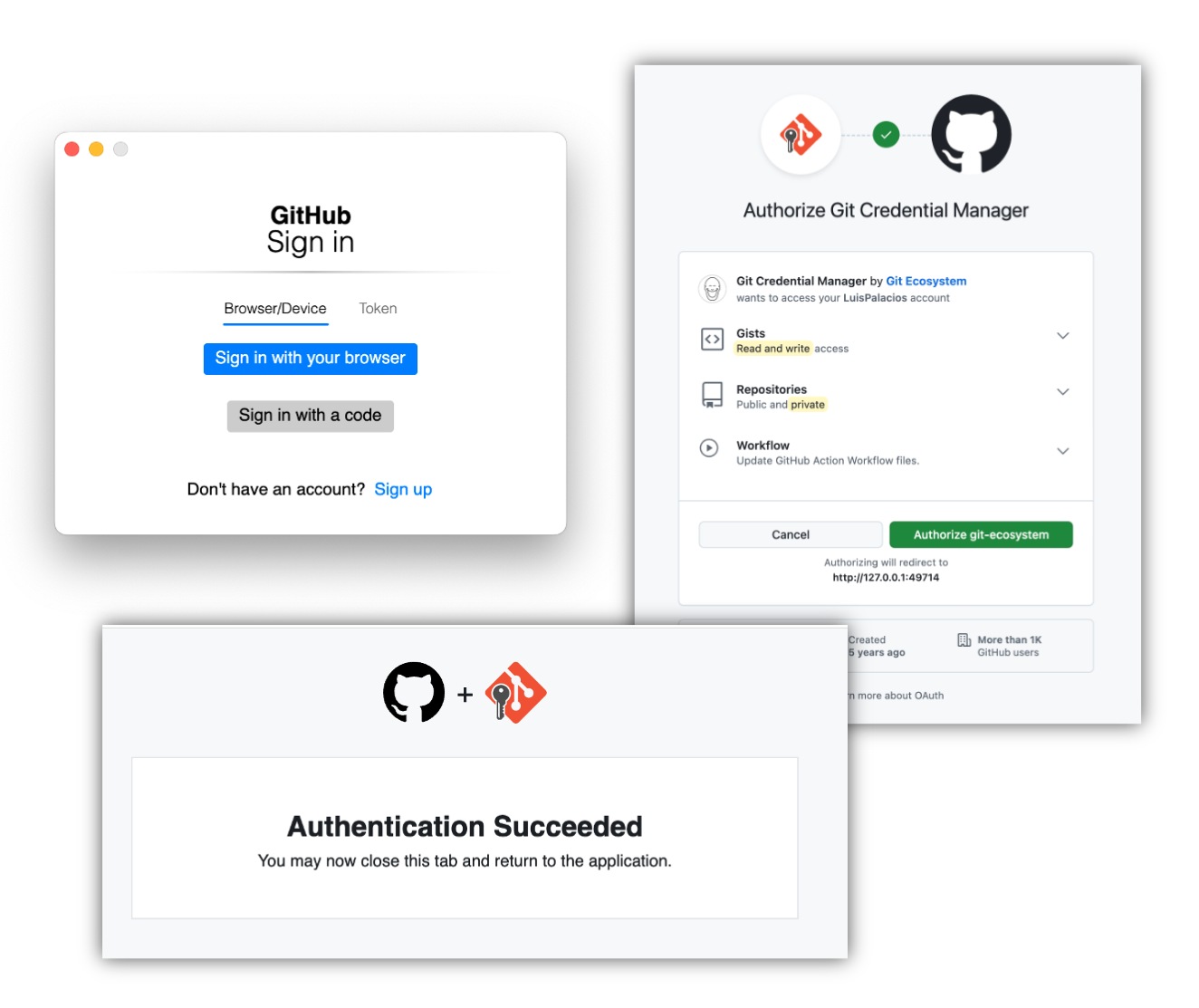
If it keeps constantly opening the browser it’s because you have an inconsistency somewhere or because it’s not properly identifying the “url” and “user” combination. That’s why I recommended adding the user during clone and then configuring the user in the credential section of each cloned repository’s .git/config.
git clone https://LuisPalacios@github.com/LuisPalacios/MyRepoPrivado.gitgit config credential.github.com.username LuisPalacios
The browser opening is triggered by clone (on private repos) or push because it can’t find the URL/User combination in the Store.
How to View Credentials in the Store
If you have problems or want to automate, it’s very useful to look at what’s been saved in the store. Git Credential Manager (GCM) doesn’t have a direct command to list all stored credentials, since it manages credentials through the operating system’s secure storage systems. You can use the corresponding GUI or from the CLI, very useful if you want to make scripts that verify if you have credentials saved.
Windows:
GUI: Windows Credentials, access with WIN+R search for
control> User Accounts > Credential ManagerCLI:
cmd.exe /c "cmdkey /list" | tr -d '\r'. With that command you can see the credentials in Windows Credential.
MacOS:
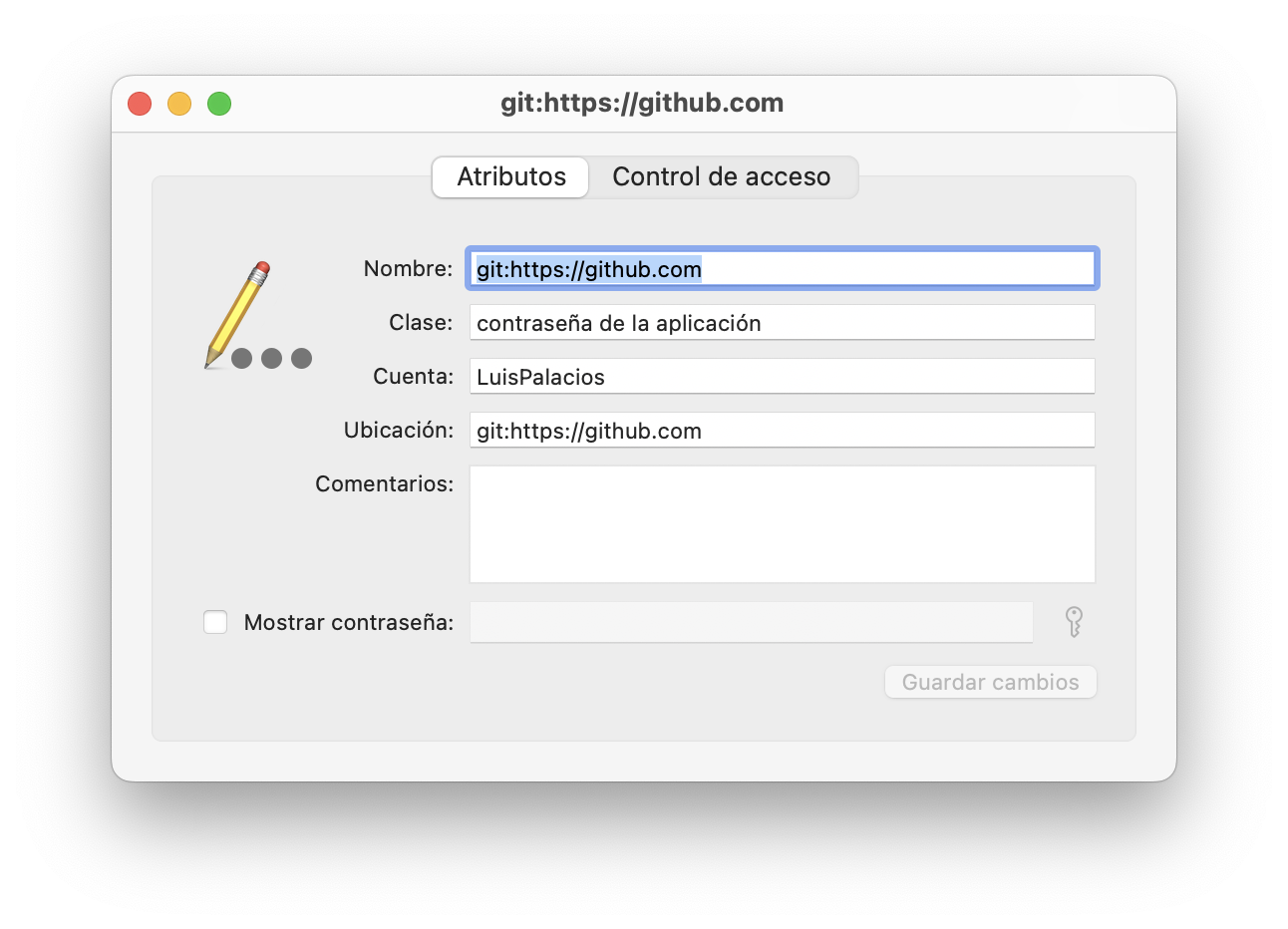
- GUI: Keychain Access.app, search in login for
github. You’ll see several, go into each one.
- CLI:
security find-generic-password -s "git:https://github.com" -a "LuisPalacios". Case-sensitive and doesn’t support regular expressions, meaning you have to put exactly what it searches for.
To delete credentials:
- CLI:
security delete-generic-password -s "git:https://github.com" -a "LuisPalacios".
Linux:
- GUI:
GNOME Keyring+ Seahorse, in my case with Ubuntu.
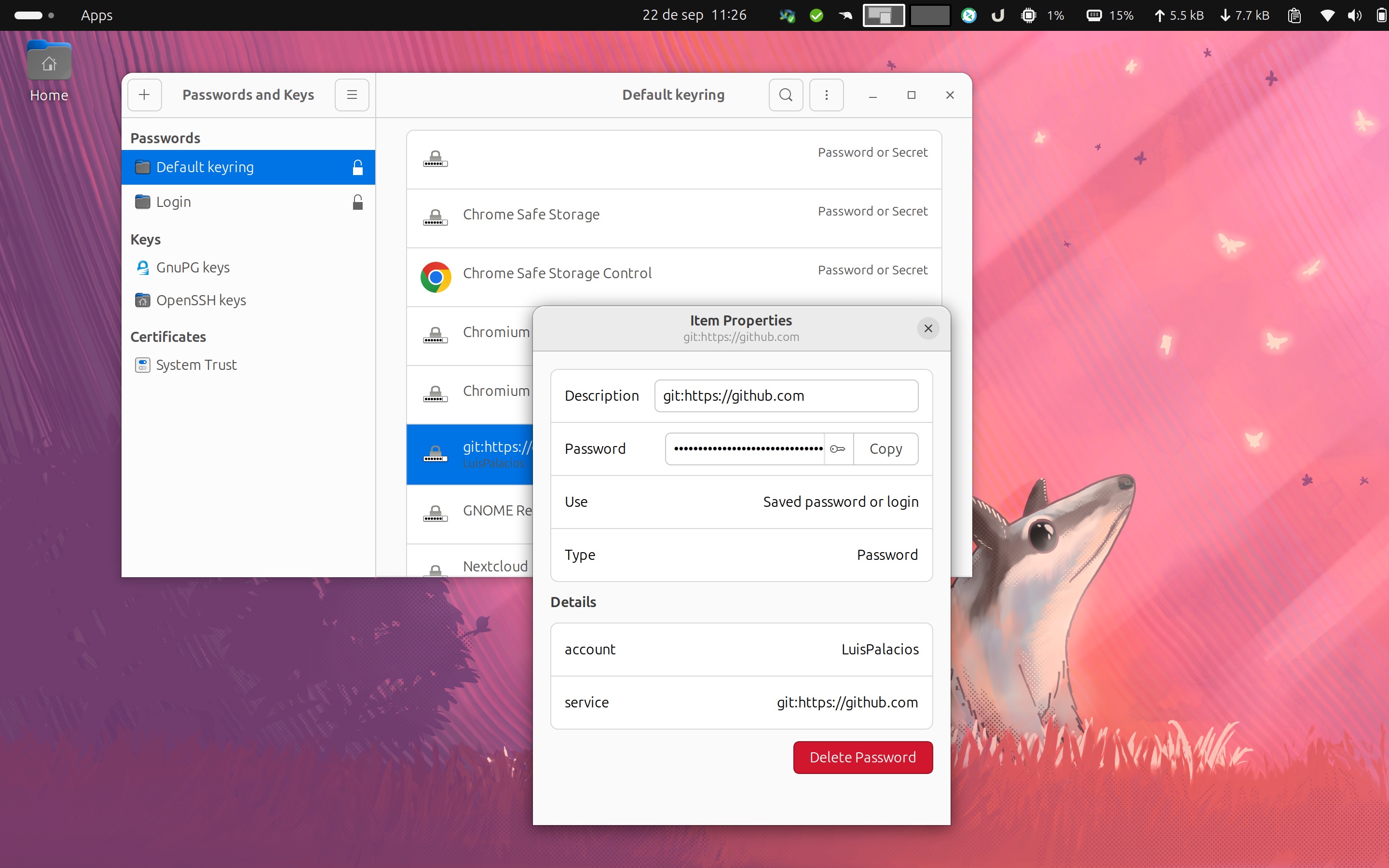
For the CLI you need to install libsecret-tools:
sudo apt update && sudo apt upgrade -y && sudo apt full-upgrade -y
sudo apt install libsecret-tools
- CLI:
secret-tool search service "git:https://github.com" account "LuisPalacios". (case-sensitive and doesn’t support regular expressions)secret-tool search --all service "git:https://github.com".
Troubleshooting
When I wrote this document I found old credentials in the secure stores. It’s important to clean them up.
Windows: WIN+R search for
control> User Accounts > Credential Manager > Windows Credentials- Delete the credentials that appear from github.com
MacOS:
- Check and clean whatever you find in keychain.
- I once had a problem with
homebrewand its config file, which I deleted!rm /opt/homebrew/etc/gitconfig
When doing a
pullfrom a private repository it doesn’t open the browser.- Use the option
git config credential.https://...
- Use the option
gitbox Tool
I’ve written a program that works on MacOS, Linux and Windows (WSL2) to simplify the configuration of your accounts and repositories. It lets you store all the configuration in a single JSON file. The program can guide you through creating it and there are two versions, one for CLI and one GUI.
Check it out: gitbox
Option 2: SSH Multi-Account
This option allows managing multiple SSH accounts by configuring the ~/.ssh/config file with host aliases. In this file, you can define different identities (SSH key pairs) associated with different aliases, corresponding to different accounts on the same Git server. For example, you can have two aliases for github.com, each pointing to a different account and using a different key pair.
Install SSH
The steps are slightly different for Windows and Unix-based systems (Linux/MacOS). On Linux/MacOS openssh comes pre-installed (on almost all Linux distros), so the following only applies to Windows (tested on version 11).
First I’m going to install and configure ssh-agent. I check from PowerShell or Command Prompt as administrator if the OpenSSH Client and Server are installed.
C:\Users\Luis> Get-WindowsCapability -Online | Where-Object Name -like 'OpenSSH.Client*'
:
C:\Users\Luis> Get-WindowsCapability -Online | Where-Object Name -like 'OpenSSH.Server*'
If not, I install them and start the ssh-agent service
C:\Users\Luis> Add-WindowsCapability -Online -Name OpenSSH.Client
:
C:\Users\Luis> Add-WindowsCapability -Online -Name OpenSSH.Server
:
C:\Users\Luis> Start-Service ssh-agent
:
C:\Users\Luis> Set-Service -Name ssh-agent -StartupType Automatic
Generate SSH Keys
Assuming SSH is installed, we can now generate SSH keys, the personal and the professional one.
# Linux/Mac
ssh-keygen -t ed25519 -C "my_personal_email@personal.com" -f ~/.ssh/id_ed25519_git_personal_luispa
:
ssh-keygen -t ed25519 -C "my_professional_email@company.com" -f ~/.ssh/id_ed25519_git_empresa_luispa

# Windows
ssh-keygen -t ed25519 -C "my_personal_email@personal.com" -f C:\Users\YourUser\.ssh\id_ed25519_git_personal_luispa
:
ssh-keygen -t ed25519 -C "my_professional_email@company.com" -f C:\Users\YourUser\.ssh\id_ed25519_git_empresa_luispa
Follow the prompts and press Enter to accept the default file location and leave the passphrase empty.
Add SSH Keys to ssh-agent
If you’re on Linux/Mac, open a Terminal (shell). On Windows open PowerShell or Command Prompt (CMD) as administrator.
# Linux/MacOS
ssh-add -D
ssh-add id_ed25519_git_personal_luispa
ssh-add id_ed25519_git_empresa_luispa
ssh-add -l
  256 SHA256:BJXWgT1234897p0jhlasjdhfaasdfasdf12345 id_ed25519_git_personal_luispa (ED25519)
  256 SHA256:ABCDEFGHIJKasdflkjasñdhfaasdfasdf12345 id_ed25519_git_empresa_luispa (ED25519)

# Windows
ssh-add C:\Users\YourUser\.ssh\id_ed25519_git_personal_luispa
ssh-add C:\Users\YourUser\.ssh\id_ed25519_git_empresa_luispa
Add Public SSH Keys to GitHub
I recommend repeating the following process for each computer where you create your Public/Private keys, both personal and professional.
Add personal public key to GitHub: In my case having created personal keys on a Linux, a Mac and a Windows, I repeat the process three times, pasting my PUBLIC key three times on GitHub, in my personal account. I go to GitHub SSH key settings, “New SSH key”, providing a title (for example, “Personal Key on Windows”) and paste the public key, which you can get from here:
# Linux/MacOS
cat ~/.ssh/id_ed25519_git_personal_luispa.pub

# Windows
type C:\Users\YourUser\.ssh\id_ed25519_git_personal_luispa.pub
Add professional public key to GitHub: For the professional account we do the same thing. In this case it’s a GitHub user that has rights over an Organization. The process is identical, first Login to GitHub with your Professional account and then copy the “professional” public keys generated, going again to GitHub SSH key settings, “New SSH key”, providing a title (for example, “Professional Key on Windows”) and pasting the corresponding public key.
# Linux/MacOS
cat ~/.ssh/id_ed25519_git_empresa_luispa.pub

# Windows
type C:\Users\YourUser\.ssh\id_ed25519_git_empresa_luispa.pub
Configure SSH with Multiple Accounts
The time has come to use an SSH trick to distinguish, later in repositories, which public key to use, personal or professional. To achieve this, edit your SSH configuration file to handle multiple GitHub accounts.
On Linux/MacOS open or create the file ~/.ssh/config and add the following
# Personal Account
Host gh-personal-luispa
    HostName github.com
    User git
    IdentityFile ~/.ssh/id_ed25519_git_personal_luispa
    IdentitiesOnly yes

# Professional Account
Host gh-empresa-luispa
    HostName github.com
    User git
    IdentityFile ~/.ssh/id_ed25519_git_empresa_luispa
    IdentitiesOnly yes
On Windows open or create the file C:\Users\YourUser\.ssh\config and add the following
# Personal Account
Host gh-personal-luispa
    HostName github.com
    User git
    IdentityFile C:\Users\YourUser\.ssh\id_ed25519_git_personal_luispa
    IdentitiesOnly yes

# Professional Account
Host gh-empresa-luispa
    HostName github.com
    User git
    IdentityFile C:\Users\YourUser\.ssh\id_ed25519_git_empresa_luispa
    IdentitiesOnly yes
Clone Repositories
Now you can clone repositories using the appropriate SSH configuration for each case (personal/professional), notice that we don’t use git@github.com as hostname, but instead use the hostnames we registered earlier in Configure SSH with Multiple Accounts.
Personal Repository:
git clone git@gh-personal-luispa:LuisPalacios/MiProyectoPersonal.git
Professional Repository:
git clone git@gh-empresa-luispa:EMPRESA-Luis-Palacios/MiProyectoProfesional.git
Following the steps above you can manage multiple GitHub accounts with SSH keys on the same computer. This way of working allows you to seamlessly switch between different accounts and repositories without conflicts, since each repository will have the correct [remote “origin”].
cat MiProyectoProfesional/.git/config
:
[remote "origin"]
  url = gh-empresa-luispa:EMPRESA-Luis-Palacios/MiProyectoProfesional.git
  fetch = +refs/heads/*:refs/remotes/origin/*
:
Remember to keep your private SSH keys secure and don’t share them with anyone. If you have any issues, consult the GitHub documentation or use ssh -v for detailed SSH output to debug connection problems.
Conclusion
Each option has its advantages and adapts to different needs and work environments. The choice between HTTPS + GCM or SSH multi-account will depend on the level of control desired and the platform you’re working on.
Review the advantages and disadvantages of each option in the introduction.