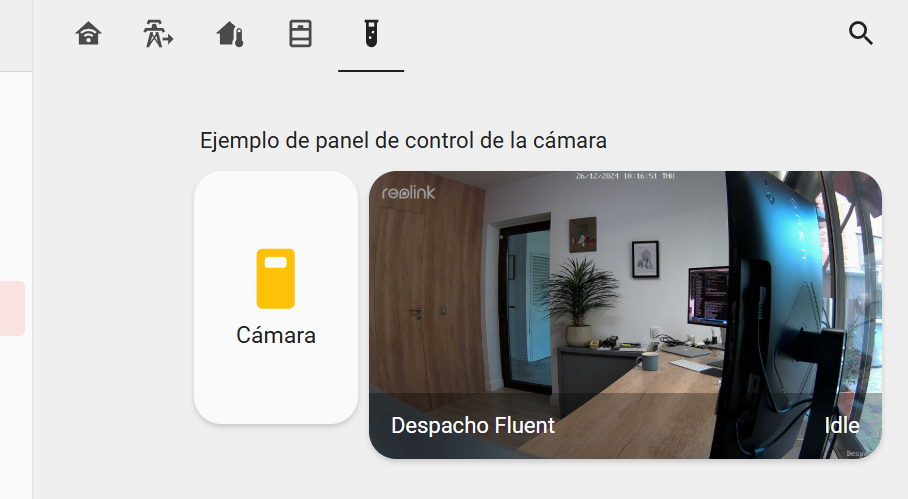
In this post I explain how to control a PoE port on a TP-Link switch (TL-SG108PE) from Home Assistant. Since these small switches don’t support SNMP, I’ll use curl to authenticate, turn on, turn off or query the status of a specific port. The use case is being able to turn on or off a ReoLink PoE camera connected to one of the ports from Home Assistant.
Introduction
As I mentioned, this is a small TL-SG108PE switch. For the following examples, its hostname is sw-despacho-mesa.parchis.org. The workflow sequence via curl consists of authenticating first and then requesting actions like turning on, turning off or querying a port’s status.

I’m going to use cookie-based authentication, instead of server session-based. I use a first curl command to authenticate and save the cookie to a file, the second curl command will use that cookie to work in an authenticated manner. The POST and GET commands you’ll see below were discovered by connecting from the browser and capturing the traffic with Wireshark.
Authentication: This is the command that authenticates us with the switch. It needs to be run first and by the way, if it’s already authenticated, it’s fine to run it again.
pid=`echo $$`
curl -o /dev/null -s -c /tmp/cookies.$pid.txt -X POST "http://sw-despacho-mesa.parchis.org/logon.cgi" \
-H "Content-Type: application/x-www-form-urlencoded" \
--data-urlencode "username=<user>" \
--data-urlencode "password=<password>" \
--data-urlencode "cpassword=" \
--data-urlencode "logon=Login"
Turn On/Off the PoE Port: These are the two commands, the key is in the state value. The first turns the port on and the second turns it off. The camera will turn on or off when it receives or stops receiving power.
curl -o /dev/null -s -b /tmp/cookies.$pid.txt --basic --request GET "http://sw-despacho-mesa.parchis.org/port_setting.cgi?portid=1&state=1&speed=1&flowcontrol=0&apply=Apply"

curl -o /dev/null -s -b /tmp/cookies.$pid.txt --basic --request GET "http://sw-despacho-mesa.parchis.org/port_setting.cgi?portid=1&state=01&speed=1&flowcontrol=0&apply=Apply"
Get port status: It’s possible to query the Switch to see the status of a specific port. In the following example I get the status of all ports and show the value of the first one (change $1 to the port you’re interested in). It will return 1=on or 0=off.
curl -o /dev/null -s -b /tmp/cookies.$pid.txt --basic --request GET "http://sw-despacho-mesa.parchis.org/port_setting.cgi" | grep -oP 'state:\[\K[^\]]+' | awk -F, '{print $1}'
Home Assistant
In the /homeassistant/configuration.yaml file I include the following:
command_line: !include command_line.yaml
This is my command_line.yaml file, remember to change USER,PASSWORD to your switch’s credentials.
# command_line.yaml
# For executing external commands

# I create a switch object to toggle ON/OFF the switch port
#
- switch:
    name: ReoLink Despacho Sensor
    command_on: >
      pid=`echo $$` &&
      curl -o /dev/null -s -c /tmp/cookies.$pid.txt -X POST "http://sw-despacho-mesa.parchis.org/logon.cgi" -H "Content-Type: application/x-www-form-urlencoded" --data-urlencode "username=<USER>" --data-urlencode "password=<PASSWORD>" --data-urlencode "logon=Login" &&
      sleep 1 &&
      curl -o /dev/null -s -b /tmp/cookies.$pid.txt --basic --request GET "http://sw-despacho-mesa.parchis.org/port_setting.cgi?portid=1&state=1&speed=1&flowcontrol=0&apply=Apply" &&
      sleep 5
    command_off: >
      pid=`echo $$` &&
      curl -o /dev/null -s -c /tmp/cookies.$pid.txt -X POST "http://sw-despacho-mesa.parchis.org/logon.cgi" -H "Content-Type: application/x-www-form-urlencoded" --data-urlencode "username=<USER>" --data-urlencode "password=<PASSWORD>" --data-urlencode "logon=Login" &&
      sleep 1 &&
      curl -o /dev/null -s -b /tmp/cookies.$pid.txt --basic --request GET "http://sw-despacho-mesa.parchis.org/port_setting.cgi?portid=1&state=0&speed=1&flowcontrol=0&apply=Apply" &&
      sleep 5
    command_state: >
      ping -c 1 -W 2 camara-despacho.parchis.org | grep "1 packets received" | wc -l
{% raw %}    value_template: '{{ value == "1" }}'{% endraw %}
    unique_id: cmd_line_reolink_despacho_sensor

# I create a binary_sensor object to know the camera's status
#
- binary_sensor:
    name: ReoLink Despacho Conectividad
    command: 'ping -c 1 -W 2 camara-despacho.parchis.org | grep "1 packets received" | wc -l'
    device_class: connectivity
    payload_on: 1
    payload_off: 0
    unique_id: cmd_line_reolink_despacho_conectividad
Below is the sequence diagram.
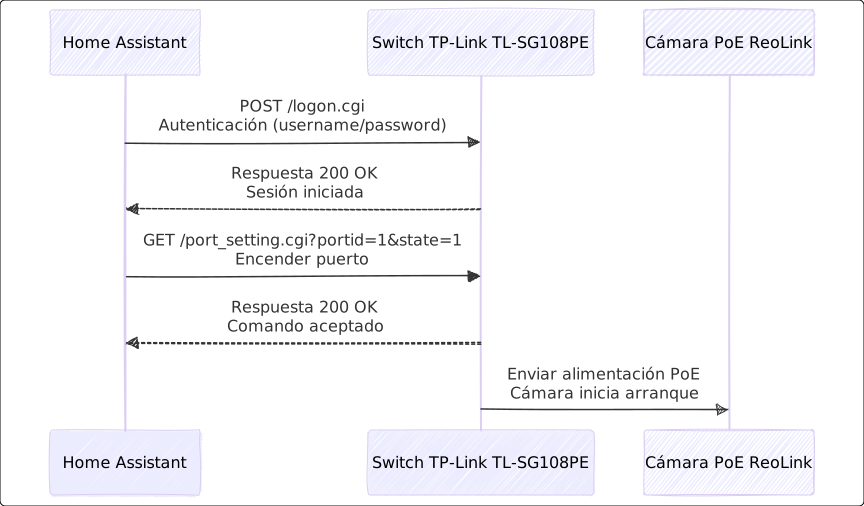
From here you can add the entities to whatever Dashboard you want and/or include them in any automation to control the camera’s on/off state. Just give it time to execute – keep in mind that it’s asynchronous, turning the camera on takes a few seconds and therefore state changes will take a while to be reflected.