
I just discovered pdfly (pronounced PDF-ly), the Swiss army knife for working with PDFs from the command line (CLI). It’s an application written purely in Python, designed to extract (meta)data and manipulate PDF files.
It’s based on the fpdf2 and pypdf libraries, is a free and open-source project with no commercial affiliation, and is licensed under BSD-3-Clause.
Installation
pdfly requires Python 3.10+ to work correctly. Make sure you have a compatible version before installing it.
I recommend installing it with pipx, which lets you install Python CLI applications in your PATH, automatically creates an isolated virtual environment, installs the application along with its dependencies in that environment, and adds a wrapper to your PATH. To install it:
# On Linux/macOS
pip install pipx
pipx ensurepath

# Windows
scoop install pipx
pipx ensurepath
We’re ready, I install pdfly:
pipx install pdfly
pipx ensurepath

# On Windows for example, exit and re-enter the terminal
where pdfly
c:\Users\luis\.local\bin\pdfly.exe
It creates the wrapper .local\bin\pdfly.exe, technically known as a wrapper or shim. When you run it, it looks for where its virtual environment is (<home>\pipx\venvs), locates the Python interpreter inside that environment and passes it the Python startup script to interpret. You may need to exit and re-enter the terminal, then you can verify the installation and get general help with:
pdfly --help
Extraction, information and metadata
PDF Inspection
pdfly offers several tools for inspecting and extracting information from PDF documents:
Complete metadata extraction: This command shows detailed information about the document, including OS and PDF metadata.
pdfly meta documento.pdf
Specific page information: To get details of a specific page, including dimensions (mediabox, cropbox) and annotation list:
pdfly pagemeta documento.pdf <page-number>
Content extraction:
pdfly allows extracting different types of content:
- Text extraction: To extract text from a PDF:
pdfly extract-text documento.pdf
- Image extraction: To extract images without resampling or alteration:
pdfly extract-images documento.pdf
- Annotated page extraction: To extract only pages containing annotations:
pdfly extract-annotated-pages documento.pdf
Organization, security and repair
Merging, splitting and page extraction
pdfly allows flexible manipulation of PDF document pages using the pdfly cat command:
Important: Page indices start at zero and use Python slice syntax, similar to how ranges work in Python.
Page extraction example: Extract pages 1, 2 and 3
pdfly cat input.pdf 1:4 -o out.pdf
Note on negative ranges: For ranges starting with a negative value, use -- to separate them from command-line options:
pdfly cat input.pdf -- -5:-1 -o last-pages.pdf
Page deletion and rotation
Page deletion:
pdfly rm documento.pdf <page1> <page2> -o document-without-pages.pdf
Page rotation:
pdfly rotate documento.pdf <page> <degrees> -o rotated-document.pdf
Print features
pdfly includes useful functions for preparing documents for printing:
pdfly 2-up: Arranges the document in 2-up format (two pages per sheet)pdfly booklet: Creates a booklet format for printing
pdfly booklet input.pdf output.pdf
Security and repair
Digital Signature:
pdfly allows digitally signing PDF documents using PKCS12 certificates.
pdfly sign input.pdf --p12 my-certificate.p12 -p <p12-file-password> -o signed.pdf
Signature Verification:
To verify the signature of a PDF document signed with a PKCS12, I need the PEM certificate to check it against. In this example I extract it from my own certificate.
openssl pkcs12 -in my-certificate.p12 -clcerts -nokeys -out certs.pem
I verify it
pdfly check-sign signed.pdf --pem certs.pem
Check succeeded.
File Repair:
If a PDF file has been manually edited and has problems with offsets and lengths in the xref section, pdfly can repair it:
pdfly update-offsets corrupted-document.pdf -o repaired-document.pdf
This command corrects the offsets and lengths in the document’s xref section.
Conclusion
pdfly is a true “Swiss army knife” for comprehensive PDF management from the CLI. The project uses the “Benevolent Dictator” governance model, currently led by Martin Thoma. The community is open to feedback and contributions, and new collaborators are always welcome.
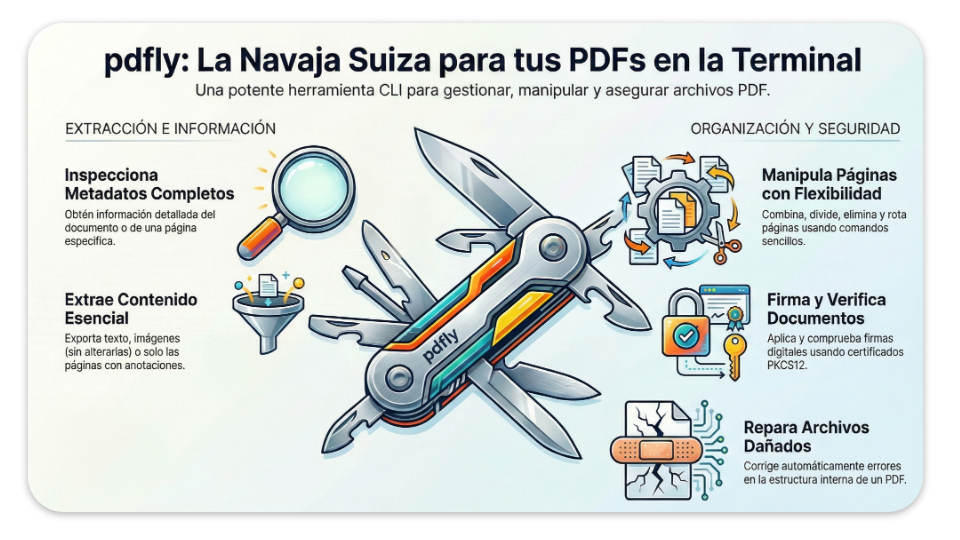
If you frequently work with PDF files from the command line, pdfly is definitely a tool you should have in your arsenal.