Personal Knowledge Management (PKM) is a challenge. I’ve been taking notes for years, accumulating ideas, notes, meeting notes. I’ve tried everything: paper, loose files, Evernote, Notes.app, Craft, Standard Notes and Notion. They all promised to be “the definitive one.” None of them were.
The problem isn’t the application, it’s the model. When your notes live in a proprietary format, on someone else’s servers, you’re renting your knowledge. And one day the company shuts down, raises prices, or you simply decide to switch… and you discover that migrating is hell.
The Notion case
Notion was exciting. Database, views, templates, collaboration. But it has a fundamental problem: your data is theirs. You don’t have files, you have “blocks” in their cloud. Exporting to Markdown produces a Frankenstein full of IDs and broken links. If Notion disappears tomorrow, your years of knowledge become hard-to-recover digital garbage.
It’s not just Notion. Any app that:
- Saves in a proprietary format
- Requires internet to access
- Doesn’t let you export cleanly
…is holding you hostage. And the ransom is your time and frustration when you want to leave.
The philosophy: Markdown + local files
My solution is to go back to basics: text files on my disk. Sounds old-fashioned, but it’s liberating:
| Note characteristics | Proprietary apps | Local Markdown |
|---|---|---|
| Format | Proprietary, opaque | Plain text, universal |
| Location | Their cloud | Your disk |
| Dependency | Requires their app | Any editor |
| Migration | Painful or impossible | Copy the folder |
| Search | Only with their app | You can use anything: VSCode, Obsidian… |
| Apply AI | Depends on their features | Use any AI, just point it to your folder |
A .md file from today will be openable in 50 years.
Why Obsidian
Obsidian is not a notes app, it’s an editor + searcher on top of your Markdown folder. The difference is crucial:
- Your files first: Obsidian works on your folder. If you uninstall it, your notes are still there.
- Powerful search: Indexes everything in
.obsidian/for instant searches. - Bidirectional links: Connect ideas with
[[wikilinks]]or normal links. - Plugins: Dataview, templates, canvas, diagrams…
- Cross-platform: macOS, Windows, Linux, iOS, Android.
And the best part: I can open the same folder with VSCode, Typora or any AI CLI. Obsidian is my primary interface, not my jailer.
Synchronization: the options
You need the folder synchronized between devices. There are three paths:
Option 1: Obsidian Sync (recommended to start)
The official solution. Works perfectly, no configuration needed, E2E encryption. If you value your time more than money, it’s the best option.
Option 2: Cloud Storage providers
You can sync the folder with your favorite cloud service:
| Service | Works on desktop | Works on iOS |
|---|---|---|
| iCloud | Yes | Yes (native) |
| Google Drive | Yes | With limitations |
| Dropbox | Yes | With plugin |
| OneDrive | Yes | With plugin |
Warning: some have conflict or slow sync issues. Research before committing.
Option 3: Self-hosted (my current setup)
If you have a server at home (NAS, Raspberry Pi, etc.), you can set up your own cloud. This is what I use: Nextcloud + WireGuard. More initial work, total control. I detail it below.
Basic installation
Desktop (macOS / Windows / Linux)
- Download Obsidian
- Open folder as vault -> select your notes folder (or create a new one)
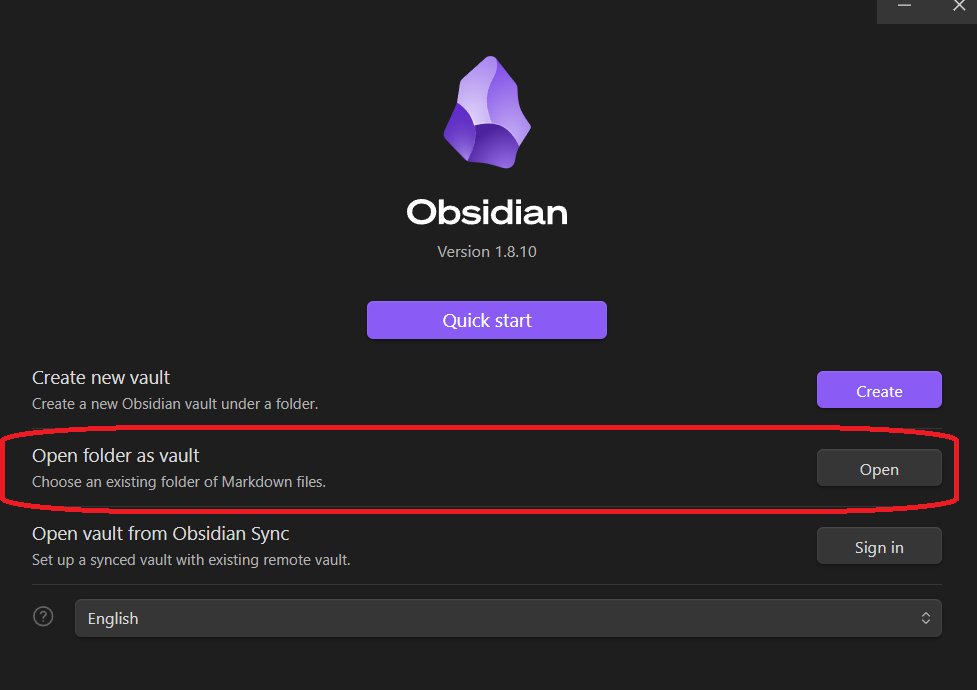
If the folder doesn’t have .obsidian/, it creates it automatically to store configuration and indexes.
Recommended configuration
- Editor
- Spellcheck: On
- Spellcheck languages: as needed
- Files and Links
- Automatically update internal links: On
- Default location for new notes: Same folder as current file
- New link format: Relative path to file
- Default location for new attachments: In subfolder under current folder (
assets)
- Sync
- According to your chosen option
iOS and Android
With Obsidian Sync: install the app, login, done.
With iCloud: on iOS it works natively if your vault is in iCloud Drive.
With other providers: you need the Remotely Save plugin which supports WebDAV, S3, Dropbox, OneDrive. More details in the home setup section.
Home setup: Nextcloud + WireGuard
This section is for tech-savvy folks who want total control. If you prefer simplicity, use Obsidian Sync and skip this.
The architecture
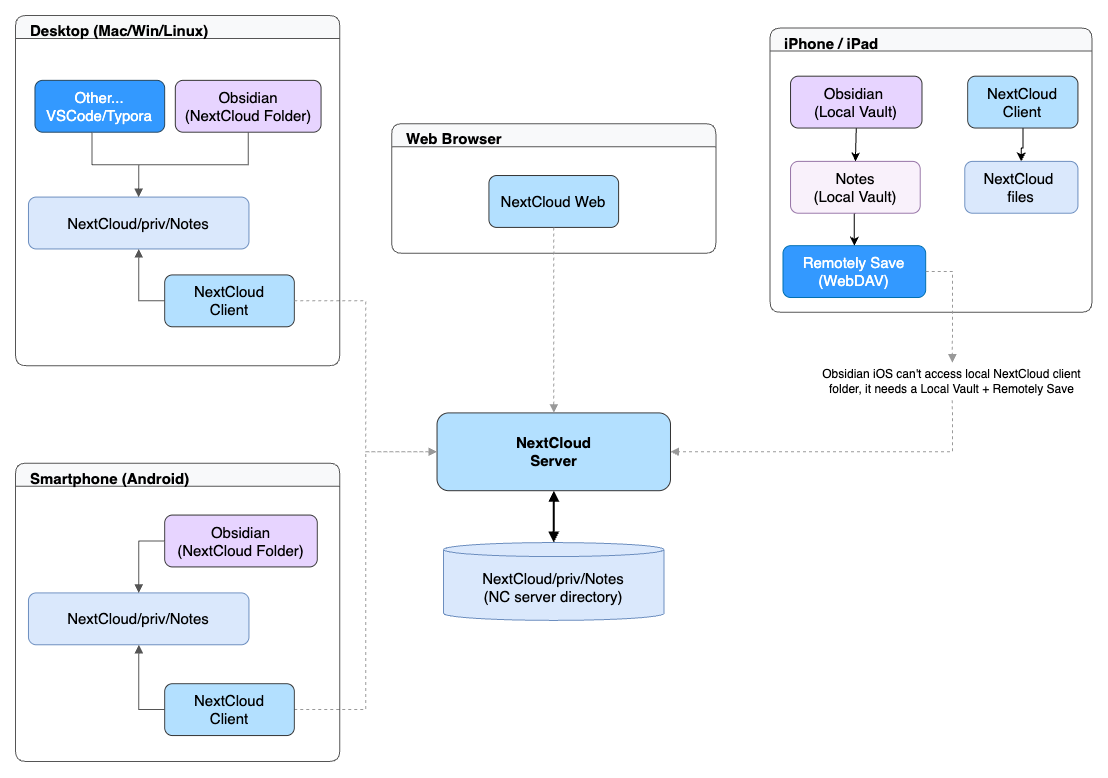
- Nextcloud: self-hosted file server, syncs between all clients
- WireGuard: lightweight VPN for accessing from outside the house
Desktop with Nextcloud
- Install the Nextcloud client
- Configure your account and sync the vault folder
- In Obsidian: Open folder as vault -> the synced folder
Verify it syncs both ways: create a test note, wait to see it on another device, delete it.
iOS with Nextcloud
Here’s the trick. Obsidian iOS doesn’t support “Open folder as vault” due to system restrictions. The solution is the Remotely Save plugin:
- Install Obsidian on iOS
- Create a local vault (I call it “Notes”)
- Install the Remotely Save plugin (Settings -> Community Plugins)
- Configure WebDAV:
- Server:
https://nextcloud.your-domain/remote.php/dav/files/USER/PATH/TO/VAULT - User:
USER - Password:
<application password>
- Server:
- Launch manual sync when needed
Security
Practical tip
WireGuard for remote access
WireGuard lets you connect to your home network from anywhere. You bring up the VPN and access Nextcloud as if you were on the couch. Configuring it is outside the scope of this post, but it’s relatively straightforward if you already have a home server.
Organizing your vault
Before creating 500 notes, stop and think. Decide your folder structure, naming conventions, and whether you’ll use MOCs (Map of Content). Migrating later is tedious.
An example structure:
Notes/
├── .obsidian/             # Obsidian config (don't touch)
├── .vscode/               # If you use VSCode in parallel
├── .claude/               # If you use Claude Code
├── :
└── Priv/                  # My notes, organized in pillars
    ├── Personal/
    │   ├── 00.Personal.md           # Domain MOC
    │   ├── Home/
    │   │   ├── 00.Home.md           # Subdomain MOC
    │   │   └── 2026/
    │   │       ├── 00.2026.Home.md  # Year MOC
    │   │       └── Antenna.md       # Note
    │   └── :
    ├── Work/
    │   ├── :
    └── :
The 00.*.md files are MOCs that link to the content in that section. With the Dataview plugin they can auto-generate lists of child notes.
Maintenance and normalization
Consistent indentation
If you edit from multiple editors, standardize indentation. I use 4 spaces:
- In Obsidian: Settings -> Editor -> Use tabs: Off, Tab size: 4
Linting with markdownlint
To keep Markdown clean:
npm install -g markdownlint-cli2
Create .markdownlint.jsonc at the root:
{
  "MD007": { "indent": 4, "start_indented": false },
  "MD012": { "maximum": 1 }
}
Run: markdownlint-cli2-fix "**/*.md"
Using AI
If you have access to Claude Code, Gemini CLI, Cursor, Copilot or similar, you can apply AI directly on your vault. The advantage of having local files: any tool can open them.
Two modes
- Chat mode: copy/paste into the web. Works, but it’s slow.
- Agentic mode: give it access to the folder and let it work. The good one.
Example with Claude Code
cd ~/path/to/your/vault
claude
Once inside:
- “Create a note about Docker Compose in the Work folder”
- “Review the formatting of all notes”
- “Find orphan notes without incoming links”
- “Improve the writing in this note”
CLAUDE.md + Skills
The powerful part is teaching it your system. I have a CLAUDE.md at the root that describes my structure, conventions and rules. Claude reads it automatically and acts accordingly.
Notes/
├── CLAUDE.md              # Instructions for the AI
├── .claude/
│   ├── scripts/           # Auxiliary scripts
│   └── skills/            # Custom commands
│       ├── format/        # /format - validate markdown
│       └── orphans/       # /orphans - find orphans
Skills are commands you define in SKILL.md files. Example:
/create "Git Rebase Strategies" work
→ Creates: Priv/Work/2026/Git Rebase Strategies.md
Agentic AI understands the context and can do tedious operations: review frontmatter, fix tags, reorganize, improve writing, validate formatting. You give it the objective, not the step-by-step instructions.
Conclusion
My current stack:
- Format: Markdown in local files
- Editor: Obsidian (+ VSCode when I feel like it)
- Sync: Home Nextcloud (but Obsidian Sync is equally valid)
- AI: Claude Code for automation and improvement
The important thing is that my notes are mine. Text files on my disk, that I can open with any tool, move anywhere, and that will still be readable in 50 years. Notion can’t say the same.
Useful links
| Notes | Sync | AI |
|---|---|---|
| Obsidian | Nextcloud | Claude Code |
| Remotely Save Plugin | Nextcloud WebDAV | Gemini CLI |
| WireGuard |