
Apple Creator Studio is Apple’s new subscription that bundles its professional creative tools: Final Cut Pro, Motion, Compressor, Logic Pro and Pixelmator Pro. In this post I describe how I organize my video projects to make the most of available disks and keep everything under control.
The challenge isn’t using Final Cut Pro – which is quite intuitive – but managing the file hierarchy across disks without ending up with orphaned libraries, overflowing caches, or losing raw footage. After several family projects, I’ve consolidated a protocol that works for me.
Introduction
Final Cut Pro is Apple’s professional video editor. Its Magnetic Timeline lets you move clips without leaving gaps, and rendering leverages the Mac’s hardware to preview effects in real time. It’s powerful yet accessible – ideal for both professional and family projects.
Motion is the perfect companion for creating your own animated graphics: titles, transitions, lower thirds and effects. What you design in Motion integrates directly into Final Cut Pro as if it were a native resource. Both share the same rendering engine, so smooth playback is guaranteed.
Hierarchy philosophy
This post focuses on organizing the folder hierarchy and deciding where to store each type of file. With a single disk it’s trivial, but when you have several – with different capacities and speeds – it’s worth thinking it through from the start.
My setup has three disks with differentiated roles:
| Disk | Type | Role |
|---|---|---|
| Macintosh_HD | Internal SSD | Operating System. I’ll use it for cache and renders. Ultra-fast disk |
| Baul | External SSD | Active work. Very fast SSD |
| Trastero | External HDD | Master storage. Normal fast disk |
The idea is simple: the internal SSD is fast but limited in capacity, so it only stores temporary files. The external SSD (Baul) contains projects in progress. The HDD (Trastero) stores everything that’s finished – it’s slow but huge.
Directory structure
Macintosh_HD/
└── Users/luis/Multimedia/FCP_Cache            ← Cache and renders

Baul/ (SSD)
└── Multimedia/Familia_Active/
    ├── 01_Media_Active/YYYY-MM-DD_Project/    ← Imported clips
    ├── 02_Library_Files/                      ← .fcpbundle libraries
    └── 03_Motion_Content/                     ← .motn files

Trastero/ (HDD)
└── Multimedia/Familia_Master/
    ├── 01_Source_Originals/YYYY-MM-DD_Project/    ← Raw footage + archived library
    ├── 02_Final_Deliverables/                     ← Exported videos
    ├── 03_Audio_Library/                          ← Music and sound effects
    ├── 04_FCP_Backups/                            ← Automatic backups
    └── 05_Graphic_Assets/                         ← Logos and vectors
Each project has its own date-prefixed folder (YYYY-MM-DD_Project), which makes it easy to sort chronologically and avoid name collisions.
Library, event and project
Final Cut Pro organizes work in three hierarchical levels:
Library (.fcpbundle)
└── Event
    ├── Clips (imported media)
    └── Project (editing timeline)
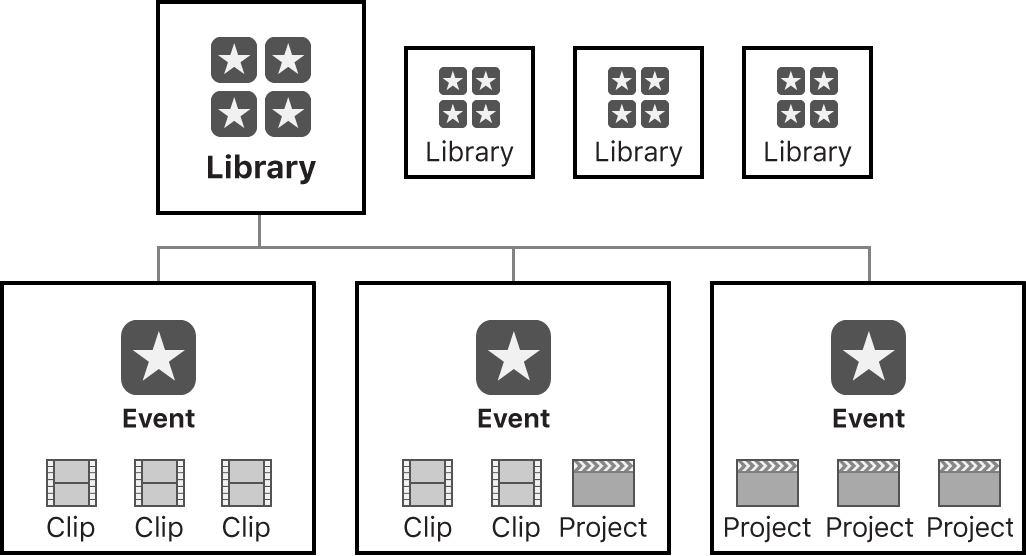
The Library is the main container – an .fcpbundle file that groups everything together. Inside are Events, which work as logical folders to organize material (by date, topic or whatever you prefer). And inside each Event live the Projects, which are the timelines where you edit.
A practical example: for my son’s birthday, I create a library called Cumple_Luis.fcpbundle. Inside I have an event called “Cumple 2026” with all the imported clips. And inside the event, a project called “Final Edit” where I do the editing.
This hierarchy is important because storage settings (Storage Locations) apply at the Library level, not the project level. All events and projects within a library share the same configuration.
Storage Locations configuration
I create the library (the .fcpbundle file) in Baul/.../02_Library_Files/[Project_Name].fcpbundle.
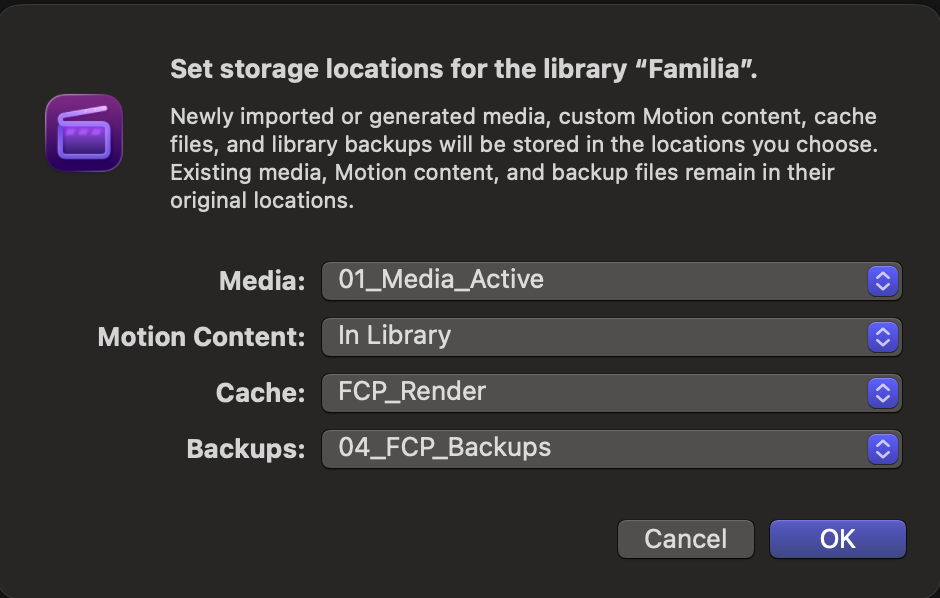
When creating a new library, I configure where FCP stores each type of file. Go to Library > Inspector > Storage Locations > Modify Settings:
| Parameter | Location | Disk |
|---|---|---|
| Media | Baul/.../01_Media_Active | Baul |
| Motion Content | In Library | Baul |
| Cache | Users/luis/Multimedia/FCP_Cache | Macintosh_HD |
| Backups | Trastero/.../04_FCP_Backups | Trastero |
Consistent naming
2026-02-08_Cumple_Luis/, the library should be Cumple_Luis.fcpbundle. This avoids confusion when you have multiple Libraries with their Events and Projects open.Workflow
Import with “Leave in Place”
When importing (Cmd + I), in the right panel I select “Leave files in place”. FCP doesn’t duplicate the files – it reads them directly from the Baul. Saves space and CPU.
Automatic keywords
In the same import window, under Keywords, I check “From folders”. FCP automatically creates tags based on subfolders. If I have 01_Assets/Drone/, clips from that folder will have the keyword “Drone”.
Motion <-> FCP integration
The workflow between Motion and Final Cut is direct:
- Design in Motion (title, lower third, transition)
- Save the
.motnfile inBaul/.../03_Motion_Content - Publish from Motion (File > Publish)
- The resource automatically appears in FCP’s browser
By configuring Motion Content as “In Library”, FCP absorbs the published resource inside the .fcpbundle. The original .motn file remains as the working source in case I need to edit it.
Consolidation and archiving
When I finish a project, I archive it following these steps:
1. Clean the cache
File > Delete Generated Library Files > Check everything (Render Files, Optimized Media, Proxy Media). This frees up the system disk.
2. Consolidate the library
In the Library Inspector, click Consolidate. Answer YES to include Motion Content. FCP copies everything needed inside the .fcpbundle, making it portable.
3. Move to Trastero
I move the consolidated library along with the raw footage:
- Source:
Baul/.../02_Library_Files/[Project].fcpbundle - Destination:
Trastero/.../01_Source_Originals/YYYY-MM-DD_Project/
This way, raw footage and library stay together in the same master archive folder.
4. Verify integrity
I open the library from Trastero to confirm everything links correctly. Only then do I delete the files from Baul and the Macintosh_HD cache.
Expert tips
Format synchronization
Always configure FCP and Motion with the same resolution and frame rate. If the project is 1920x1080 at 24p, Motion should be at 1080p / 23.98 fps. This avoids frame interpolation and unnecessary scaling.
Multiple simultaneous projects
With the proposed structure, you can have multiple libraries open without conflicts:
Baul/Multimedia/Familia_Active/
├── 01_Media_Active/
│   ├── 2026-01-01_Viaje_Japon/
│   └── 2026-02-08_Cumple_Luis/
└── 02_Library_Files/
    ├── Viaje_Japon.fcpbundle  ← Points to Japan clips
    └── Cumple_Luis.fcpbundle  ← Points to birthday clips
Each library has its own independent Storage Locations.
Disable Background Render
To prevent cache from growing out of control:
- Settings > Playback
- Uncheck Background Render
- Render manually with
Ctrl + Rwhen you lose playback fluidity
Cache maintenance
- During the project: If Macintosh_HD drops below 50GB free, delete Render Files from
File>Delete Generated Library Files - When finished: Manually delete
Users/luis/Multimedia/FCP_Cacheafter verifying the archive
Useful links
- Final Cut Pro User Guide – Final Cut Pro manual
- Motion User Guide – Motion manual
- Apple Creator Studio – Official subscription