
If you use AI agents or do vibe coding, you know how quickly repositories pile up across different accounts and providers. Personal GitHub, work GitHub, or even a self-hosted server like Forgejo… and suddenly you have dozens of repos cloned with the wrong identity, crossed credentials, and a monumental mess.
This happened to someone very close to me — a non-technical person who is creating many “projects” with agentic AI and, like anyone starting with Git for versioning and backups, was going crazy.
I created Gitbox to help “non-developers” manage multiple accounts and clones more easily, without them stepping on each other. If you’re a developer, think of it as another alternative — and if you like it, go ahead. I use it on all my desktops and headless machines.
The problem
Anyone who works with Git across multiple contexts has run into this:
- You clone a work repo with your personal account and commits go out with the wrong email.
- You have tokens and credentials from three different providers and can’t remember which is which.
- Every time you switch machines (or reformat) you have to reconfigure everything from scratch.
- With the rise of vibe coding and AI agents, the number of repos you manage multiplies and the problem gets worse.
The root of the problem is that Git was not designed for non-developers. Its global configuration model (~/.gitconfig) assumes you are a single person, with a single email and a single authentication method. While it can work with multiple accounts and users, you need to be technical or a developer to not get lost.
What is Gitbox
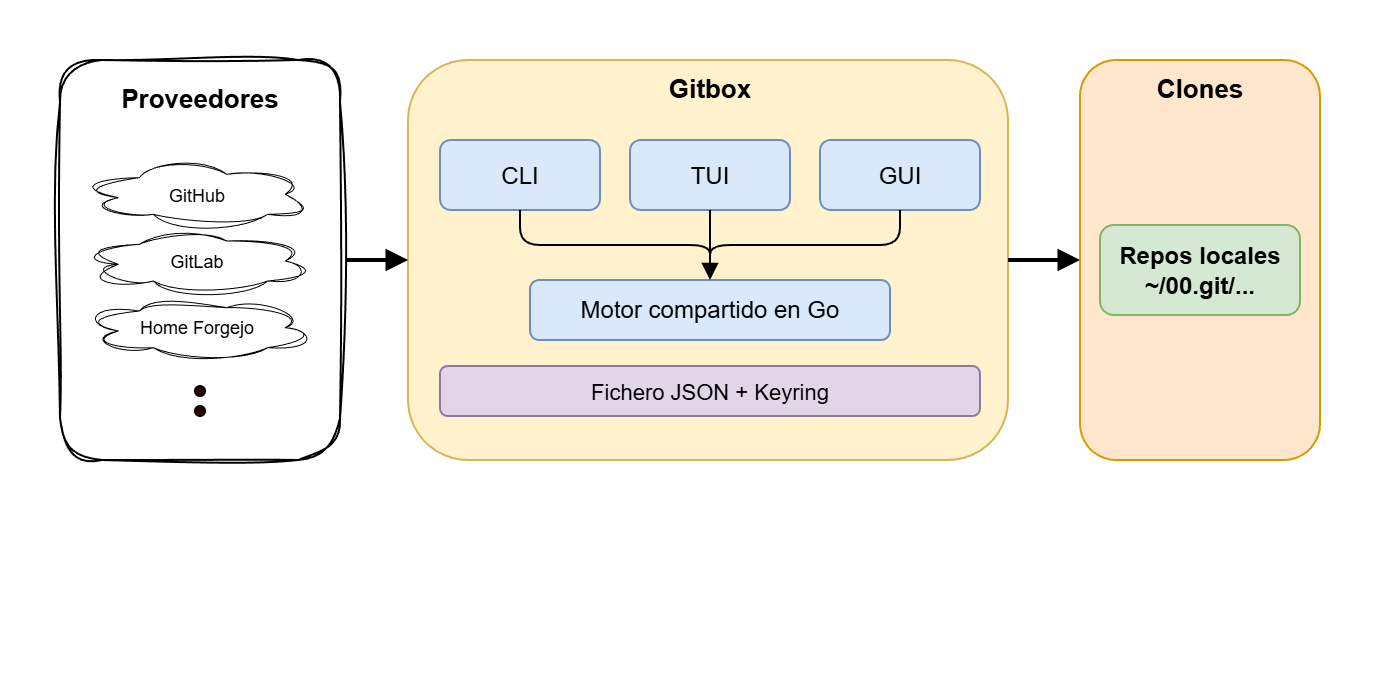
Gitbox is a cross-platform tool (Windows, macOS, Linux) that orchestrates the entire lifecycle of your Git accounts and tries to shield you from its complexity. It also adapts to your level: if you’re non-technical you use the GUI (desktop application with buttons and forms), and if you’re a developer you have the TUI (interactive terminal interface) or the CLI (direct commands for scripts and automation). All three share the same engine, so you choose whichever suits you best.
- Isolated accounts — makes it easy to manage multiple accounts across multiple providers, each with its own identity (name, email) and credentials (Token, GCM or SSH), completely separate from each other.
- Auto-discovery — once you add an account, it connects to the provider (GitHub, Forgejo, …) and lists all your repos so you can conveniently download (clone) them.
- Smart cloning — each repo is cloned with the correct identity into an organized folder structure (by default at
~/00.git/[source]/[org]/[repo]). Inside each clone, the.git/configfile is isolated and configured with its credentials, preventing any cross-contamination. - Sync status — if you have 10 or 20 clones you never know which one is up to date; you have to check them one by one. With Gitbox, at a glance you can see which repos are clean, which have pending changes, and which are behind the remote.
- Safe pull — when possible, it updates repos that are behind using fast-forward mode, the safest approach. If a repo has conflicts or local changes, it doesn’t touch it.
- Mirrors between providers — to keep copies across providers. Very useful if you have a self-hosted server (e.g., Forgejo or Gitea) and want certain repos to sync automatically with an external one (GitHub for example). I use this to keep backups of some repos on another provider.
- No editing — Gitbox never does
add,commitorpushfor you. It only manages the infrastructure: which accounts you have, what you have cloned, each with its credentials in the right place.
Installation
Important note — this is a literal copy of a paragraph from the project’s own README:
Warning
xattr -cr on macOS, Unblock-File on Windows) so they can run. By doing so you are explicitly trusting unsigned code. I recommend auditing the source code and the installation script before running anything. The project is open source under the MIT license — inspect it, build it yourself, or don’t use it.While you can download binaries from the project’s Releases page, I recommend using the installation script. A single command that handles download, extraction, quarantine marks, and PATH configuration. Run it from a terminal (on Windows use Git Bash):
bash <(curl -fsSL https://raw.githubusercontent.com/LuisPalacios/gitbox/main/scripts/bootstrap.sh)
The installer supports additional options — add
--helpat the end to see them.
On macOS the CLI installs to ~/bin/gitbox and the GUI to /Applications/GitboxApp.app. On Linux and Windows both go to ~/bin/. The script adds ~/bin to PATH if needed.
Requirements:
- Git 2.39+ — Installer for Windows (includes Git Bash), macOS and Linux.
- Git Credential Manager. Highly recommended for setting up GCM-type credentials.
- On macOS it’s important to use a version newer than what comes with the system. I recommend having Homebrew and installing Git and GCM (
brew install gitandbrew install --cask git-credential-manager).
Three interfaces
As I mentioned, Gitbox adapts to your level. Here’s the detail of each interface and when it makes most sense to use each one:
- GUI — The ideal option if you’re non-technical or simply prefer working with a mouse. It’s a desktop application (Wails + Svelte) with cards per account, sync rings, visual mirror management, and forms to create repos. Everything at a click.
- TUI — For those who live in the terminal but want something visual. Run
gitboxwithout arguments and you get an interactive dashboard with keyboard navigation and colors. Ideal for a developer’s daily workflow. - CLI — For power users, scripts, and automation. Direct commands with
gitbox <command>, perfect for integrating into CI/CD workflows or your own scripts.
All three share the same configuration (~/.config/gitbox/gitbox.json), so you can switch between them seamlessly.
Mirrors and backups
A feature I find key is the ability to create mirrors between providers. For now it’s been tested between a self-hosted server (e.g., Forgejo) and GitHub.
This creates automatic backups on the other provider. If tomorrow GitHub decides to change its terms or I simply want redundancy, my repos are safe.
Conclusion
If you work with multiple Git accounts — whether it’s personal and professional projects, or because the vibe coding explosion with AI agents has filled you with repos across different providers — Gitbox saves you hours of manual configuration and identity errors. I use it daily and it’s liberating not having to think about credentials every time I clone something.