
If you’re building projects with the help of AI, sooner or later you need to keep them somewhere safe, have a copy online and be able to work from more than one computer. The standard tool for that is Git, and with it come accounts on GitHub (or similar sites), passwords, folders… and it’s easy to get lost.
That’s what happened to someone very close to me: a non-technical person who is building lots of projects with AI and was going crazy with Git.
I built Gitbox, a desktop app that keeps all your projects organized and safe without having to learn Git. It’s designed for non-developers, although I, being one, use it every day on all my machines.
Four ideas before you start
You don’t need to know Git to use Gitbox, but it helps to be clear on four words:
- Git — the program that keeps a project’s history. Every time you save, it takes a “snapshot” you can go back to.
- GitHub (and its siblings: GitLab, Bitbucket, Forgejo, Gitea) — websites where a copy of your projects lives online. It’s your backup, and what lets you work from another computer.
- Account — your user on one of those websites. You can have several, for example a personal one and a work one.
- Downloading a project (in Git jargon, cloning) — bringing to your computer a copy of a project that lives online, linked to the original so you can send and receive changes.
What Gitbox does
You connect your account(s) once, and from then on:
- It shows you all your projects from each account and lets you choose which ones to download.
- It organizes them in folders, one per project and separated by account, so they never get mixed up.
- It takes care of passwords: each project knows which account it works with, and your changes always go out with the right name and email.
- It tells you, in plain words, whether your work is safe or something needs your attention.
- It opens each project with one click in your AI assistant (Claude Code, Codex…), your editor or a terminal window.
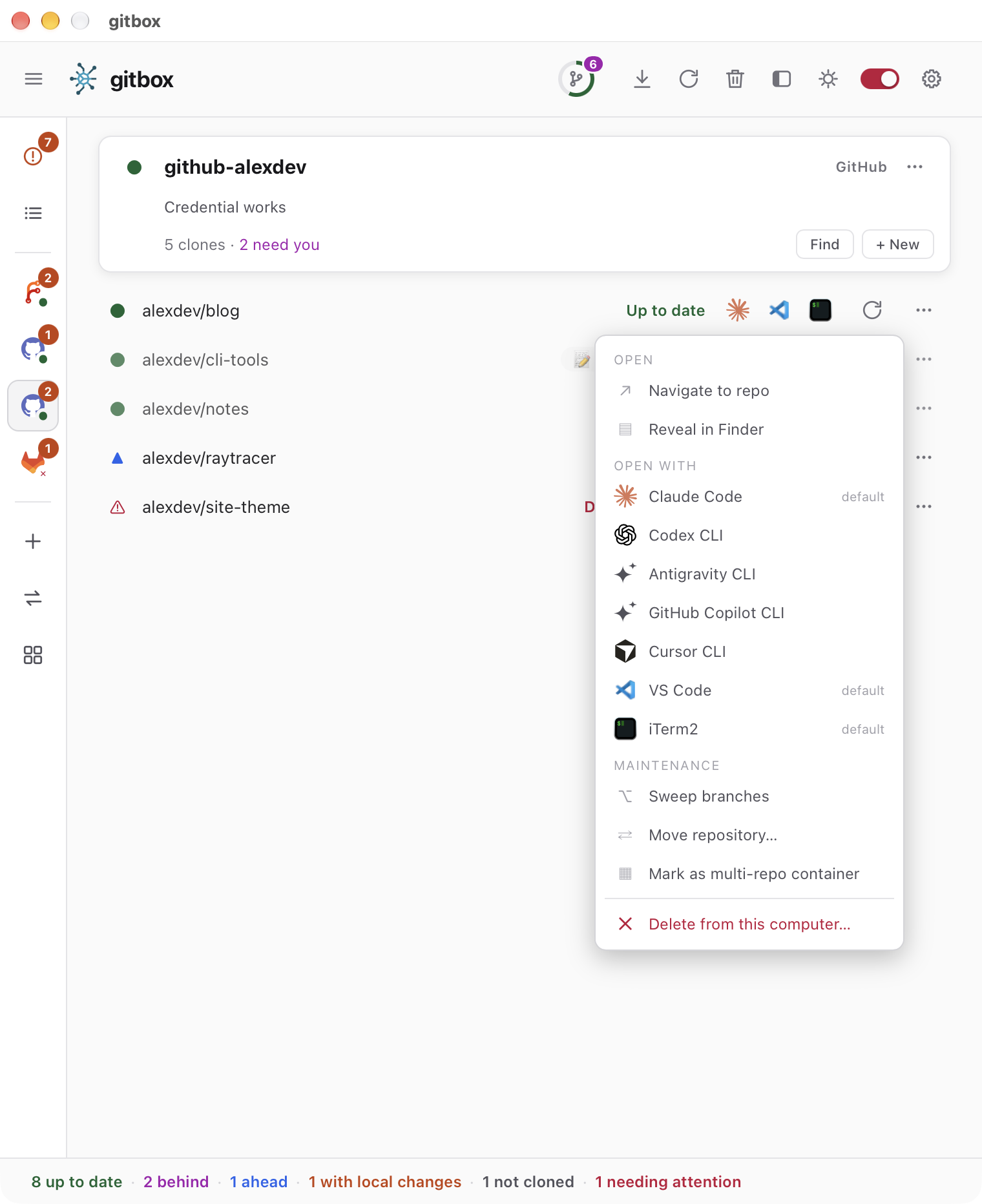
And something important: Gitbox isn’t a program for working with Git the way a developer would; it’s designed as a shop window where you can look and it tells you the state of your local copies. Think of it as a magnifying glass over your projects: at a glance it tells you what you have on your computer, whether it’s up to date and whether everything is in its place. That’s why it never saves or uploads your work (in Git jargon, it never does add, commit or push): you do that from another program or, better still, ask your AI to do it. The only things it does on its own are what you ask for with a button, like downloading a project or bringing in a newer version, and always without touching what you’re working on.
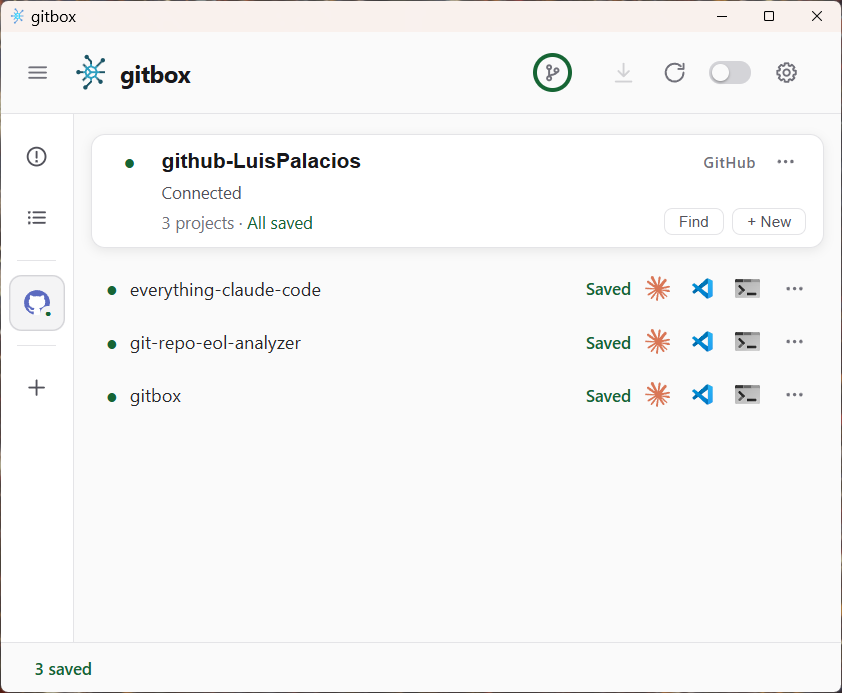
Each project shows one of these six states:
| State | What it means |
|---|---|
| Saved | What you have on your computer is in sync with what’s online: both copies are the same. Nothing to do. |
| Work in progress | There are modified files on your computer that you haven’t saved as a version or sent online yet. Open it with your AI and say: “commit and push”. |
| Saved here, not uploaded | You’ve already saved a version with your changes on your computer, but you haven’t sent it online yet. Open it with your AI and say: “push”. |
| Newer version online | There’s a newer version online than the one on your computer (maybe you made it from another machine). The Update button downloads it. It only does so when it’s safe: if you have changes of your own that haven’t been sent online, Gitbox won’t delete or mix them, it leaves that project as it is. |
| Only online | The project is on your Gitbox list, but you haven’t downloaded it to this computer yet: only the online copy exists. Click Download to bring it over. |
| Needs help | Something Gitbox can’t sort out on its own. Open it with your AI and say: “Gitbox says this project needs help; check what’s going on with git and fix it”. |
Why might Needs help show up? The most common reason is that the project changed both on your computer and online at the same time (for example, you worked from another machine without updating first) and the two versions need to be joined. It also appears if the online copy has disappeared (it was deleted or renamed) or if something failed. Click the project and Gitbox shows you the details.
Installation
There are three steps: prepare your computer, install Gitbox and connect your account. You need to already have an account on GitHub (or wherever your projects live).
1. Prepare your computer
On Windows
Install Git for Windows. Download it from git-scm.com/downloads/win and run it. The installer asks a lot of questions: on almost all of them, just click Next. Only change these, choosing exactly the option shown:
| Screen | Choose | What it means |
|---|---|---|
| Choosing the default editor used by Git | Use Notepad as Git’s default editor | If Git ever needs you to type something, it will use Notepad. |
| Adjusting your PATH environment | Git from the command line and also from 3rd-party software | Other programs, like Gitbox, will be able to find Git. |
| Choosing the SSH executable | Use bundled OpenSSH | Uses the secure connection tool that ships with Git itself. |
| Choosing HTTPS transport backend | Use the OpenSSL library | Uses the encryption library that ships with Git itself. |
| Configuring the line ending conversions | Checkout as-is, commit Unix-style line endings | Saves text files in the standard format, compatible with Mac and Linux. |
Git for Windows already includes Git Credential Manager, the program that stores your passwords securely. On the Choose a credential helper screen, leave the option that comes selected.
On macOS
Here you’ll need the Terminal app: press ⌘ + Space, type Terminal and press Return (iTerm or a similar app works too). It’s a window where you paste a command and press Return. That’s all you need to know.
Install Homebrew, the program installer we’ll use. Paste this command into Terminal and press Return:
/bin/bash -c "$(curl -fsSL https://raw.githubusercontent.com/Homebrew/install/HEAD/install.sh)"It will ask for your Mac password. You won’t see anything on screen while typing it, that’s normal: type it and press Return. When it finishes, Homebrew shows a Next steps section with two or three lines: copy them, paste them into Terminal and press Return.
Install Git and Git Credential Manager, which stores your passwords securely. Paste these two lines, one after the other:
brew install git
brew install --cask git-credential-manager
The second one may ask for your Mac password again.
2. Install Gitbox
Before you install
On Windows:
- Go to the latest release page, scroll down to Assets and download
gitbox-win-amd64-setup.exe. If the browser warns you when downloading, choose Keep. - Run it. Windows will show “Windows protected your PC”: click More info and then Run anyway. When it asks whether to allow the app to make changes to your device, answer Yes.
- When it’s done, you’ll find gitbox in the Start menu.
On macOS: paste this command into Terminal and press Return. It downloads the latest version, copies it to your Applications folder and removes Apple’s warning for you:
bash <(curl -fsSL https://raw.githubusercontent.com/LuisPalacios/gitbox/main/scripts/bootstrap.sh)
When you see gitbox ... installed, you’re done. Open it from Launchpad or the Applications folder (it’s called GitboxApp).
3. First launch
The first time you open Gitbox, a wizard walks you through three steps. The app follows your computer’s language, English or Spanish (you can change it in Settings → Language).
- Where do you keep your projects? — choose a folder for all of them, for example a
Projectsfolder inside your home folder. - Connect where your projects are stored — choose GitHub (or whichever you use), type your username, your name and your email, and click Sign in with the browser. A small GitHub window will appear: click Sign in with your browser and sign in with your account if asked. When the browser says Authentication Succeeded, close that tab and go back to Gitbox.
- Pick projects to download — tick the ones you want and click Download. On the main screen you’ll see them download, each with its own progress bar, until they all say Saved.
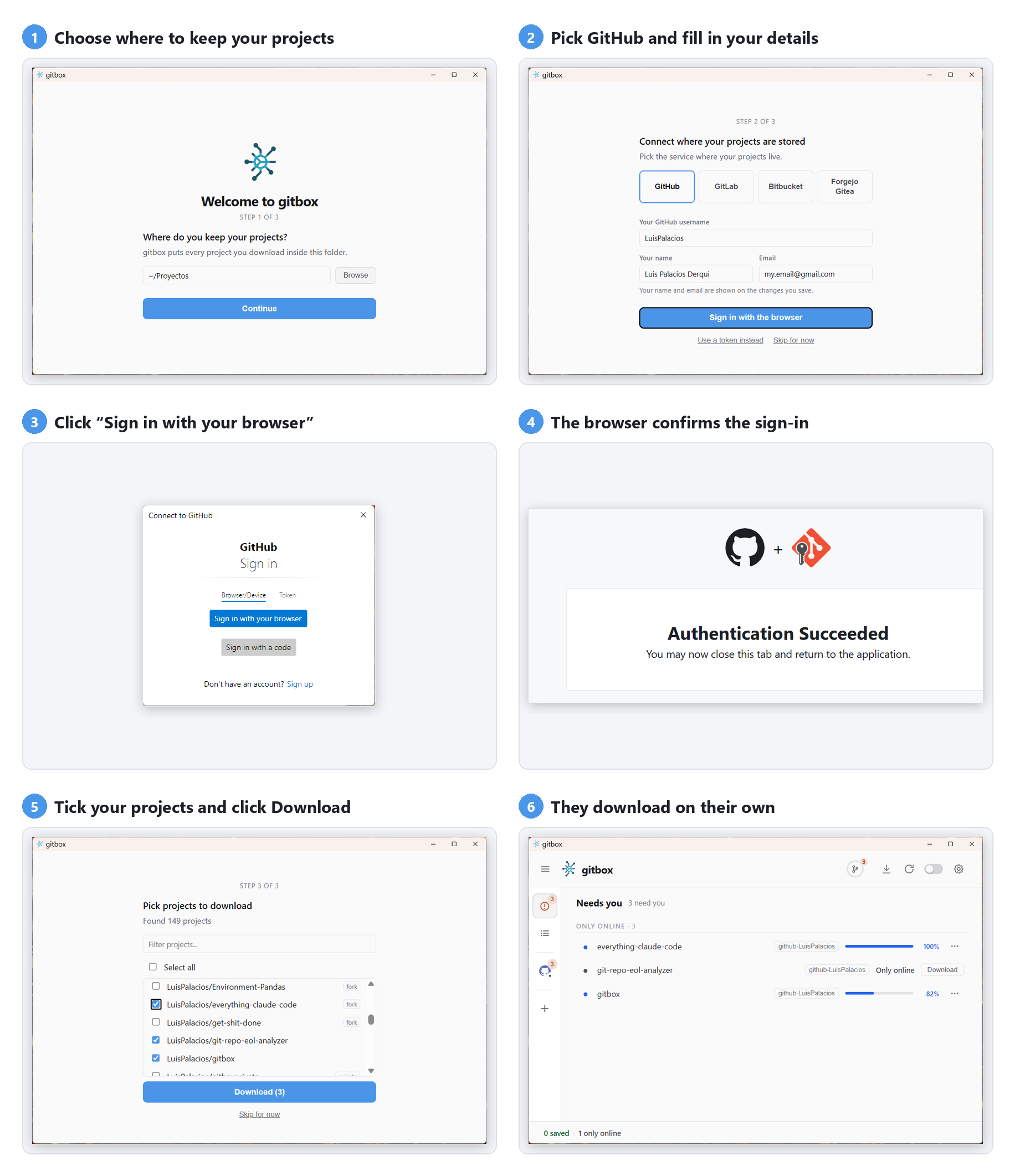
If signing in with the browser doesn’t work, Gitbox offers Use a token instead: a special password you create on the GitHub website. Gitbox gives you the link and tells you which boxes to tick; you create it, copy it and paste it.
If you want to add another account later, click the + in the left bar (Connect an account).
If an orange notice appears at the top
Day to day
- Check all (the circular arrow at the top) looks online for anything new in your projects. Update all (the down arrow) brings it in, with the same rule as the Update button: if a project has changes of yours that haven’t been sent online, it leaves it as it is. When it’s done, a card in the bottom right corner sums up what happened.
- Needs you, the exclamation-mark icon at the top of the left bar, shows only the projects that need your attention. If it’s empty, everything is in order.
- To work on a project, use the three buttons on its right: the first opens your AI assistant right inside that project, the second your editor and the third a terminal window. The ⋯ button has more options, like Open on the web or showing the folder.
- To save and upload your work, ask your AI assistant, for example: “commit and push the changes” (in Git jargon, commit means saving a version and push means uploading it online). When it’s done, the project will say Saved again.
- Gitbox updates: when a new version is out, a notice appears in the bottom bar. Click it and Gitbox updates and restarts on its own; before installing the new version, it checks by itself that it’s genuine.
If you want to keep Gitbox in view while you work, the compact view shrinks it to a narrow column you can leave on one side of the screen, with the percentage of projects up to date and one row per account.
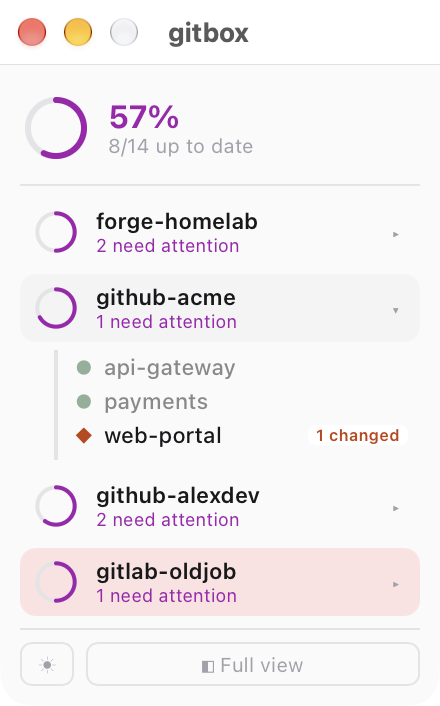
For the more technical
If you already know Git, Gitbox has an Advanced mode (the switch in the top bar; red because it’s the mode with destructive power) that shows every detail: commits ahead and behind, local changes, pull requests and pending reviews, branches, and the mirrors and workspaces views. In Advanced, Check all and Update all become Fetch all and Pull all: it fetches everything and pulls fast-forward only, never touching a repo with local changes or conflicts.
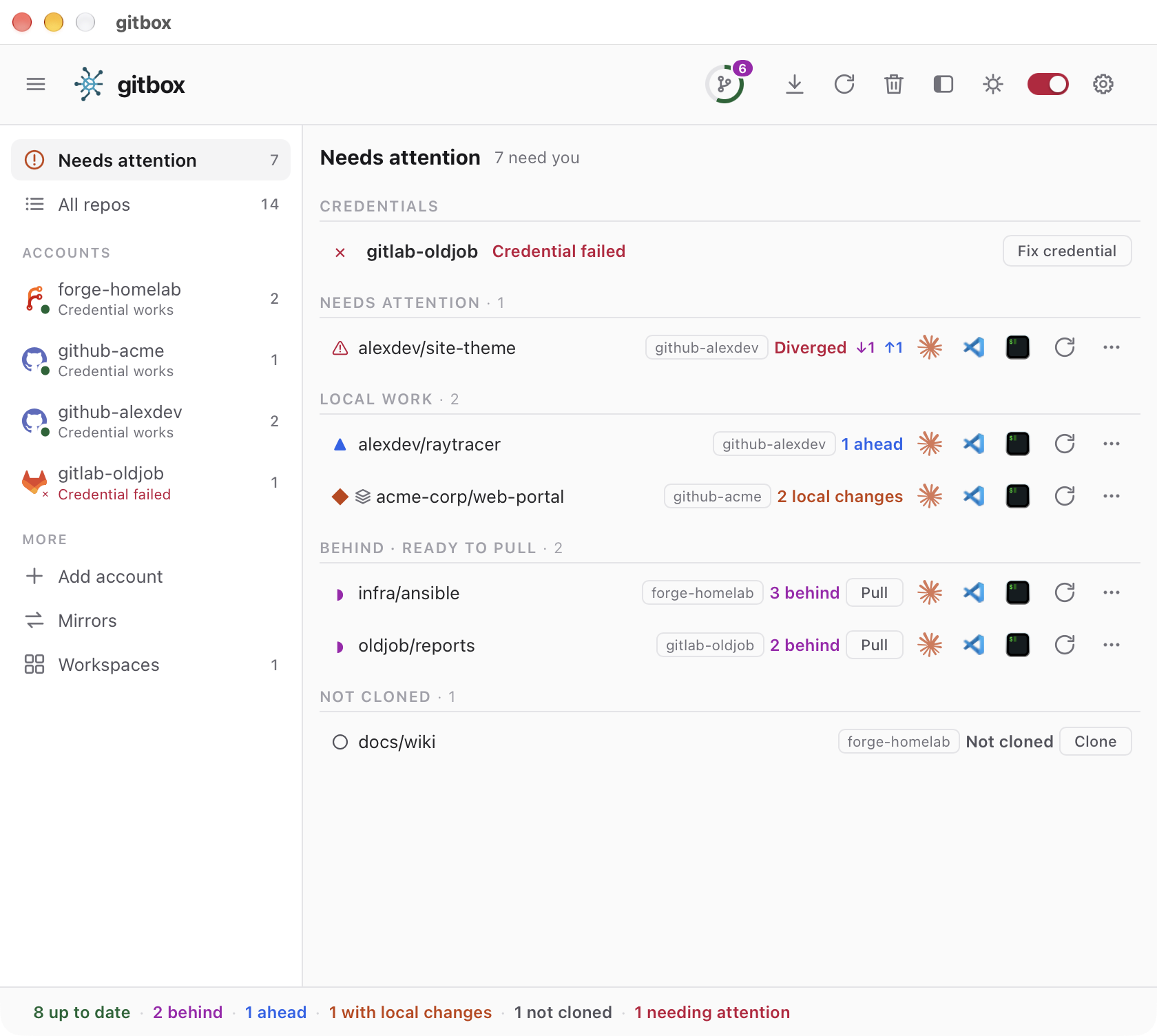
Under the hood it doesn’t reimplement Git: it uses the system’s git, ssh and Git Credential Manager. The engine is written in Go, the configuration lives in ~/.config/gitbox/gitbox.json and secrets in the operating system keyring. It works with GitHub, GitLab, Gitea, Forgejo and Bitbucket.
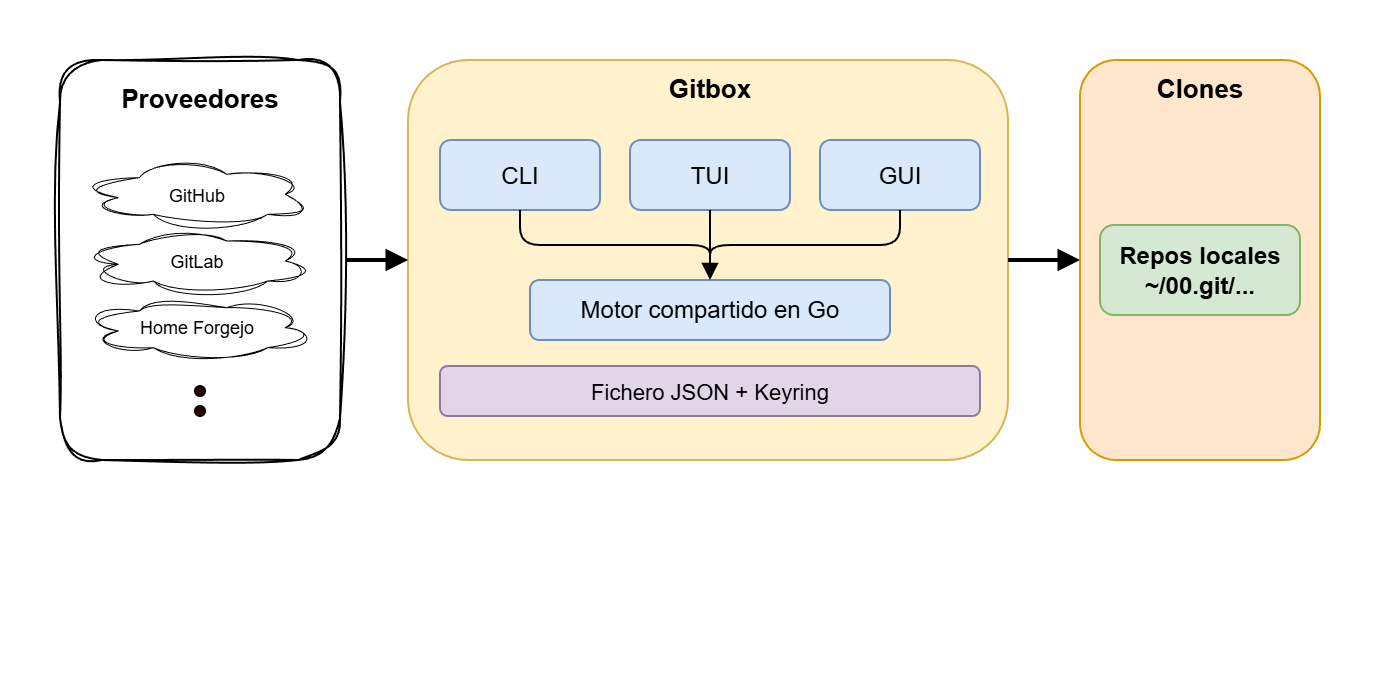
What I use most in Advanced mode:
- Per-account credentials — GCM, SSH (it generates the key pair and gives you the link to register the public key) or token. Each clone keeps its identity and credential in its own
.git/config, and it warns you when a GitHub or GitLab token expires in 14 days or less. - Mirrors — push or pull copies between providers for backups; I use them between my home Forgejo and GitHub. Fully automated on Gitea, Forgejo and GitLab; for GitHub and Bitbucket Gitbox shows the manual steps.
- Move a repo to another account or provider with a guided flow that keeps every branch and tag.
- Clones anywhere — adopts clones that live outside the standard layout, even repos nested inside a multi-repo container.
- Launchers — detects the installed AI assistants, editors and terminals; on Windows, terminal profiles pair a terminal with a shell and reuse your Windows Terminal or WezTerm profiles.
- Self-healing setup — a system check (Settings → System check) with the exact command to install anything missing, one-click fixes for global git settings and dated configuration backups.
Other ways to install it: on Linux there’s a self-contained gitbox-x86_64.AppImage, and the install script above also works on Linux and on Windows from Git Bash (run it with --help to see the options). Releases are signed with my release key, and the updater rejects any version whose signature or checksum doesn’t match. For headless servers, version 1.x with its CLI and TUI lives on in the release/v1 branch (install it with --cli-only) and reads the same gitbox.json.
Conclusion
If you’re starting to build projects with AI and Git sounds like gibberish, Gitbox lets you keep them organized, backed up online and without worrying about passwords or folders. And if you’re already juggling several accounts and dozens of repos, it saves you hours of setup and identity mistakes. I use it every day, and it’s liberating not to have to think about credentials every time I download something.
Useful links
- GitHub repository
- Downloads (latest release)
- App guide
- Credential setup
- Architecture
- Release signing
- Version 1.x with CLI and TUI (
release/v1branch)