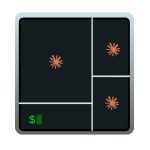
When you work with an AI harness (Claude Code, Gemini CLI, Codex, …) you end up spinning up several instances over and over. I wanted a keyboard shortcut that opened my most typical setup with multiple panes in a single window.
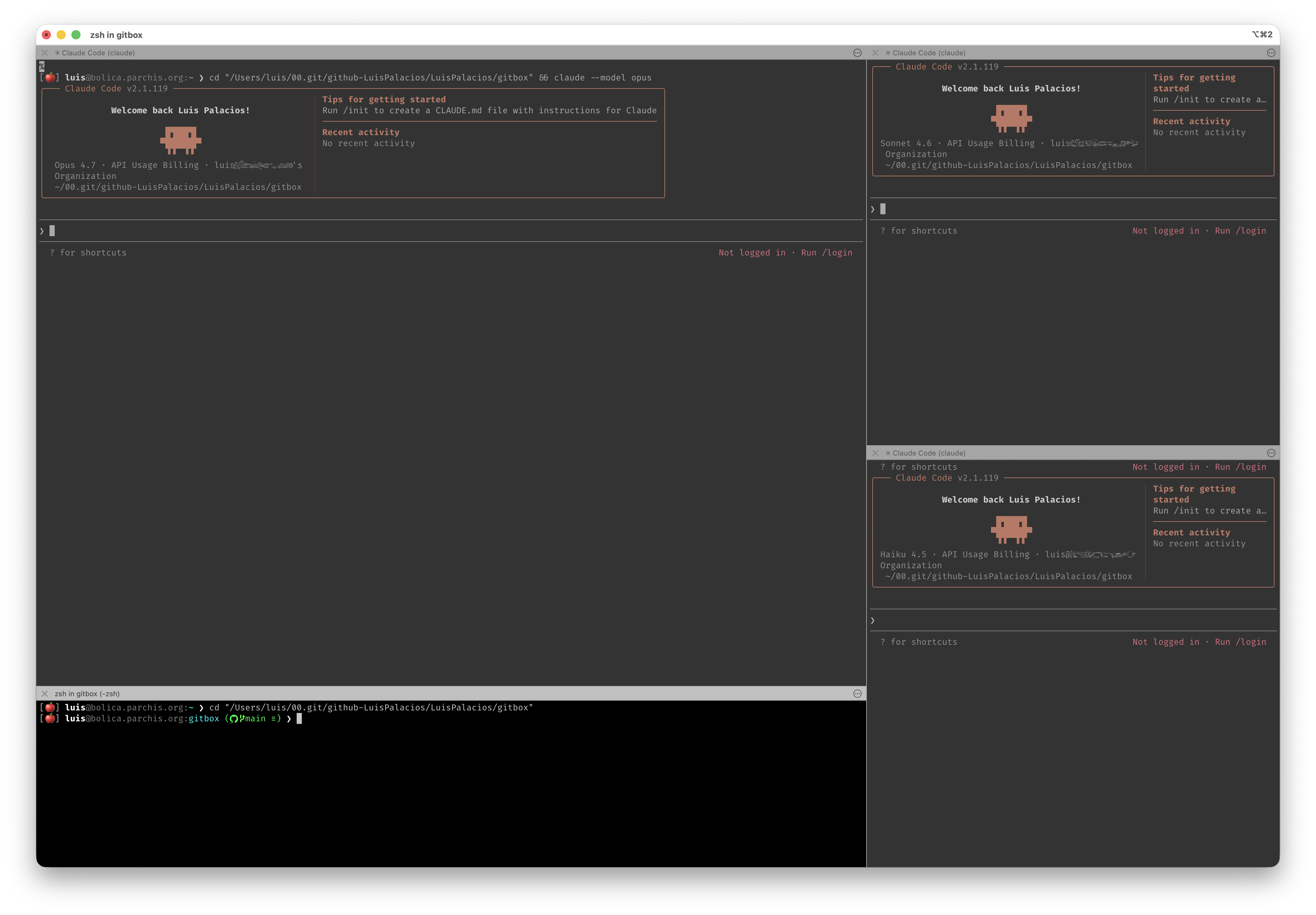
I called it the terminal “AI mode”: four panes, three running claude (each with a different model: opus, sonnet, haiku) and a fourth with a clean shell for auxiliary commands. The non-negotiable requirement is that all four panes start in the directory I pressed the shortcut from, with zero manual steps.
This post covers two paths to set it up: WezTerm (recommended, cross-platform — Windows / macOS / Linux) and iTerm2 (fallback for those who already live in iTerm on macOS and don’t want to switch terminals).
The problem
My first instinct was to look for a “simple” approach that leveraged what the terminal already provides out of the box:
iTerm2 Window Arrangements. The “official” way to save a pane layout. The problem is threefold: you can’t invoke them on demand with parameters, the associated Profiles are rigid, and the Profile’s Working Directory directive has no “use the $PWD of the shell that launched me” option.
tmux or Zellij. Hyper-configurable, beautiful declarative layouts, and native support for “open in $PWD”. But they introduce a layer between the terminal and the shell: their own keyboard prefix, copy/paste with its own quirks, shell integrations to maintain. For my flow — where the terminal already does the multiplexer’s job — that meant trading a small problem for a medium one.
The solution that worked for me. Embed the layout directly in the terminal’s own configuration and attach it to a keyboard shortcut. The recipe changes per terminal: in WezTerm you do it in Lua in its configuration file wezterm.lua; in iTerm2 it’s a bit more involved — you have to write a Python script and install and use its Python API.
WezTerm or iTerm2
| Criterion | WezTerm | iTerm2 |
|---|---|---|
| Supported OS | Windows / macOS / Linux | macOS only |
| Configuration | Lua | Python API + GUI |
| Distribution | One config = all three OS | Only applies if you live in macOS |
| Learning curve | Minimal Lua (lightweight syntax) | Familiar if you already use iTerm |
| Recommended for | New setup or cross-platform | If you only use Mac and don’t want to move |
If you work across more than one OS or you’re picking a terminal from scratch, I recommend the WezTerm path. If you’re on macOS, know iTerm by heart and don’t want to touch your setup, jump to the iTerm2 path.
WezTerm path (cross-platform) ⭐
WezTerm is a modern emulator written in Rust with Lua-based configuration and GPU acceleration. The key thing is that it uses a single config file ~/.config/wezterm/wezterm.lua that works identically on Windows, macOS and Linux.
Quick install
Take a look at my devcli project, which (among many other things) installs WezTerm and adds my full configuration (shell picker, size persistence, theme picker, AI mode, etc.) which you can always adapt:
- WezTerm with devcli — general guide.
- AI Mode — four Claudes in one window — a guide on what this post is about.
If you’d rather skip devcli, install WezTerm by hand following wezterm.org and check out my wezterm.lua.
AI mode in WezTerm
From any window, switch to the directory you want to work on and hit the shortcut — a new window opens with the four panes.
| Platform | Shortcut | Why |
|---|---|---|
| Windows | CTRL+ALT+N | WIN+N is reserved for the Notification Center. |
| macOS / Linux | ⌃⌘N or CTRL+SUPER+N | ALT+N produces the dead-key ~ on Spanish layouts. |
Behavior:
- Inherits the
cwd(current directory) from where you were — the four Claudes and the shell start in that directory. - Layout:
opustop-left (large),sonnettop-right,haikubottom-right, clean shell bottom-left.
How it’s implemented (high level)
The super-config is a single wezterm.lua split into sections (§0 customization, §1 helpers, §2 shell, §3 appearance, §4 AI Mode, §5 shell picker, §6 window state, §7 keybindings, §8 mouse). Only §4 implements AI mode — everything else is orthogonal features.
- Each Claude is launched as the pane’s foreground process (
args = { 'claude', '--model', X }), with no intermediate shell. This avoids the “wait for the shell to be ready” race condition that the iTerm/Python version does need to solve withREADY_TIMEOUTandSEND_GAP. Explicit trade-off: when Claude exits (via/exitor a crash), the pane closes with it — there’s no shell to fall back to. I prefer it that way. find_claude_bin()tries absolute paths on macOS because apps launched from Finder/Spotlight inherit a minimal PATH (/usr/bin:/bin:/usr/sbin:/sbin) that excludes Homebrew and~/.local/bin. On Windows and Linux it trusts the inherited PATH.- Layout = percentages in
AI.LAYOUT_X/Y/W/H(origin + size relative to the screen). The internal proportions areAI.LEFT_RATIO,AI.LEFT_TOP_RATIO,AI.RIGHT_TOP_RATIO. All tunable at the start of the §4 block.
The code lives in my devcli project: the implementation is in dotfiles/wezterm.lua (always the latest version). AI mode is section §4 of that file; the rest are orthogonal features you can read in the same file.
Main tunables
By tweaking the values in AI = { ... } (at the top of §4) you adjust the layout without touching logic:
AI.LEFT_RATIO— what percentage of the width the left column takes (0.65= 65% for opus).AI.LEFT_TOP_RATIO— within the left column, how much the top pane takes (opus vs shell).AI.RIGHT_TOP_RATIO— same for the right column (sonnet vs haiku).AI.LAYOUT_X / Y / W / H— origin (X, Y) and size (W, H) of the window relative to the main screen, as fractions from 0 to 1.AI.MODELS— which model goes in each corner (tltop-left,trtop-right,brbottom-right).
These are the Lua equivalents of the LEFT_RATIO/LEFT_TOP_RATIO/RIGHT_TOP_RATIO you’ll see further down in the iTerm aimode.py.
iTerm2 path (macOS only)
The solution is to use the embedded Python runtime that ships with the application itself. The Python API lets you create windows, split panes, set sizes, read variables from each session and send text.
Scripts live in ~/Library/Application Support/iTerm2/Scripts/ and, if you put them in the AutoLaunch subfolder, they start as daemons every time iTerm2 opens. Once a script is registered, you can assign it a keyboard shortcut from iTerm2 itself.
Setup
Enable the Python API in iTerm2
iTerm2 → Settings → General → Magic → Enable Python API. Tick the box and confirm the security dialog.Create the AutoLaunch folder
Any script inside
AutoLaunchruns automatically when iTerm2 starts:mkdir -p ~/Library/Application\ Support/iTerm2/Scripts/AutoLaunchCreate the script file (example with vscode):
code ~/Library/Application\ Support/iTerm2/Scripts/AutoLaunch/aimode.pyPaste the following content:
aimode.py#!/usr/bin/env python3 """ ================================================================================ aimode — open a 4-pane Claude Code window from the current directory. ================================================================================ LAYOUT ------ +-----------------------------+----------------+ | | | | | tr: sonnet | | | | | tl: opus | | | +----------------+ | | | | | br: haiku | +-----------------------------+ | | bl: shell | | +-----------------------------+----------------+ <-------- LEFT_RATIO -------->|<- 1-LEFT_RATIO-> The left and right columns split independently — the horizontal divider on the left (between opus and shell) does NOT have to align with the one on the right (between sonnet and haiku). That's why we have separate LEFT_TOP_RATIO and RIGHT_TOP_RATIO knobs. ================================================================================ QUICK ADJUSTMENTS — edit the CONFIG block below ================================================================================ 1. RESIZE PANES Change the three *_RATIO values. They're fractions of 1.0 — e.g. 0.65 means "65% of the available space". Increase to make that side bigger. 2. SWAP MODELS / CHANGE COMMANDS Edit the commands() function. Each pane (tl, tr, bl, br) maps to a shell command. Add flags freely: --permission-mode plan, --add-dir, --resume, etc. The shell pane (bl) just runs `cd`, but you can chain anything: `cd ... && git status && git log --oneline -10`. 3. CHANGE WHICH PANE GETS WHICH MODEL Just rewrite the strings in commands(). E.g. swap opus to bottom-right: move the opus command from "tl" to "br" and the haiku command from "br" to "tl". The split structure stays the same. 4. ADD A FIFTH PANE Pick the parent pane to split from, e.g.: mr = await tr.async_split_pane(vertical=False) # split right col Then add it to commands() and to the readiness/send loops below. You'll also need to redistribute right-column heights across three sessions instead of two. 5. CHANGE THE SPLIT STRUCTURE The current order is: tr = split tl vertically (creates left/right columns) bl = split tl horizontally (splits left column into rows) br = split tr horizontally (splits right column into rows) If you want, say, a single shell pane spanning the full bottom width (so left and right columns share a horizontal divider), the order is: bl = split tl horizontally FIRST (full-width bottom) tr = split tl vertically THEN (only top splits in two) The variable names then mean different things — adjust commands() accordingly. 6. TUNE RELIABILITY KNOBS (rarely needed) - READY_TIMEOUT: how long to wait for each shell to finish init before falling back to a cushion delay. Bump if your ~/.zshrc is slow (mise / nvm / heavy completions). - SEND_GAP: pause between consecutive command sends. Bump to 0.1 if you ever see a partial command land in a pane. ================================================================================ INSTALLATION (one time) ================================================================================ 1. iTerm2 → Settings → General → Magic → Enable Python API. 2. Save this file as: ~/Library/Application Support/iTerm2/Scripts/AutoLaunch/aimode.py 3. Restart iTerm2 (or run it once via Scripts → AutoLaunch → aimode.py). 4. Settings → Keys → Key Bindings → + Action: Invoke Script Function Function: aimode() Pick a shortcut (e.g. ⌃⌥⌘A). 5. Press the shortcut from any session, in any directory. To reload after editing this file: Scripts → Manage → Console, find `aimode`, stop it, then Scripts → AutoLaunch → aimode.py to restart. Or just quit and reopen iTerm2. ================================================================================ """ import asyncio import iterm2 # ============================================================================ # CONFIG — tune these to your taste # ============================================================================ # Column width: fraction of total width given to the LEFT column. # 0.65 = left column is 65% of the window, right column is 35%. LEFT_RATIO = 0.65 # Left column rows: fraction of left-column height given to the TOP pane. # 0.82 = opus takes 82% of the left column, shell takes 18%. LEFT_TOP_RATIO = 0.82 # Right column rows: fraction of right-column height given to the TOP pane. # 0.50 = sonnet and haiku split the right column evenly. RIGHT_TOP_RATIO = 0.50 # Per-session readiness timeout in seconds. Bumps to 8.0 or 10.0 are # reasonable if you have a heavy shell init. READY_TIMEOUT = 5.0 # Gap between consecutive command sends in seconds. Belt-and-braces # against iTerm2's redraw cycle dropping a keystroke. SEND_GAP = 0.05 def commands(cwd: str) -> dict: """ Commands fired in each pane after the layout settles. Keys map to pane positions: tl = top-left (the dominant pane on the left) tr = top-right bl = bottom-left (small shell strip below opus) br = bottom-right Each value is a shell command. The `cd` is essential — without it the new pane lands in your shell's default startup directory, not the directory you launched aimode from. """ return { "tl": f'cd "{cwd}" && claude --model opus', "tr": f'cd "{cwd}" && claude --model sonnet', "bl": f'cd "{cwd}"', "br": f'cd "{cwd}" && claude --model haiku', } # ============================================================================ # Internals — usually no need to touch below this line # ============================================================================ async def wait_ready(session, timeout: float = READY_TIMEOUT) -> bool: """ Wait until a session's shell is interactive and listening. Uses iTerm2's per-session `path` variable as the readiness proxy: it's populated once the shell has set its working directory, which in practice means zsh's line editor (zle) is attached to the TTY and ready to accept keystrokes. Without this, fast machines race the script ahead of the shell and the cd/claude command lands in the void before the prompt appears. Returns True if ready within the timeout, False otherwise. """ deadline_steps = int(timeout * 20) # poll every 50ms for _ in range(deadline_steps): path = await session.async_get_variable("path") if path: return True await asyncio.sleep(0.05) return False async def main(connection): app = await iterm2.async_get_app(connection) @iterm2.RPC async def aimode(): # ---------------------------------------------------------------- # 1. Capture the originating CWD BEFORE creating the new window. # Once async_create runs, current_terminal_window points at # the new (empty) window, not the one you triggered from. # ---------------------------------------------------------------- cwd = "~" win = app.current_terminal_window if win is not None: current = win.current_tab.current_session path = await current.async_get_variable("path") if path: cwd = path # ---------------------------------------------------------------- # 2. Create a new window and split it into 4 panes. # # Split order matters for layout independence: # - First we split tl vertically -> creates tr (right column). # - Then we split tl horizontally -> creates bl below opus. # - Then we split tr horizontally -> creates br below sonnet. # # Because bl is a child of tl (left column) and br is a child # of tr (right column), the two columns get independent # horizontal dividers — exactly what we want. # ---------------------------------------------------------------- window = await iterm2.Window.async_create(connection) if window is None: return tab = window.current_tab tl = tab.current_session tr = await tl.async_split_pane(vertical=True) # left | right bl = await tl.async_split_pane(vertical=False) # opus / shell br = await tr.async_split_pane(vertical=False) # sonnet / haiku # ---------------------------------------------------------------- # 3. Resize panes via preferred_size + async_update_layout. # # preferred_size is a hint expressed in character cells (cols # x rows), not pixels. iTerm2's layout engine respects the # hints while keeping aligned panes consistent (e.g. tl and # bl must share a width because they're in the same column). # # We compute totals from the current sizes and apply ratios. # The max(...) floors prevent a pathologically small pane if # someone sets a ratio close to 0 or 1. # ---------------------------------------------------------------- total_w = tl.preferred_size.width + tr.preferred_size.width left_w = max(20, int(total_w * LEFT_RATIO)) right_w = max(20, total_w - left_w) left_total_h = tl.preferred_size.height + bl.preferred_size.height left_top_h = max(10, int(left_total_h * LEFT_TOP_RATIO)) left_bot_h = max(3, left_total_h - left_top_h) right_total_h = tr.preferred_size.height + br.preferred_size.height right_top_h = max(10, int(right_total_h * RIGHT_TOP_RATIO)) right_bot_h = max(6, right_total_h - right_top_h) tl.preferred_size = iterm2.Size(left_w, left_top_h) bl.preferred_size = iterm2.Size(left_w, left_bot_h) tr.preferred_size = iterm2.Size(right_w, right_top_h) br.preferred_size = iterm2.Size(right_w, right_bot_h) await tab.async_update_layout() # ---------------------------------------------------------------- # 4. Wait for all four shells to be interactive (in parallel). # Total wait is bounded by the slowest shell, not the sum. # Falls back to a cushion delay only if a shell genuinely # didn't report ready in READY_TIMEOUT seconds. # ---------------------------------------------------------------- readiness = await asyncio.gather( wait_ready(tl), wait_ready(tr), wait_ready(bl), wait_ready(br), ) if not all(readiness): await asyncio.sleep(0.5) # ---------------------------------------------------------------- # 5. Fire commands sequentially with a small inter-command gap. # The gap (50ms) is below human perception but above iTerm2's # redraw window, which prevents the renderer from dropping a # keystroke when four panes update in the same animation # frame. # ---------------------------------------------------------------- cmd = commands(cwd) for session, key in [(tl, "tl"), (tr, "tr"), (bl, "bl"), (br, "br")]: await session.async_send_text(cmd[key] + "\n") await asyncio.sleep(SEND_GAP) await aimode.async_register(connection) iterm2.run_forever(main)Start the daemon
Once the file is saved, you have two options:
- Run it once now from
Scripts → AutoLaunch → aimode.pyin the menu bar. - Restart iTerm2 — since it’s in
AutoLaunchit’ll start on every launch.
The first time iTerm2 runs a script it may ask for permission. Accept. To verify the daemon is running, open
Scripts → Manage → Console: you should seeaimodein the list with no errors.- Run it once now from
Assign the keyboard shortcut
Settings → Keys → Key Bindings → +:- Keyboard Shortcut: whichever you prefer (I use
⌃⌘N, but any free combo works). - Action: Invoke Script Function.
- Function:
aimode()— the parentheses are mandatory.
- Keyboard Shortcut: whichever you prefer (I use
Using it in iTerm2
From any iTerm2 session, in any directory, hit the shortcut. You end up with a window with four panes in the directory you were in, and the three Claude panes launch opus, sonnet and haiku automatically.
You can tune the script by tweaking the CONFIG block at the top:
LEFT_RATIO— percentage of the width the left column takes (0.65= 65%).LEFT_TOP_RATIO— within the left column, how much the top pane takes (opus).RIGHT_TOP_RATIO— same for the right column (sonnet vs haiku).READY_TIMEOUT— how long to wait for each shell to finish initializing before sending commands. Bump it if your~/.zshrcis slow (mise, nvm, heavy completions).SEND_GAP— pause between consecutive commands. Bump it to0.1if you ever see a truncated command.
When you edit the script:
Scripts → Manage → Console → find aimode → Stop → Scripts → AutoLaunch → aimode.py to restart. Or close and reopen iTerm2 — either works.
Next steps / extensions
Once you have the base, you can build your own layouts. Some ideas:
aimode plan— the three Claudes starting with--permission-mode planfor planning sessions.aimode review <PR>— open the shell pane with agh pr checkout <PR>and the Claudes in review mode.- Alternative layouts — an
aireview.pywith three vertical panes to compare diffs side-by-side, or anaiops.pywith shells on different servers via SSH.
Since each layout is a Python script in AutoLaunch and each one registers as its own RPC, you can have several shortcuts — ⌃⌥⌘A, ⌃⌥⌘P, ⌃⌥⌘R — invoking different layouts without stepping on each other.
In WezTerm the parallel is to duplicate the §4 block with different AI.MODELS and attach more keyboard shortcuts (e.g. CTRL+ALT+P, CTRL+ALT+R) to the same functions — all without touching Python or the iTerm API.
Useful links
| Type | Links |
|---|---|
| Project | devcli |
| Official | WezTerm |
| Official | iTerm2 Python API |
| Reference | Claude CLI documentation |