Cuando trabajas con un harness de IA (Claude Code, Gemini CLI, Codex, …) acabas arrancando varias instancias una y otra vez. Quería tener un atajo de teclado para que me abriese mi configuración más típica usando paneles en una ventana.
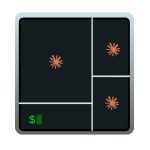
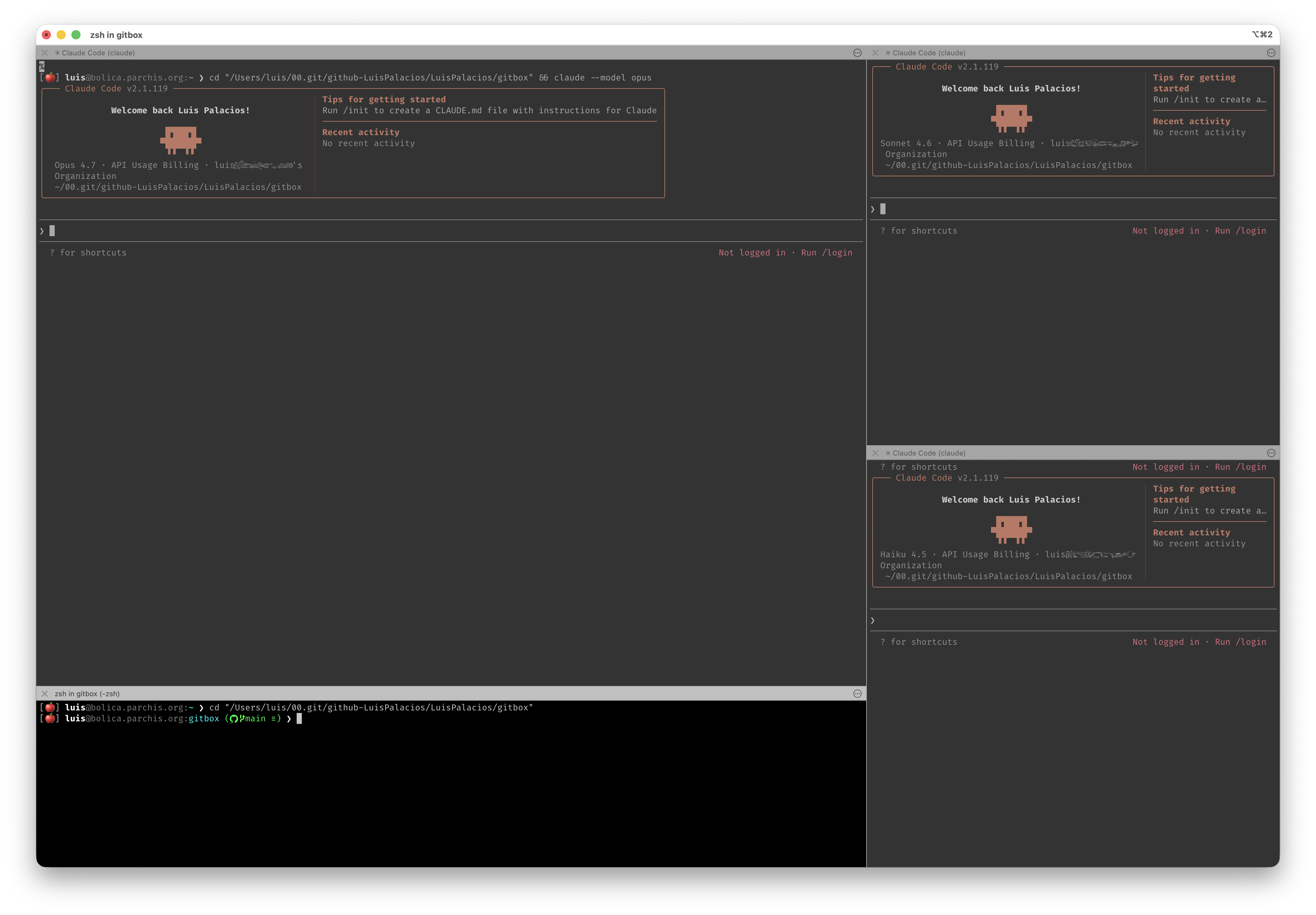
Lo he llamado el terminal “modo IA”: cuatro paneles, tres con claude (cada uno con un modelo distinto: opus, sonnet, haiku) y un cuarto con una shell limpia para comandos auxiliares. El requisito no negociable es que los cuatro paneles arranquen en el directorio desde el que pulso el atajo, sin pasos manuales.
Este post cubre dos rutas para montarlo: WezTerm (recomendada, multiplataforma — Windows / macOS / Linux) e iTerm2 (fallback para quien ya viva en iTerm en macOS y no quiera cambiar de terminal).
El problema
Instintivamente empecé buscando una forma “simple” que aprovechara lo que el terminal ya trae de fábrica:
Window Arrangements de iTerm2. La forma “oficial” de guardar una disposición de paneles. El problema es triple: no se puede invocar bajo demanda con parámetros, los Profiles asociados son rígidos, y la directiva Working Directory del Profile no tiene una opción “usa el $PWD del shell que me lanzó”.
tmux o Zellij. Hiperconfigurables, layouts declarativos preciosos, y soporte nativo para “abrir en $PWD”. Pero introducen una capa entre el terminal y la shell: prefijo de teclado propio, copy/paste con sus particularidades, integraciones con shell que hay que mantener. Para mi flujo —donde el terminal ya hace el trabajo del multiplexor— era cambiar un problema pequeño por otro mediano.
Solución que me funcionó. Empotrar el layout en la propia configuración del terminal y asociarlo a un atajo de teclado. La receta cambia según el terminal: en WezTerm se hace en Lua en su fichero de configuración wezterm.lua, en iTerm2 es un poco más complicado, hay que hacer un script en Python e instalar y usar su Python API.
WezTerm o iTerm2
| Criterio | WezTerm | iTerm2 |
|---|---|---|
| OS soportados | Windows / macOS / Linux | Sólo macOS |
| Configuración | Lua | Python API + GUI |
| Distribución | Una config = los tres OS | Sólo aplica si vives en macOS |
| Aprendizaje | Lua mínimo (sintaxis ligera) | Conocido si ya usas iTerm |
| Recomendado para | Setup nuevo o multiplataforma | Si solo usas Mac y no quieres moverte |
Si trabajas en más de un OS o estás eligiendo terminal desde cero, te recomiendo la ruta WezTerm. Si estás en macOS, conoces iTerm de memoria y no quieres tocar tu setup, salta a la ruta iTerm2.
Ruta WezTerm (multiplataforma) ⭐
WezTerm es un emulador moderno escrito en Rust con configuración en Lua y aceleración GPU. Lo importante es que usa un único fichero de configuración ~/.config/wezterm/wezterm.lua que funciona de forma idéntica en Windows, macOS y Linux.
Instalación rápida
Échale un ojo a mi proyecto devcli, que además de hacer muchas otras cosas, te instala WezTerm y le añade mi configuración completa (selector de shells, persistencia de tamaño, theme picker, modo IA, etc.) que siempre puedes adaptar:
- WezTerm con devcli — guía general.
- AI Mode — cuatro Claudes en una ventana — una guía sobre lo que va este apunte.
Si prefieres no usar devcli, instala WezTerm a mano siguiendo wezterm.org y échale un ojo a mi wezterm.lua.
El modo IA en WezTerm
Desde cualquier ventana, te vas al directorio sobre el que quieres trabajar y pulsas el atajo, se abre una ventana nueva con los cuatro paneles.
| Plataforma | Atajo | Por qué |
|---|---|---|
| Windows | CTRL+ALT+N | WIN+N está reservado para el Centro de notificaciones. |
| macOS / Linux | ⌃⌘N o CTRL+SUPER+N | ALT+N produce el dead-key ~ en layouts españoles. |
Comportamiento:
- Hereda el
cwd(directorio actual) desde donde estabas — los cuatro Claudes y la shell arrancan en ese directorio. - Layout:
opusarriba-izquierda (grande),sonnetarriba-derecha,haikuabajo-derecha, shell limpia abajo-izquierda.
Cómo está implementado (alto nivel)
La super-config es un único wezterm.lua partido en secciones (§0 personalización, §1 helpers, §2 shell, §3 apariencia, §4 AI Mode, §5 shell picker, §6 estado de ventana, §7 atajos, §8 ratón). Sólo §4 implementa el modo IA — todo lo demás son features ortogonales.
- Cada Claude se lanza como proceso foreground del pane (
args = { 'claude', '--model', X }), sin shell intermedio. Esto evita la condición de carrera “esperar a que el shell esté listo” que la versión iTerm/Python sí necesita resolver conREADY_TIMEOUTySEND_GAP. Trade-off explícito: cuando Claude se cierra (por/exito crash), el pane se cierra con él — no hay shell al que volver. Yo lo prefiero así. find_claude_bin()prueba paths absolutos en macOS porque las apps lanzadas desde Finder/Spotlight reciben un PATH mínimo (/usr/bin:/bin:/usr/sbin:/sbin) que excluye Homebrew y~/.local/bin. En Windows y Linux confía en el PATH heredado.- Layout = porcentajes en
AI.LAYOUT_X/Y/W/H(origen + tamaño respecto a la pantalla). Y las proporciones internas sonAI.LEFT_RATIO,AI.LEFT_TOP_RATIO,AI.RIGHT_TOP_RATIO. Todos tunables al inicio del bloque §4.
El código vive en mi proyecto devcli: la implementación está en dotfiles/wezterm.lua (siempre la última versión). El modo IA es la sección §4 de ese fichero; el resto son features ortogonales que puedes leer en el mismo.
Tunables principales
Tocando los valores en AI = { ... } (al principio de §4) ajustas el layout sin tocar lógica:
AI.LEFT_RATIO— qué porcentaje del ancho se lleva la columna izquierda (0.65= 65% para opus).AI.LEFT_TOP_RATIO— dentro de la columna izquierda, cuánto se lleva el panel de arriba (opus vs shell).AI.RIGHT_TOP_RATIO— lo mismo para la columna derecha (sonnet vs haiku).AI.LAYOUT_X / Y / W / H— origen (X, Y) y tamaño (W, H) de la ventana respecto a la pantalla principal, en fracciones de 0 a 1.AI.MODELS— qué modelo va en cada esquina (tltop-left,trtop-right,brbottom-right).
Son los equivalentes Lua a los LEFT_RATIO/LEFT_TOP_RATIO/RIGHT_TOP_RATIO que verás más abajo en el aimode.py de iTerm.
Ruta iTerm2 (solo macOS)
La solución consiste en usar el runtime de Python embebido que viene con la propia aplicación. El Python API permite crear ventanas, dividir paneles, fijar tamaños, leer variables de cada sesión y enviar texto.
Los scripts viven en ~/Library/Application Support/iTerm2/Scripts/ y, si los pones en la subcarpeta AutoLaunch, arrancan como demonios cada vez que iTerm2 se abre. Una vez registrado un script, se le puede asignar un atajo de teclado desde el propio iTerm2.
Preparación
Activar el Python API en iTerm2
iTerm2 → Settings → General → Magic → Enable Python API. Marca la casilla y confirma el diálogo de seguridad.Crear la carpeta AutoLaunch
Cualquier script dentro de
AutoLaunchse ejecuta automáticamente al arrancar iTerm2:mkdir -p ~/Library/Application\ Support/iTerm2/Scripts/AutoLaunchCrear el fichero del script (ejemplo con vscode):
code ~/Library/Application\ Support/iTerm2/Scripts/AutoLaunch/aimode.pyPegar el contenido siguiente:
aimode.py#!/usr/bin/env python3 """ ================================================================================ aimode — open a 4-pane Claude Code window from the current directory. ================================================================================ LAYOUT ------ +-----------------------------+----------------+ | | | | | tr: sonnet | | | | | tl: opus | | | +----------------+ | | | | | br: haiku | +-----------------------------+ | | bl: shell | | +-----------------------------+----------------+ <-------- LEFT_RATIO -------->|<- 1-LEFT_RATIO-> The left and right columns split independently — the horizontal divider on the left (between opus and shell) does NOT have to align with the one on the right (between sonnet and haiku). That's why we have separate LEFT_TOP_RATIO and RIGHT_TOP_RATIO knobs. ================================================================================ QUICK ADJUSTMENTS — edit the CONFIG block below ================================================================================ 1. RESIZE PANES Change the three *_RATIO values. They're fractions of 1.0 — e.g. 0.65 means "65% of the available space". Increase to make that side bigger. 2. SWAP MODELS / CHANGE COMMANDS Edit the commands() function. Each pane (tl, tr, bl, br) maps to a shell command. Add flags freely: --permission-mode plan, --add-dir, --resume, etc. The shell pane (bl) just runs `cd`, but you can chain anything: `cd ... && git status && git log --oneline -10`. 3. CHANGE WHICH PANE GETS WHICH MODEL Just rewrite the strings in commands(). E.g. swap opus to bottom-right: move the opus command from "tl" to "br" and the haiku command from "br" to "tl". The split structure stays the same. 4. ADD A FIFTH PANE Pick the parent pane to split from, e.g.: mr = await tr.async_split_pane(vertical=False) # split right col Then add it to commands() and to the readiness/send loops below. You'll also need to redistribute right-column heights across three sessions instead of two. 5. CHANGE THE SPLIT STRUCTURE The current order is: tr = split tl vertically (creates left/right columns) bl = split tl horizontally (splits left column into rows) br = split tr horizontally (splits right column into rows) If you want, say, a single shell pane spanning the full bottom width (so left and right columns share a horizontal divider), the order is: bl = split tl horizontally FIRST (full-width bottom) tr = split tl vertically THEN (only top splits in two) The variable names then mean different things — adjust commands() accordingly. 6. TUNE RELIABILITY KNOBS (rarely needed) - READY_TIMEOUT: how long to wait for each shell to finish init before falling back to a cushion delay. Bump if your ~/.zshrc is slow (mise / nvm / heavy completions). - SEND_GAP: pause between consecutive command sends. Bump to 0.1 if you ever see a partial command land in a pane. ================================================================================ INSTALLATION (one time) ================================================================================ 1. iTerm2 → Settings → General → Magic → Enable Python API. 2. Save this file as: ~/Library/Application Support/iTerm2/Scripts/AutoLaunch/aimode.py 3. Restart iTerm2 (or run it once via Scripts → AutoLaunch → aimode.py). 4. Settings → Keys → Key Bindings → + Action: Invoke Script Function Function: aimode() Pick a shortcut (e.g. ⌃⌥⌘A). 5. Press the shortcut from any session, in any directory. To reload after editing this file: Scripts → Manage → Console, find `aimode`, stop it, then Scripts → AutoLaunch → aimode.py to restart. Or just quit and reopen iTerm2. ================================================================================ """ import asyncio import iterm2 # ============================================================================ # CONFIG — tune these to your taste # ============================================================================ # Column width: fraction of total width given to the LEFT column. # 0.65 = left column is 65% of the window, right column is 35%. LEFT_RATIO = 0.65 # Left column rows: fraction of left-column height given to the TOP pane. # 0.82 = opus takes 82% of the left column, shell takes 18%. LEFT_TOP_RATIO = 0.82 # Right column rows: fraction of right-column height given to the TOP pane. # 0.50 = sonnet and haiku split the right column evenly. RIGHT_TOP_RATIO = 0.50 # Per-session readiness timeout in seconds. Bumps to 8.0 or 10.0 are # reasonable if you have a heavy shell init. READY_TIMEOUT = 5.0 # Gap between consecutive command sends in seconds. Belt-and-braces # against iTerm2's redraw cycle dropping a keystroke. SEND_GAP = 0.05 def commands(cwd: str) -> dict: """ Commands fired in each pane after the layout settles. Keys map to pane positions: tl = top-left (the dominant pane on the left) tr = top-right bl = bottom-left (small shell strip below opus) br = bottom-right Each value is a shell command. The `cd` is essential — without it the new pane lands in your shell's default startup directory, not the directory you launched aimode from. """ return { "tl": f'cd "{cwd}" && claude --model opus', "tr": f'cd "{cwd}" && claude --model sonnet', "bl": f'cd "{cwd}"', "br": f'cd "{cwd}" && claude --model haiku', } # ============================================================================ # Internals — usually no need to touch below this line # ============================================================================ async def wait_ready(session, timeout: float = READY_TIMEOUT) -> bool: """ Wait until a session's shell is interactive and listening. Uses iTerm2's per-session `path` variable as the readiness proxy: it's populated once the shell has set its working directory, which in practice means zsh's line editor (zle) is attached to the TTY and ready to accept keystrokes. Without this, fast machines race the script ahead of the shell and the cd/claude command lands in the void before the prompt appears. Returns True if ready within the timeout, False otherwise. """ deadline_steps = int(timeout * 20) # poll every 50ms for _ in range(deadline_steps): path = await session.async_get_variable("path") if path: return True await asyncio.sleep(0.05) return False async def main(connection): app = await iterm2.async_get_app(connection) @iterm2.RPC async def aimode(): # ---------------------------------------------------------------- # 1. Capture the originating CWD BEFORE creating the new window. # Once async_create runs, current_terminal_window points at # the new (empty) window, not the one you triggered from. # ---------------------------------------------------------------- cwd = "~" win = app.current_terminal_window if win is not None: current = win.current_tab.current_session path = await current.async_get_variable("path") if path: cwd = path # ---------------------------------------------------------------- # 2. Create a new window and split it into 4 panes. # # Split order matters for layout independence: # - First we split tl vertically -> creates tr (right column). # - Then we split tl horizontally -> creates bl below opus. # - Then we split tr horizontally -> creates br below sonnet. # # Because bl is a child of tl (left column) and br is a child # of tr (right column), the two columns get independent # horizontal dividers — exactly what we want. # ---------------------------------------------------------------- window = await iterm2.Window.async_create(connection) if window is None: return tab = window.current_tab tl = tab.current_session tr = await tl.async_split_pane(vertical=True) # left | right bl = await tl.async_split_pane(vertical=False) # opus / shell br = await tr.async_split_pane(vertical=False) # sonnet / haiku # ---------------------------------------------------------------- # 3. Resize panes via preferred_size + async_update_layout. # # preferred_size is a hint expressed in character cells (cols # x rows), not pixels. iTerm2's layout engine respects the # hints while keeping aligned panes consistent (e.g. tl and # bl must share a width because they're in the same column). # # We compute totals from the current sizes and apply ratios. # The max(...) floors prevent a pathologically small pane if # someone sets a ratio close to 0 or 1. # ---------------------------------------------------------------- total_w = tl.preferred_size.width + tr.preferred_size.width left_w = max(20, int(total_w * LEFT_RATIO)) right_w = max(20, total_w - left_w) left_total_h = tl.preferred_size.height + bl.preferred_size.height left_top_h = max(10, int(left_total_h * LEFT_TOP_RATIO)) left_bot_h = max(3, left_total_h - left_top_h) right_total_h = tr.preferred_size.height + br.preferred_size.height right_top_h = max(10, int(right_total_h * RIGHT_TOP_RATIO)) right_bot_h = max(6, right_total_h - right_top_h) tl.preferred_size = iterm2.Size(left_w, left_top_h) bl.preferred_size = iterm2.Size(left_w, left_bot_h) tr.preferred_size = iterm2.Size(right_w, right_top_h) br.preferred_size = iterm2.Size(right_w, right_bot_h) await tab.async_update_layout() # ---------------------------------------------------------------- # 4. Wait for all four shells to be interactive (in parallel). # Total wait is bounded by the slowest shell, not the sum. # Falls back to a cushion delay only if a shell genuinely # didn't report ready in READY_TIMEOUT seconds. # ---------------------------------------------------------------- readiness = await asyncio.gather( wait_ready(tl), wait_ready(tr), wait_ready(bl), wait_ready(br), ) if not all(readiness): await asyncio.sleep(0.5) # ---------------------------------------------------------------- # 5. Fire commands sequentially with a small inter-command gap. # The gap (50ms) is below human perception but above iTerm2's # redraw window, which prevents the renderer from dropping a # keystroke when four panes update in the same animation # frame. # ---------------------------------------------------------------- cmd = commands(cwd) for session, key in [(tl, "tl"), (tr, "tr"), (bl, "bl"), (br, "br")]: await session.async_send_text(cmd[key] + "\n") await asyncio.sleep(SEND_GAP) await aimode.async_register(connection) iterm2.run_forever(main)Arrancar el demonio
Una vez salvado el fichero, hay dos opciones:
- Ejecutarlo una vez ahora desde
Scripts → AutoLaunch → aimode.pyen la barra de menú. - Reiniciar iTerm2 — como está en
AutoLaunchlo arrancará en cada apertura.
La primera vez que iTerm2 ejecute un script puede pedirte permiso. Acepta. Para verificar que el demonio está corriendo, abre
Scripts → Manage → Console: deberías veraimodeen la lista sin errores.- Ejecutarlo una vez ahora desde
Asignar el atajo de teclado
Settings → Keys → Key Bindings → +:- Keyboard Shortcut: el que prefieras (yo uso
⌃⌘N, pero cualquiera libre vale). - Action: Invoke Script Function.
- Function:
aimode()— los paréntesis son obligatorios.
- Keyboard Shortcut: el que prefieras (yo uso
Cómo se usa en iTerm2
Desde cualquier sesión de iTerm2, en cualquier directorio, pulsas el atajo. Acabas con una ventana con cuatro paneles en el directorio donde estabas, y los tres paneles de Claude lanzan opus, sonnet y haiku automáticamente.
Puedes tunear el script tocando el bloque CONFIG en la cabecera:
LEFT_RATIO— porcentaje del ancho que se lleva la columna izquierda (0.65= 65%).LEFT_TOP_RATIO— dentro de la columna izquierda, cuánto se lleva el panel de arriba (opus).RIGHT_TOP_RATIO— lo mismo para la columna derecha (sonnet vs haiku).READY_TIMEOUT— cuánto esperar a que cada shell termine de inicializar antes de enviar comandos. Súbelo si tu~/.zshrces lento (mise, nvm, completions pesados).SEND_GAP— pausa entre comandos consecutivos. Súbelo a0.1si alguna vez ves un comando truncado.
Cuando edites el script:
Scripts → Manage → Console → buscar aimode → Stop → Scripts → AutoLaunch → aimode.py para reiniciar. O cierras y vuelves a abrir iTerm2, da igual.
Próximos pasos / extensiones
Una vez tienes la base, puedes crearte tus propios layouts. Algunas ideas:
aimode plan— los tres Claudes arrancando con--permission-mode planpara sesiones de planificación.aimode review <PR>— abrir el panel de shell con ungh pr checkout <PR>y los Claudes en modo revisión.- Layouts alternativos — un
aireview.pycon tres paneles verticales para comparar diffs en paralelo, o unaiops.pycon shells en distintos servidores vía SSH.
Como cada layout es un script Python en AutoLaunch y cada uno se registra como su propia RPC, puedes tener varios atajos —⌃⌥⌘A, ⌃⌥⌘P, ⌃⌥⌘R— invocando layouts distintos sin que se pisen.
En WezTerm el paralelo es duplicar el bloque §4 con AI.MODELS distintos y asociar más atajos de teclado (por ejemplo CTRL+ALT+P, CTRL+ALT+R) sobre las mismas funciones — todo sin tocar Python ni la API de iTerm.
Enlaces interesantes
| Tipo | Enlaces |
|---|---|
| Proyecto | devcli |
| Oficial | WezTerm |
| Oficial | iTerm2 Python API |
| Referencia | Documentación de Claude CLI |